


AI Summary




TL;DR
- Zapier connects 9,000+ apps and lets a small business automate lead capture, onboarding, follow-up, invoicing, and reviews without code.
- The 15 Zaps below are the exact workflows we built for service businesses, consultants, and agencies. Each one is written as Trigger → Action → Result with the time it saves and the plan it needs.
- Zapier pricing in 2026 is Free ($0; 100 tasks; two-step Zaps only), Professional (from $19.99/month annually; multi-step Zaps; premium apps), and Team (from $69/month annually). The old Starter tier no longer exists, so we have updated every plan reference in this guide.
- Most small businesses need a professional. Free is a sandbox, not a production tier.
- Make.com is cheaper per action and better for complex branching. Zapier wins in setup speed, reliability, and the widest app catalog. We use both, and we’ll tell you when to pick which one.
- Zapier AI Agents (built by Zapier’s team, led by co-founder and CEO Wade Foster) now handle triage, enrichment, and routing. They are a separate add-on, and most small businesses should master plain Zaps first.
Zapier wins the moment a repeatable task happens more than twice a week. Manual processes feel free because the cost is hidden inside your day. Automation moves that cost into a one-time setup, then hands you the hours back every week after.
We work with small business owners who are the sales rep, the bookkeeper, the project manager, and the person answering the phone. The problem is never a lack of effort.
It is those same low-value steps that repeat hundreds of times a month, and each one is a place where a lead goes cold or an invoice gets forgotten.
| When a task is boring, repetitive, and rule-based, a human is the most expensive and least reliable way to do it. That is the exact profile of work Zapier is built to remove. |
The Four Tasks of Eating 10 Hours a Week in Most Small Businesses

Four categories of manual work account for most of the wasted hours we see in small businesses.
- Lead handling. Copying a form or ad lead into a CRM, then remembering to follow up. A slow first response is the single biggest reason small businesses lose deals.
- Onboarding. Sending the welcome email, creating the project, booking the kickoff, and telling the team, all by hand, every time a deal closes.
- Follow-up. Chasing stalled deals, sent proposals, and old lost leads. This is the work everyone knows they should do and almost nobody does consistently.
- Admin and finance. Creating invoices, logging payments, and tracking expenses across three tools that do not talk to each other.
Add these up, and most owners lose 8 to 12 hours a week to work that produces no new revenue on its own.
What a Day Looks Like When Your Zaps Are Running
A day with your Zaps running looks quiet, and that is the point. The work still happens, but you’re no longer the one moving data between apps.
A new lead hits your ad, lands in your CRM within a minute, and pings your phone in Slack. A signed contract spins up a project and a kickoff call without you touching a keyboard.
A paid invoice sends its own thank-you and updates the customer record. A finished job asks the client for a Google review on its own.
You spend your hours on the two things that actually need a human, selling and delivering, and the busywork runs in the background.
Is Zapier Worth It for a Small Business?
Zapier is worth it for most small businesses. If a $ 19.99-per-month plan saves you five hours a month, you are buying your own time back for under $4 an hour. We have never had a client regret that trade once the Zaps were live.
Zapier Free vs Professional vs Team: The Real Difference
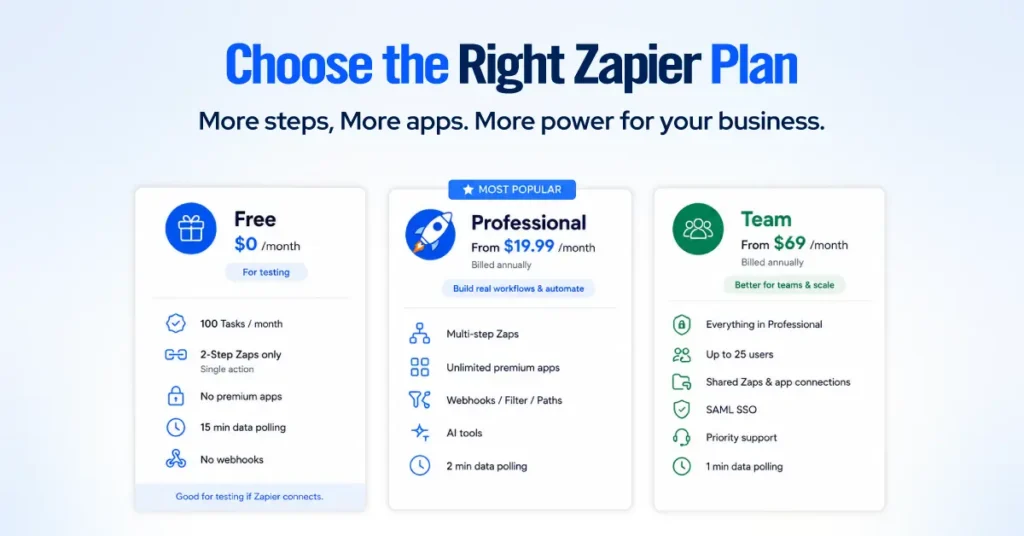
The real difference is steps and apps. Free caps you at two-step Zaps and blocks premium apps, which rules out almost every workflow. Professional unlocks multi-step Zaps and premium apps, which is where the value lives.
- Free ($0/month): 100 tasks per month, unlimited Zaps, but only two steps (one trigger, one action), 15-minute polling, no premium apps, no webhooks. Good for testing whether Zapier connects your specific apps. Not a production tier.
- Professional (from $19.99/month billed annually): Multi-step Zaps, unlimited premium apps, webhooks, filters, and Paths, AI fields, and faster 2-minute polling. This is where most small businesses land.
- Team (from $69/month billed annually): Everything in Professional plus 25 users, shared Zaps and app connections, SAML single sign-on, priority support, and 1-minute polling. Right for agencies where several people build automations.
How Triggers, Actions, and Tasks Actually Work
A trigger starts a Zap, an action is a step it performs, and a task is counted only when an action completes successfully. This is the most useful billing fact in Zapier, and it changes how you design Zaps.
- Trigger: The event that kicks things off, like a new form submission or a new paid invoice. Triggers are free. Checking (polling) for new data is also free.
- Action: A step that Zapier performs, such as creating a contact or sending an email. Every successful action costs one task.
- Free steps: Filters, Paths, Formatter, Delay, Looping, Tables, and Forms do not count as tasks. Put a filter early in a Zap so you never pay for actions on records you throw away.

If you exceed your monthly tasks, Zapier keeps your Zaps running and bills overage at roughly 1.25 times your base rate rather than shutting you off mid-month.
Which Zapier Plan Does a Small Business Actually Need?
Most small businesses need a professional, full stop. Free cannot run the multi-step, premium-app workflows that create real value, and Team only earns its price once multiple people are building and sharing automations.
Here is the rule we give clients. If you are a solo owner or a small team with one person managing automations, start on Professional and size your task tier to your busiest month.
If three or more people need to build, edit, or own shared Zaps, move to Team for the collaboration controls and single sign-on.
15 Zapier Automations for Small Business

Zapier Lead Capture Workflows for Small Business
The highest-return Zaps a small business can build all live at the top of the funnel, because speed to lead decides who wins. These three get every new lead into your CRM and in front of a human within a minute.
Zap 1: Facebook Lead Ads Trigger to Pipedrive Contact and Slack Alert
Paid leads are the most expensive leads you have. Leaving them in an ad platform inbox until someone checks it is how ad budgets get wasted.
This Zap turns a paid ad lead into a CRM contact and a team alert before the prospect closes the tab.
| The Zap: New Facebook Lead Ads lead → Create or update Pipedrive person and deal → Post alert to your #sales Slack channel | |
| Time saved: Around 3 to 4 minutes per lead, plus the deals you stop losing to slow responses. | Plan required: Professional. |

Zap 2: Website Form Submission to CRM Contact and Instant Follow-Up Email
This Zap captures a website inquiry, files it in your CRM, and sends a branded reply while the visitor is still interested. Add a Zapier Filter so only real inquiries pass through and spam never burns a task.
| The Zap New form submission (Gravity Forms, Typeform, or Jotform) → Create a Pipedrive contact → Send an instant reply via Gmail | |
| Time saved: About 5 minutes per inquiry, and a first response that lands in seconds instead of hours. | Plan required: Professional for multi-step and premium CRM apps. A bare two-step version (form-to-email only) can technically run on the Free plan. |

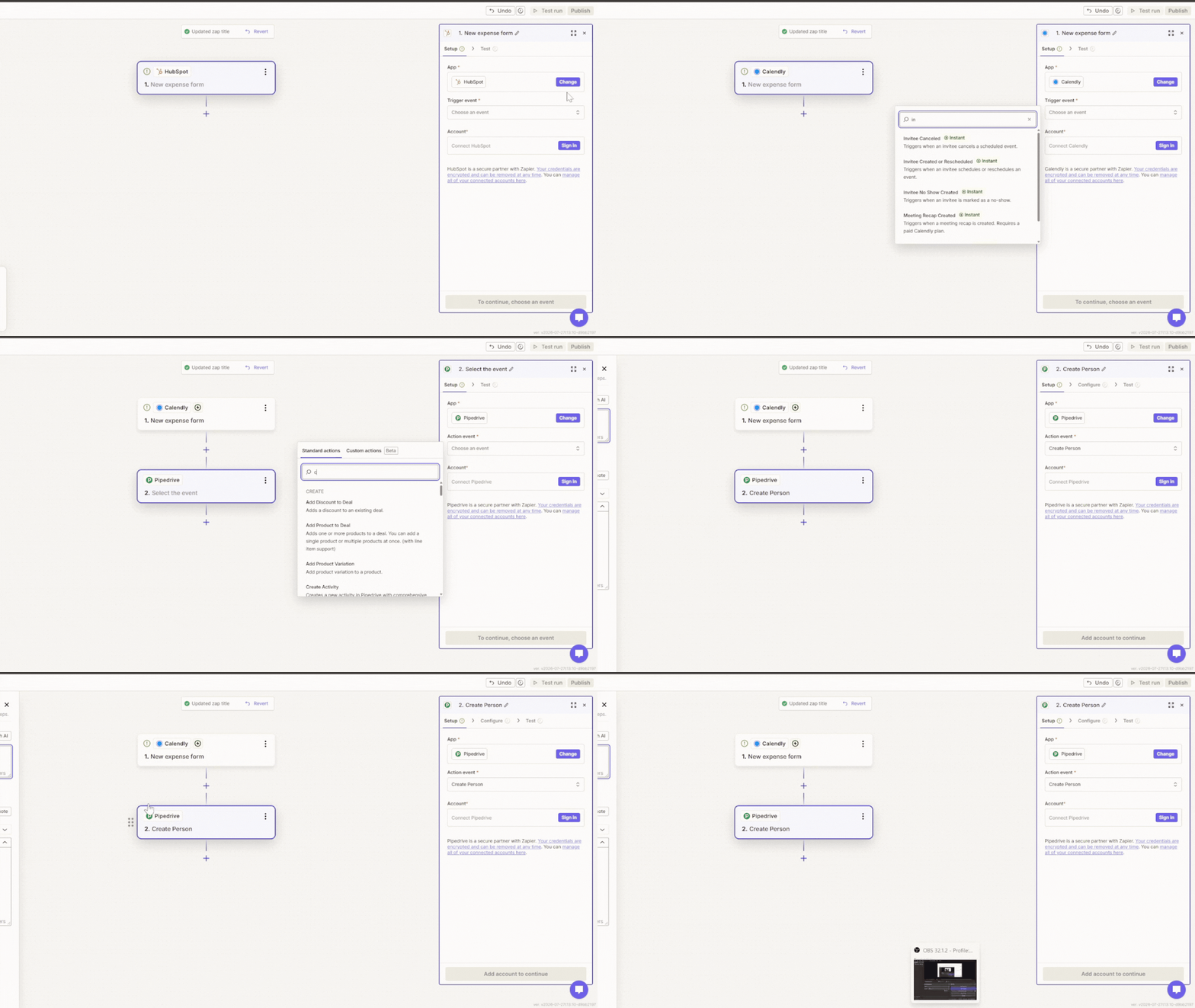
Zap 3: Calendly Booking Trigger to Pipedrive Deal Created
A booked call is a hand-raise. If it does not automatically create a deal, your pipeline understates your actual activity, and your forecasting suffers.
The following Zap establishes a live transaction in your pipeline the moment a prospect schedules a call, ensuring that no scheduled meetings are left outside your CRM.
| The Zap: New Calendly booking → Create a Pipedrive deal in your “Call Booked” stage → Add the meeting notes and source to the deal. | |
| Time saved: Roughly 4 minutes per booking, and a pipeline that always matches your calendar. | Plan required: Professional. |
Client Onboarding Zaps: Automate What Happens After You Win a Deal
Winning the deal is where most small businesses drop the ball, because the celebration is followed by a scramble to set up manually. These three Zaps ensure onboarding starts the moment a deal closes.
Zap 4: New Won Deal in Pipedrive to Welcome Email and Onboarding Task
The gap between “signed” and “started” is where clients get buyer’s remorse. Closing that gap to zero is one of the cheapest retention wins there is.
This Zap fires the instant a deal is marked won, sending the welcome email and creating your onboarding task list without you lifting a finger.
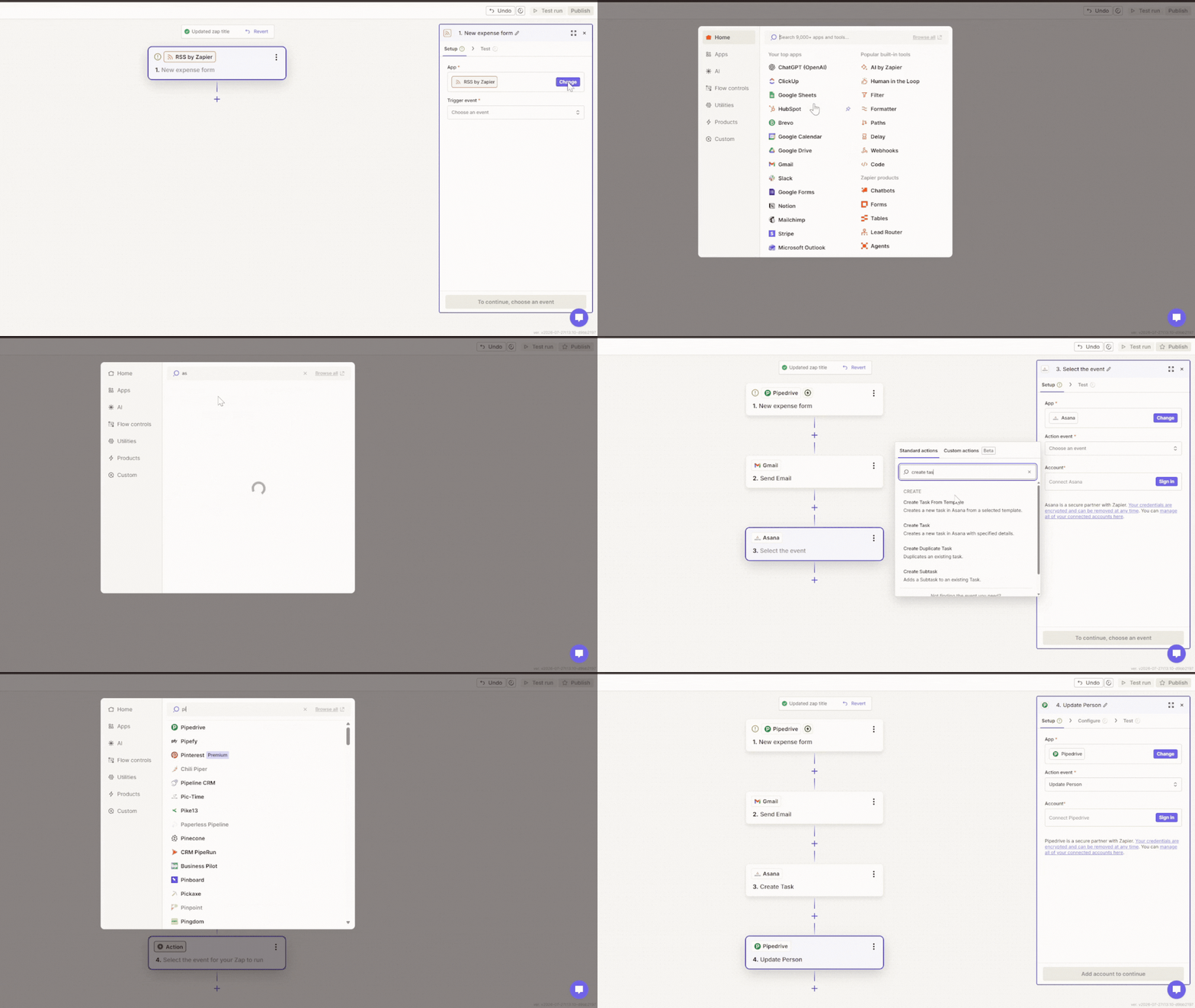
| The Zap: Pipedrive deal moved to Won → Send welcome email via Gmail → Create onboarding task in ClickUp or Asana | |
| Time saved: About 15 minutes per new client, and a consistent first impression every time. | Plan required: Professional. |
Zap 5: DocuSign Contract Signed to ClickUp Project and Team Slack Alert
This Zap spins up the full project and alerts your delivery team the moment a contract is signed.
| The Zap: DocuSign envelope completed → Create a ClickUp project from a template → Post signed-client alert to your team Slack channel | ||
| Time saved: Around 20 minutes per signed contract, since a templated project can carry dozens of prebuilt tasks. | Plan required: Professional. DocuSign is a premium app. | Expert Tips: Map the client name and package into the ClickUp project so the project is named and scoped correctly on creation. |

Zap 6: Stripe Payment Received to Kickoff Email and Google Calendar Event
Payment is the strongest buying signal a client will ever send. Responding to it instantly sets the tone for the whole engagement.
It treats the first payment as the actual start signal, automatically sending the kickoff email and booking the kickoff event.
| The Zap: New Stripe payment → Send kickoff email via Gmail → Create Google Calendar event for the kickoff call | |
| Time saved: About 10 minutes per client, and no more clients who paid but never got scheduled. | Plan required: Professional. |

Sales Follow-Up Automations
Follow-up is where the money is and where the discipline fails. Almost every small business we audit has stalled deals, sent proposals, and dead leads that never got a second touch. These three Zaps make follow-up happen on its own.
Zap 7: Deal Stalled in Pipeline to Automatic Reminder Task
Deals rarely die from a hard no. They die from silence. A stalled-deal alarm is the cheapest revenue you will ever recover.
| The Zap: Pipedrive deal with no activity for 5 days → Create a follow-up task assigned to the deal owner → Post a nudge in Slack | |
| Time saved: Recovers deals worth far more than the setup time, and it costs nothing to run since it uses a scheduled check. | Plan required: Professional (uses a free Filter, plus a scheduled trigger). |

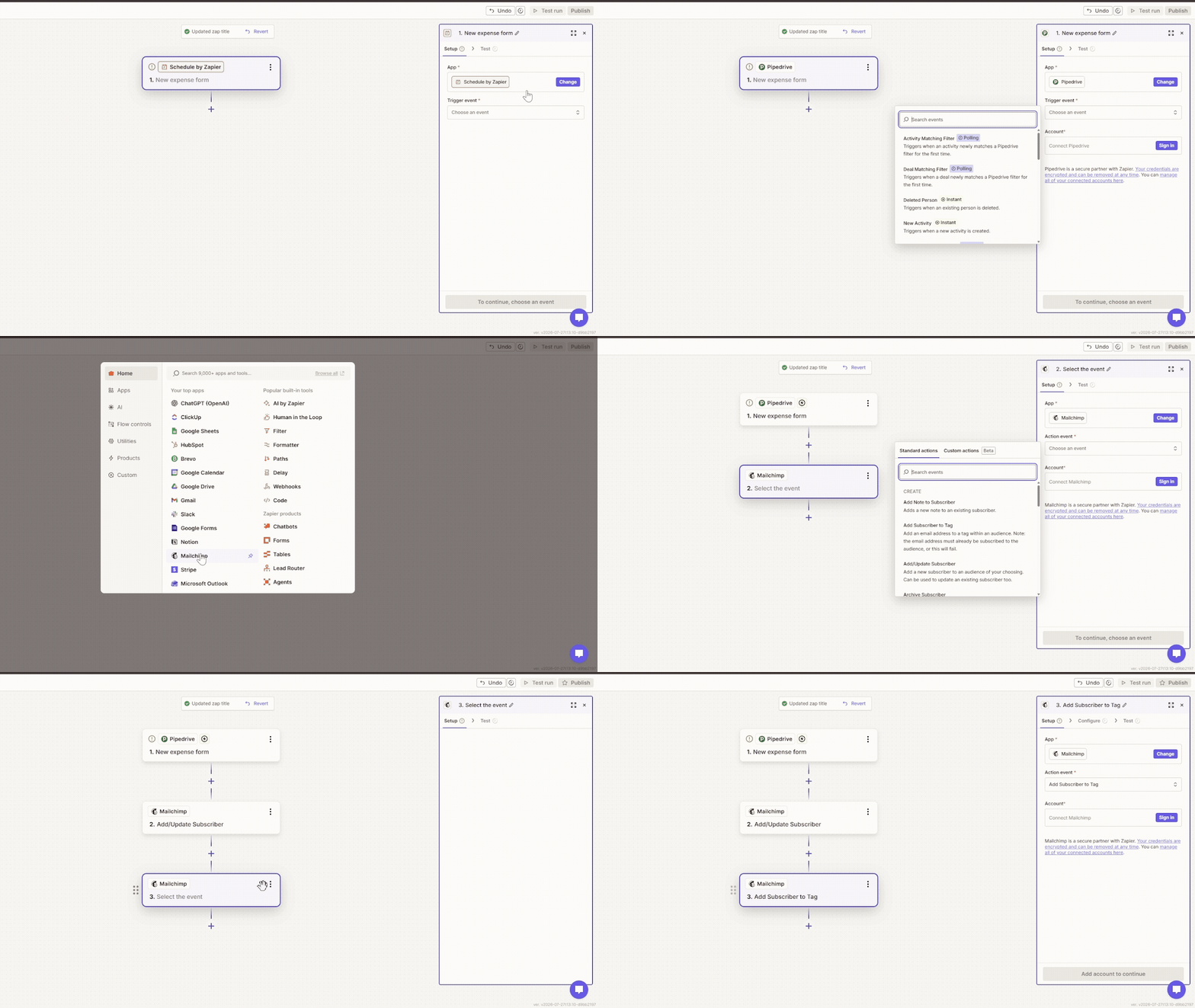
Zap 8: Proposal Sent Action to Follow-Up Email Sequence in Mailchimp
Keep the sequence to three short, human-sounding emails. A proposal follow-up should read like a helpful nudge, not a newsletter.
| The Zap: Deal moved to “Proposal Sent” in Pipedrive → Add contact to a Mailchimp follow-up journey → Tag the contact for reporting | |
| Time saved: About 20 minutes of manual chasing per proposal, spread across the whole sequence. | Plan required: Professional. |
Zap 9: Lost Deal Tag to Re-engagement Campaign Trigger in 90 Days
A “no” today is often a “not yet.” Most businesses never circle back, leaving a warm, pre-qualified audience untouched.
| The Zap: Pipedrive deal marked Lost → Zapier Delay of 90 days → Add contact to a Mailchimp re-engagement campaign | |
| Time saved: Turns a list of dead leads into a recurring pipeline source with zero ongoing effort. | Plan required: Professional. The Delay step is free and does not count as a task. |
Finance and Admin Zaps, No-Code Automation for Invoicing and Expenses
Every invoice you send late and every expense you forget to log is cash lost or tax paid needlessly. These three Zaps keep the books moving without a bookkeeper on standby.
Zap 10: New Won Deal to QuickBooks Invoice Created Automatically
The faster the invoice goes out, the faster you get paid. Automating it removes the most common cash-flow leak in small businesses.
| The Zap: Pipedrive deal marked Won → Create a QuickBooks invoice with the deal amount → Email the invoice to the client | |
| Time saved: About 12 minutes per invoice, and days shaved off your average time to get paid. | Plan required: Professional. QuickBooks Online is a premium app. |

Zap 11: Stripe Payment Action to Thank You Email and CRM Record Update
This Zap acknowledges every payment and automatically keeps your CRM in sync.
| The Zap: New Stripe payment → Send thank-you email via Gmail → Update the Pipedrive deal and mark it paid | ||
| Time saved: Around 5 minutes per payment, and a CRM that always reflects reality. | Plan required: Professional. | Expert Tips: Route different payment amounts down different Paths so large payments trigger a personal note and small ones get the standard receipt. |

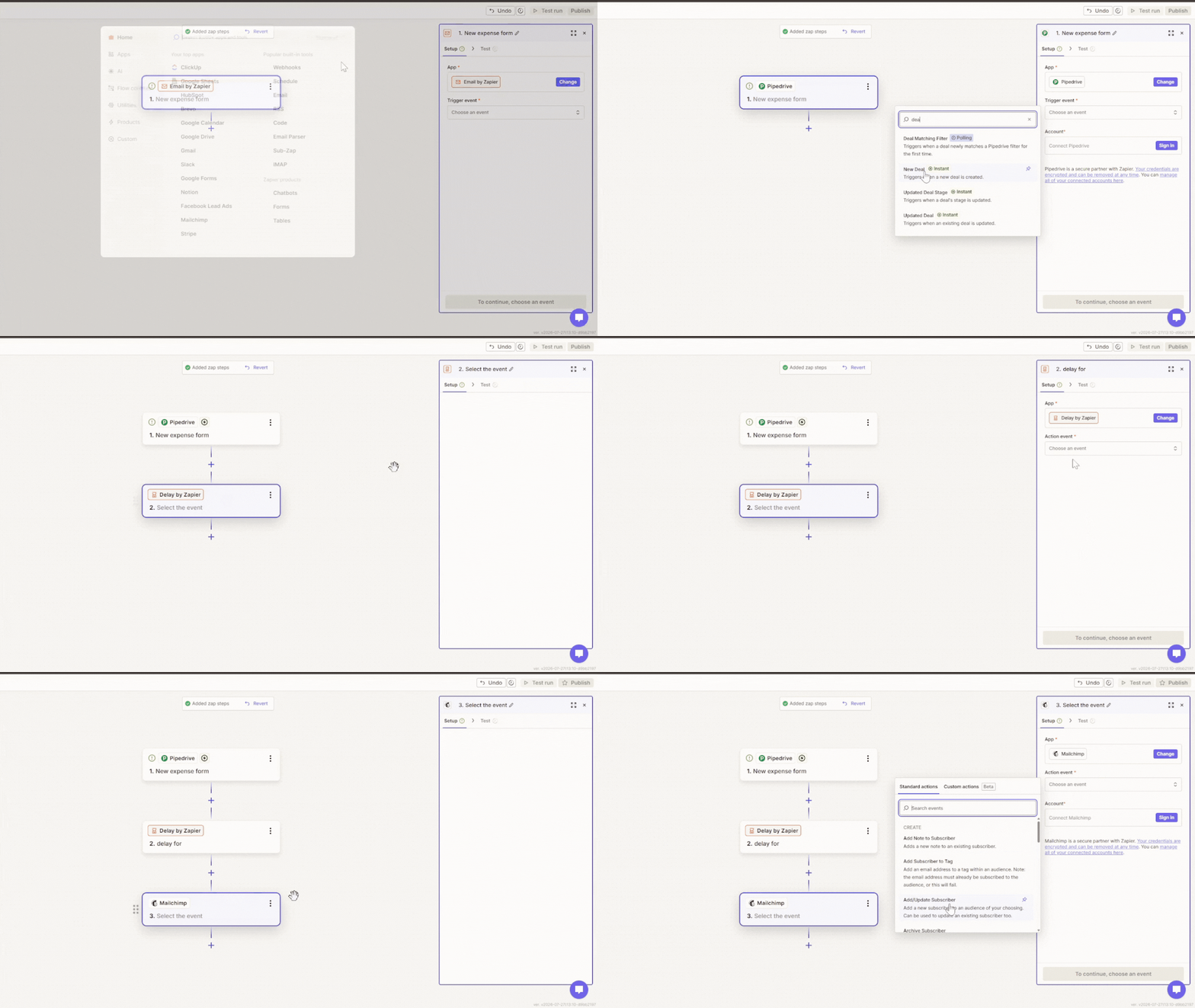
Zap 12: Expense Form Submission to Google Sheet and Accountant Notification
This Zap logs every expense in one place and loops in your accountant the moment it is submitted. Expenses logged as they happen are expenses you actually claim. A shoebox of receipts in March is money left on the table.
| The Zap: New expense form submission → Add a row to a Google Sheets expense tracker → Notify your accountant by email | |
| Time saved: About 8 minutes per expense at filing time, and a clean audit trail all year. | Plan required: A simple two-step version can run on Free. Add the accountant notification, and it needs a professional. |

Review and Reputation Workflows, The Zaps That Grow Your Google Rating
Reviews are the highest-leverage marketing a local or service business can do, and they are almost entirely automatable. These three Zaps make asking for reviews systematic instead of awkward.
Zap 13: Job Completed Tag to Google Review Request via SMS or Email
Timing is everything with reviews. A request sent an hour after a great job converts far better than one sent a week later, when the glow has faded.
| The Zap: Job marked complete in your CRM or field app → Send a review request via Twilio SMS or Gmail → Include your direct Google review link | |
| Time saved: About 3 minutes per job, and far more reviews because the ask never gets skipped. | Plan required: Professional. Twilio is a premium app. |

Zap 14: Five-Star Review Trigger to Social Post and CRM Contact Tagged
This Zap turns every five-star review into social proof and tags the happy client for future advocacy. Filter for four and five-star reviews only, so nothing negative ever posts automatically.
| The Zap: New five-star review detected → Post the review to your social channels via Buffer → Tag the contact as a promoter in Pipedrive | |
| Time saved: Around 6 minutes per review, plus a steady stream of authentic social content. | Plan required: Professional. |

Zap 15: Negative Review Alert to Manager Notification in Slack
A fast, human response to a bad review often recovers the customer and shows every future reader that you care. Silence does the opposite.
| The Zap: New review below four stars → Send an urgent Slack alert to the owner or manager → Create a follow-up task to respond | |
| Time saved: The setup is tiny. The value is catching a problem in minutes instead of discovering it weeks later. | Plan required: Professional. |

Zapier AI Automation: Where AI Agents Fit Into a Workflow
Zapier AI Agents are useful when one step in a workflow requires interpretation rather than a fixed rule.
A standard Zap follows a predefined path. An agent can read unstructured input, assess the context, and decide which approved action to take next. Think of it as a thinking step inside an otherwise controlled Zapier workflow.
You should not replace a reliable automation with an autonomous agent just because AI is available. Build the core workflow first, then add an agent only where filters, Paths, and fixed conditions cannot make the decision accurately.
How Zapier AI Agents Work
You give the agent instructions, connect the apps it can use, and define the task it should complete. The agent can then interpret information, reference connected knowledge sources, and choose between the actions you have allowed.
For example, an agent might:
- Read and categorize a detailed support email.
- Research a new lead before updating the CRM.
- Compare a request against an internal policy.
- Decide which team member should receive a task.
The surrounding workflow still handles the predictable steps. The agent is only responsible for the part that requires judgment.
Support Email to AI Summary and Routing
A standard Zap can either forward every support email to the same inbox or route messages based on keywords. That works until customers describe problems in unclear or inconsistent language.
An agent can read the full email, identify the main issue and its urgency, and forward it to the appropriate team member with a short summary.
| The flow: New support email → AI summarizes and categorizes the request → Routes it to the correct team member |
This removes the manual first-pass triage that slows down small support teams. High-risk or uncertain requests can still be sent to a human for review.
New Lead to AI Enrichment and Personalized Outreach
A basic lead-capture Zap can add a contact to your CRM, assign an owner, and send a standard email. An agent adds judgment between the lead entering the CRM and the follow-up being created.
It can review the lead’s company and role, compare the information against your ideal customer profile, and draft a more relevant first message.
| The flow: New lead enters the CRM → AI enriches and evaluates the lead → Drafts a tailored outreach email for approval |

The trigger, CRM update, approval step, and email delivery remain fixed. The agent handles only the variable part: deciding what information matters and how the outreach should be framed.
That is where Zapier AI Agents earn their place in an automation workflow. Use them for the one step that genuinely requires interpretation, while keeping the rest of the process predictable and easy to troubleshoot.
Zapier Automation Examples by Business Type
The best Zaps depend on what you sell. Below are the automation priorities we set for the four small business types that get the most out of Zapier.
Zapier Automations for Service Businesses, Trades, and Home Services
Service and trades businesses should automate lead speed and reviews first, because both directly drive booked jobs. Get the lead into your system and in front of a human within a minute, then ask for a review on every finished job.
- Facebook or Google lead ad → CRM contact → instant SMS reply (Zap 1 pattern).
- Job completed → Google review request via SMS (Zap 13).
- New booking → calendar event and customer confirmation.
Zapier Automations for Consultants and Coaches
Consultants and coaches should automate the booking-to-onboarding path, since your calendar is your product. Every booked call should create a deal, and every signed client should trigger onboarding without manual setup.
- Calendly booking → Pipedrive deal → prep email (Zap 3).
- Won deal → welcome sequence and onboarding tasks (Zap 4).
- Proposal sent → timed follow-up sequence (Zap 8).
Zapier Automations for Real Estate Agents
Real estate agents should automate lead routing and long-cycle nurture, because a real estate buyer or seller may take months to transact. Capture every portal and form lead instantly, then keep in touch automatically until they are ready.
- New portal lead → CRM contact → instant text and agent alert.
- New listing → auto-post to social channels.
- Closed deal → 90-day and 12-month check-in reminders.
Zapier Automations for Marketing Agencies
Marketing agencies should automate client reporting and internal handoffs, since your margin lives in operational efficiency across many accounts. Standardize onboarding and reporting so each new client does not reinvent the process.
- Signed contract → templated project and Slack alert (Zap 5).
- Scheduled trigger → pull metrics into a client report.
- Won deal → invoice created in QuickBooks (Zap 10).
Make vs Zapier for Small Business: Which Automation Tool Wins?
For most small businesses, Zapier wins on ease of use and app coverage, while Make wins on cost and complex workflow logic. Neither is universally better. We deploy Zapier when a client needs straightforward automations launched quickly and Make when the workflow requires high volume, multiple branches, or more technical control.
| Comparison | Zapier | Make | Winner |
| Best for | Small businesses that want simple, reliable automations without a steep learning curve | Businesses building high-volume or logic-heavy automations | Depends on the workflow |
| App integrations | Connects with more than 9,000 apps | Connects with more than 3,000 apps | Zapier |
| Ease of setup | A guided step-by-step editor that is easier for beginners | Visual canvas requires more time to understand | Zapier |
| Complex workflows | Supports filters, Paths, loops, and multi-step Zaps, but long workflows can become harder to follow | Displays modules, routers, branches, and data flow on one canvas | Make |
| Starting paid price | Professional starts at $19.99 per month | Core starts at $12 per month for 10,000 credits, with lower pricing available through annual billing | Make |
| Usage billing | Successful actions consume tasks; triggers, filters, formatting, Paths, and several built-in tools do not | Most modules consume credits each time they run, including modules that trigger or process data | Zapier for predictability; Make for volume |
| AI capabilities | AI steps are available inside Zaps, while Zapier Agents has separate usage and pricing | Make AI Agents and Make’s AI provider are available within the platform, with usage charged through credits | Make for bundled flexibility |
| Learning curve | Faster for owners and teams without an automation specialist | Better suited to users comfortable troubleshooting data and workflow logic | Zapier |
Zapier officially supports more than 9,000 apps, compared with more than 3,000 on Make. Zapier Professional currently starts at $19.99 per month, while Make Core costs $12 per month for 10,000 credits on a monthly billing.
One billing difference matters when comparing those prices. Zapier does not count triggers as tasks, and current plans also exclude tools such as Filters, Formatter, Paths, Delay, Looping, and Tables from use in tasks.
Make generally charges credits as modules run, so a scenario with one trigger and four actions may consume several credits for each completed workflow.
Our Recommendation After Using Both With Clients
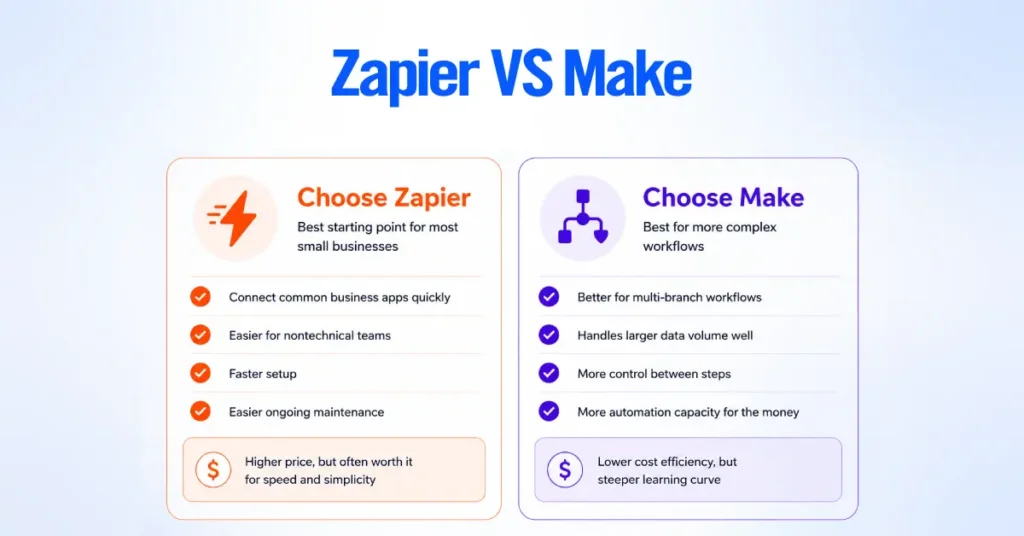
Choose Zapier when you need to connect common business apps quickly and want a platform that nontechnical employees can manage. Its higher price often pays for itself through faster setup and easier maintenance.
Choose Make when your workflows contain several branches, process large volumes of data, or need more control over how information moves between steps. It usually delivers more automation capacity for the money, but expect a steeper learning curve.
For a typical small business launching its first automations, Zapier is the safer starting point. Move to Make when workflow complexity or task volume becomes large enough to justify the additional setup and maintenance.
