AI Summary




Aircall can do much more than place and receive calls. When you connect Aircall with HubSpot correctly, phone conversations can become structured inputs for your CRM: a missed call can create a callback task, a qualified conversation can move to an account executive, and a support escalation can reach the right account owner without relying on someone to remember the handoff.
That is where the value of an Aircall workflow really appears.
The goal is not to automate every call activity. It is to identify moments where manual handoffs, inconsistent follow-up, or disconnected customer data create friction, then use Aircall and HubSpot to turn those moments into clear, owned next steps.
Each workflow follows the same operating model:
Trigger → Condition → Action → Owner → Stop condition → KPI → Failure check
That structure keeps automation understandable, measurable, and easier to troubleshoot as your sales process becomes more complex.
How Aircall Workflow Automation Works
Aircall is a cloud-based phone platform, but the real operational value appears when call activity becomes usable CRM data.
A typical workflow works like this:
A call event occurs → Aircall records the interaction → HubSpot evaluates the data → the workflow triggers an action.
The action could assign an owner, create a task, change a lifecycle stage, send follow-up emails, start an automated SMS, open a ticket, or notify the right team.
Five parts are worth designing carefully.
1. Trigger: What starts the workflow?
The trigger is the event that tells the system something meaningful happened. Depending on your configuration, that could include:
- An inbound call
- An outbound call
- A missed call
- A no-answer outcome
- An IVR route
- An Aircall tag
- A completed call
- A specific call direction
- A post-call classification
For many HubSpot workflows, the most useful trigger is an Aircall tag synced to the Last used Aircall tags property on the HubSpot contact.
For example, a sales representative could apply:
SQL – AE Review
That tag then signals the prospect to move into the next workflow. This is generally more reliable than inferring commercial intent from raw phone call data alone.
2. Record: Where does the call data live?
Before you automate anything, confirm where your call details actually land.
Depending on the settings used when connecting Aircall and HubSpot, the system can associate calls with records such as:
- Contact
- Company
- Deal
- Ticket
The captured information can include call duration, phone number, recording links, notes, outcomes, and transcription.
This is an important implementation checkpoint.
A technically valid workflow can still fail operationally if the phone system logs activity against the wrong record, fails to identify the caller, or leaves the ownership field blank.
Before building more advanced automation, make several controlled test calls and confirm that the CRM receives the information you expect.
3. Condition: How should HubSpot interpret the event?
The condition determines whether the workflow continues and which path it takes. Useful conditions might include:
- Industry
- Territory
- Lifecycle stage
- Lead status
- Account tier
- Deal stage
- Existing opportunity
- Contact owner
- Call outcome
- Consent status
- Business hours
A particularly useful safeguard is checking whether the HubSpot contact already has an owner.
Without that check, a routing workflow may accidentally reassign an existing account to somebody else simply because a new call came in.
4. Action: What should happen next?
Once the trigger and conditions are satisfied, the workflow needs to create a useful business outcome. Examples include:
- Assign a contact or deal owner
- Create a follow-up task
- Update lifecycle or deal stage
- Send an email
- Send an SMS
- Create a support ticket
- Add the contact to a nurture sequence
- Notify a manager
- Automatically create an exception task
The key principle is ownership. Automation that only updates a field rarely changes performance. Automation that creates a next action, assigns it to the right team, and gives it a deadline is far more useful.
5. Control: How do you prevent duplicate automation?
Every workflow should have explicit rules for:
- Re-enrollment
- Duplicate tasks
- Duplicate messages
- Missing owners
- Unknown phone numbers
- Missing required fields
- After-hours calls
- Opt-outs
- Exception handling
These controls become increasingly important as you add more automated workflows.
A small mistake in one manual process affects a few records. A small mistake in workflow automation can affect hundreds.
5 Popular Aircall Workflows for HubSpot
The following Aircall workflows are useful because each addresses a recognizable operational problem rather than automating activity for its own sake.
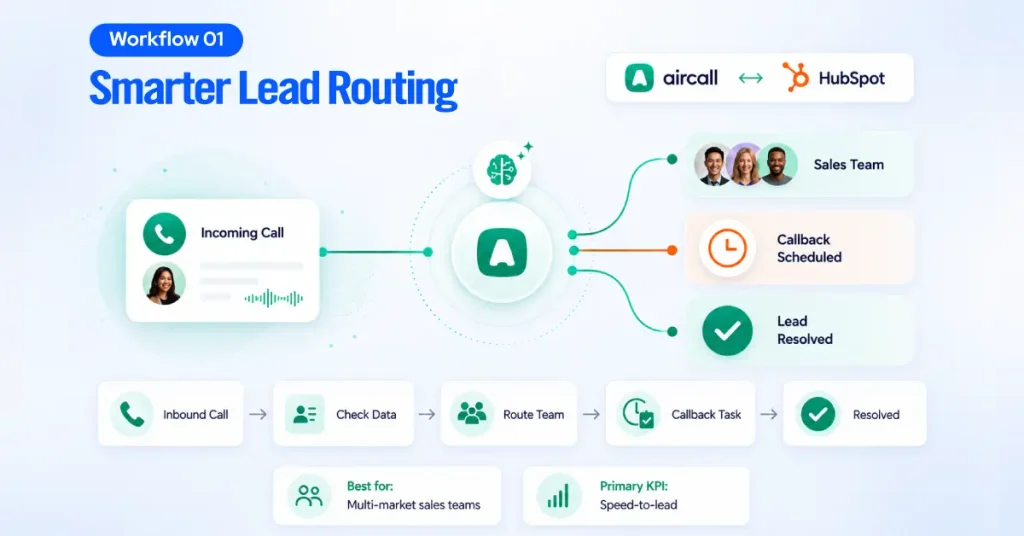
Workflow 1: Connect Aircall to Your Sales Team for Smarter Lead Routing
Best for: Multi-market, multi-territory, or multi-product sales teams.
A high-intent inbound prospect shouldn’t sit in an unowned CRM queue while someone decides who should call them back.
If HubSpot already knows the contact’s industry, territory, product interest, or account tier, you can use that information to route the next action automatically.
Recommended workflow
Trigger: An inbound Aircall call, IVR route, caller match, or predefined tag.
Condition: Check industry, territory, lifecycle stage, lead score, open opportunities, and whether an owner already exists.
Action: Assign the appropriate owner, route the interaction to the right team, and create a time-bound callback task.
Owner: The responsible sales manager, account owner, or round-robin sales team member.
Stop condition: The lead is accepted, converted, disqualified, or matched to an existing owner.
Primary KPI: Speed-to-lead. Before launching this workflow, standardize the fields it depends on. For example:
- Industry
- Territory
- Lead score
- Contact owner
- Deal owner
- VIP account
- Business hours
- Aircall tags
Avoid creating several tags that mean almost the same thing. If “Fintech,” “Financial,” and “Financial Services” all lead to the same route, one standardized value is usually better.
The practical test is simple: call from an unknown number, an existing customer, a VIP account, and a record that already has an owner. If any of those routes fail, fix the logic before scaling it.
Workflow 2: Automate the BDR-to-AE Handoff After a Qualified Call
Best for: Sales teams where BDRs or SDRs qualify prospects before account executives take ownership.
The problem with many handoff processes is not the absence of data. It is the absence of context.
A qualified record is far less useful when the AE still has to ask:
- What problem is the prospect trying to solve?
- Who is involved in the decision?
- What objections came up?
- What did we agree to do next?
- When should we follow up?
Using Aircall with HubSpot, you can move both the opportunity and the context at the same time.
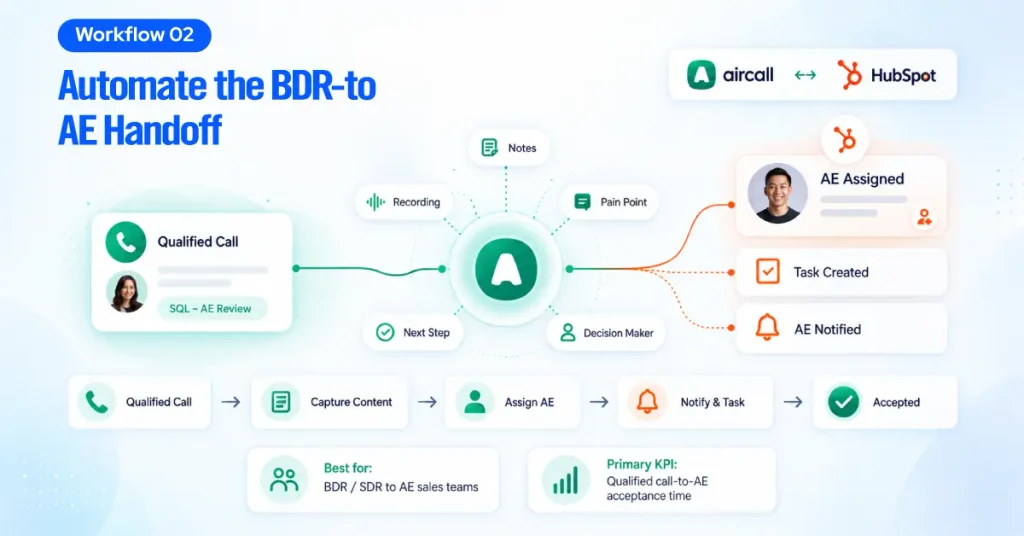
Recommended workflow
Trigger: Apply a tag such as SQL – AE Review after the qualifying call.
Condition: Confirm qualification status, required discovery fields, current deal stage, existing AE ownership, meeting status, and duplicate opportunity checks.
Action: Assign the deal, update the sales pipeline, create an AE task, attach the recording and notes, and notify the new owner.
Owner: The AE or existing account owner.
Stop condition: The AE accepts the lead, a meeting is booked, the opportunity is disqualified, or the record is identified as a duplicate.
Primary KPI: Qualified-call-to-AE acceptance time. A mature handoff workflow should also require minimum discovery information before advancing the deal. Useful fields include:
- Pain or business problem
- Current process or tool
- Use case
- Decision maker
- Timing
- Budget signal
- Objections
- Competitors
- Agreed next step
- Next-step date
- Call recording URL
If those fields are incomplete, send the record to a review queue rather than moving it forward prematurely.
This small control can improve sales efficiency because sales reps receive opportunities that are genuinely ready for the next stage.
Workflow 3: Use HubSpot Workflows to Align Sales and Support Teams
Best for: SaaS and service businesses where support interactions can affect renewals, expansion, or account health.
Customer support calls frequently contain information that matters to sales.
A high-value customer may call because of a recurring issue, implementation problem, billing concern, or product limitation. The support team should resolve the service issue, but the account owner may also need visibility before the next commercial conversation.
The wrong solution is inviting sales into every support interaction. The better approach is a structured escalation workflow.
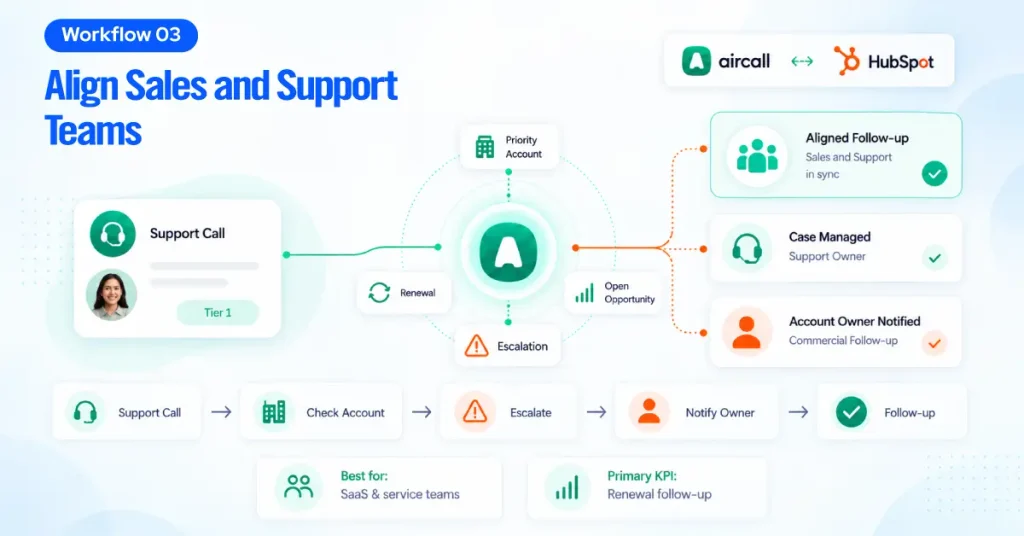
Recommended workflow
Trigger: A Tier 1 IVR line, support tag, escalation tag, ticket creation, or account-tier property.
Condition: Check whether the caller belongs to a priority account, has an upcoming renewal, has an open expansion opportunity, or has an unresolved escalation.
Action: Associate the interaction with the relevant records, create an SLA task, provide the account owner with context, and notify them when commercial follow-up is appropriate.
Owner: The support owner manages the active case. The AE or account owner receives the commercial follow-up task.
Stop condition: The support issue is resolved, escalation is accepted, follow-up is completed, or the account is intentionally suppressed from sales outreach.
Primary KPI: Renewal or escalation follow-up completion.
This workflow is particularly useful when sales and customer service teams share responsibility for the overall customer experience.
The objective is not more notifications. It is better coordination.
Workflow 4: Automate Nurture Based on Why the Lead Was Disqualified
Best for: Revenue teams with meaningful volumes of unqualified or “not now” leads. “Unqualified” is rarely a useful final classification. A prospect may be unqualified because:
- The timing is wrong
- Budget is unavailable
- You reached the wrong contact
- There is no product fit
- They chose a competitor
- They need more information
- They asked not to be contacted
Those situations should not enter the same nurture program. Use Aircall call workflows to capture the reason, then let HubSpot workflows determine the appropriate path.
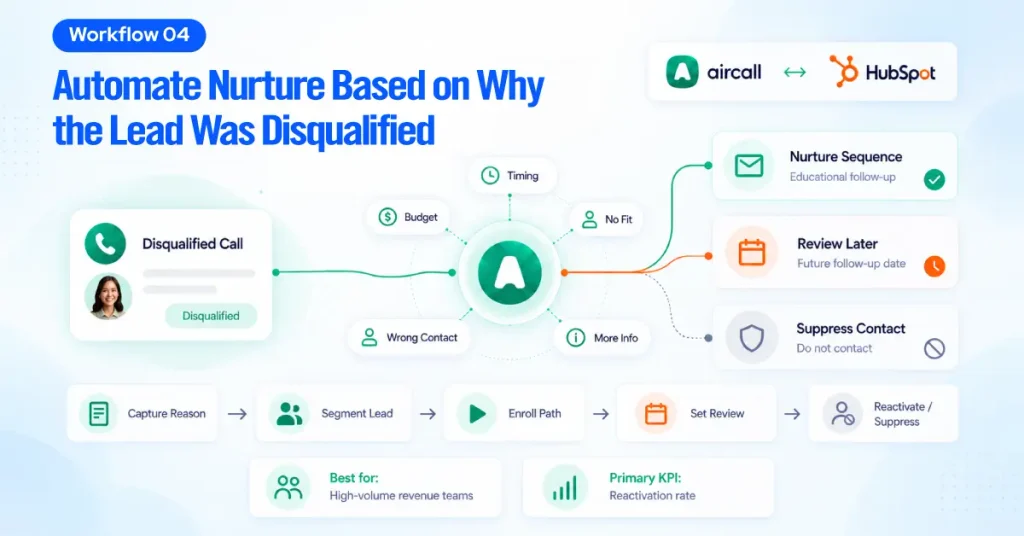
Recommended workflow
Trigger: A disqualification outcome or standardized Aircall tag.
Condition: Evaluate disqualification reason, product interest, consent, territory, lifecycle stage, and most recent activity.
Action: Update lead status, enroll the contact in the appropriate nurture path, set a future review date, or suppress further communication.
Owner: The existing sales owner retains commercial responsibility while marketing automation manages the nurture sequence.
Stop condition: The contact replies, books a meeting, calls again, becomes qualified, opts out, or is marked do not contact.
Primary KPI: Reactivation rate. A useful reason taxonomy could include:
- Timing
- Budget
- No fit
- Wrong contact
- Competitor
- Need more information
- Duplicate
- Do not contact
Keep the list deliberately short. If reps need to choose between 25 similar options after every call, the underlying data will become inconsistent, and the automation will be difficult to trust.
Workflow 5: Automate Call Follow-up When Calls Go Unanswered
Best for: Teams where missed inbound calls or unanswered outbound calls frequently require manual recovery.
A missed call is not merely a reporting event. It is an unfinished customer interaction.
For inbound teams, the caller may have strong intent. For outbound sales calls, the rep still needs a structured next step.
The workflow should make that next step automatic without repeating messages or creating unnecessary tasks.

Recommended workflow
Trigger: A dedicated tag such as No Answer, No Answer Send SMS, a Left Message outcome, or a missed inbound call.
Condition: Confirm the record is known, the phone number is usable, applicable messaging consent exists, an open deal is relevant, no duplicate callback task exists, and business-hour rules are satisfied.
Action: Create a same-day callback task, send an optional automated SMS, send a booking-link email where appropriate, and assign the next action.
Owner: The contact or deal owner, with a fallback owner for unassigned records.
Stop condition: A connected call, reply, meeting, opt-out, wrong-number classification, or completed callback.
Primary KPI: Missed-call recovery rate. One implementation detail deserves special attention.
An outbound call that reaches voicemail may not always behave like a simple unanswered event in the CRM. A deliberate agent-applied tag can provide a more reliable trigger for the follow-up workflow than relying entirely on the raw outcome.
For SMS-based follow-up, also build consent and opt-out controls into the process. The workflow should verify that the selected number can send messages, the recipient has a suitable number, and the sender is authorized to use the selected Aircall phone number.
The goal is powerful automation with guardrails, not automatic messaging without context.
How to Integrate Aircall and HubSpot Before You Automate
Do not begin with the most sophisticated workflow. Start by confirming the data foundation. A reliable HubSpot integration should answer four questions:
- Are calls consistently being logged?
- Are they associated with the correct contact and company?
- Are the required properties up-to-date?
- Can you identify an owner for the next action?
If you answer no to any of these, fix the data flow before adding more automation.

Standardize call outcomes
Create a short controlled list that maps to real actions. For example:
- Connected
- No Answer
- Left Message
- Qualified
- Disqualified
- Demo Booked
- Follow-Up Required
- Support Escalation
- Wrong Number
- Do Not Contact
Standardize Aircall tags
Tags should either classify the conversation or trigger actions. Useful examples might include:
- SQL – AE Review
- No Answer Send SMS
- VIP Account
- Support Escalation
- Budget Objection
- Wrong Contact
Do not use tags as free-form notes. The more consistently your team uses them, the more dependable your automated workflows become.
Standardize HubSpot properties
Your HubSpot workflows should read from a predictable group of properties. A practical core set could include:
- Contact owner
- Company owner
- Deal owner
- Lifecycle stage
- Lead status
- Deal stage
- Last used Aircall tags
- Last call outcome
- Next action
- Next action date
- Workflow exception reason
Custom contact properties can also help when your routing or qualification model requires information that standard CRM fields don’t capture.
Before implementation, confirm that your HubSpot tier supports the workflow functionality you plan to use.
Workflow Examples Should Include Failure Paths, Not Just Happy Paths
This is one of the biggest differences between a demo automation and a production-ready workflow. Every workflow should answer:
What happens when the expected data is missing?
For example:
- The caller does not match an existing contact.
- The existing owner has left the company.
- A required property is blank.
- A sales rep applies the wrong tag.
- The contact already has an open deal.
- An SMS cannot be delivered.
- The workflow attempts to create a task that already exists.
Do not simply let those records disappear. Create an exception queue, fallback owner, or dashboard that gives operations teams visibility into failures. That exception handling is often more important than adding another automation step.
How to Measure Whether Aircall Workflows Improve Sales
Do not evaluate team performance using call volume alone. More outbound calls don’t necessarily mean a healthier sales process, and more automation doesn’t automatically improve sales.
Measure whether the workflow produces better outcomes.
| Metric | What it tells you | Relevant workflow |
| Speed-to-lead | Time between inbound interest and an owned response | Lead routing |
| CRM capture rate | Whether calls are associated with the correct records | All workflows |
| Routing accuracy | Whether the interaction reaches the right team | Routing and support |
| Handoff completion | Whether qualified opportunities reach the AE on time | BDR-to-AE |
| Follow-up completion | Whether required next actions happen on schedule | Nurture and missed calls |
| Missed-call recovery | Whether missed calls result in a connection, reply, or meeting | Call recovery |
| Workflow error rate | Failed, duplicated, unassigned, or exception records | All workflows |
Start with a baseline before changing the process. Then pilot the automation with one segment or team, monitor the workflow for several weeks, and compare the results.
This helps you make data-driven decisions instead of assuming the automation is working because tasks are being created.
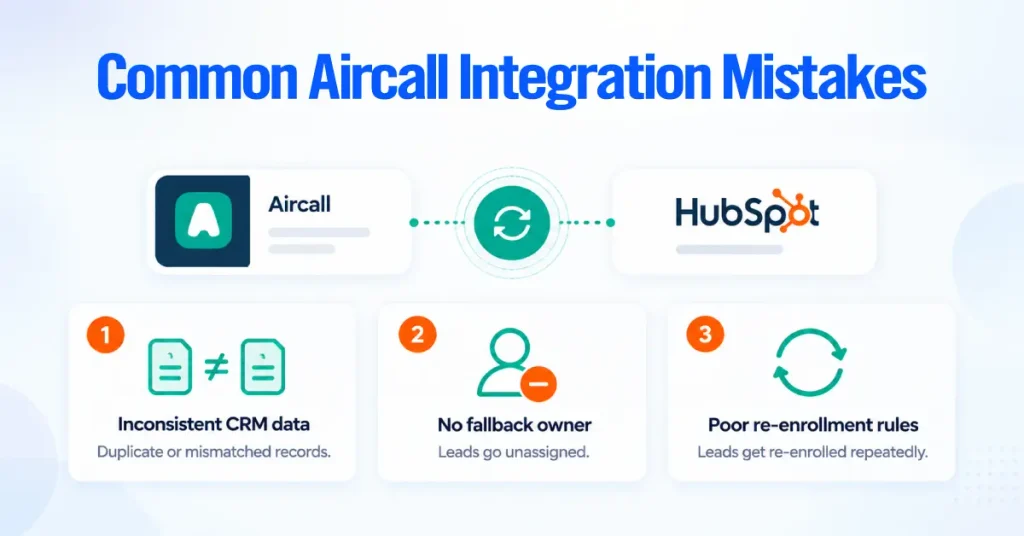
Common Aircall Integration Mistakes
Too many tags
If several tags describe nearly the same situation, reporting becomes fragmented, and triggers become less predictable. Keep the taxonomy controlled and action-oriented.
No fallback owner
Every routing workflow needs the right team and a fallback path. If the CRM cannot determine where a record belongs, send it somewhere visible rather than leaving it unassigned.
Poor re-enrollment rules
Without clear re-enrollment logic, the same call event can create multiple tasks, emails, or SMS messages. Define exactly when a contact can re-enter the workflow.
Automating inconsistent CRM data
Automation amplifies whatever data model you already have. Adding another workflow won’t fix duplicate contacts, inconsistent owner fields, uncontrolled tags, or poorly defined lifecycle stages. Clean them first.
Measuring activity rather than outcomes
Dials, emails, and tasks show activity. Speed-to-lead, meetings booked, completed next actions, sales performance, and recovery rates show whether the workflow is useful.
A Practical Rollout Plan for Aircall and HubSpot
If you are connecting Aircall and HubSpot for the first time, resist the temptation to launch every workflow at once. Use a staged rollout.
- Audit Aircall numbers, users, teams, business hours, and CRM ownership.
- Map the current call-to-CRM process.
- Identify the largest operational or revenue leak.
- Standardize call outcomes, Aircall tags, and HubSpot properties.
- Configure the integration and test call logging.
- Launch missed-call recovery as a controlled first automation.
- Add lead routing once ownership data is reliable.
- Add the BDR-to-AE workflow once qualification data is standardized.
- Add nurture and support workflows when the core process is stable.
- Review exceptions, adoption, and team performance every week.
This sequence tends to produce a more reliable system because every new workflow builds on data that has already been tested.