AI Summary





PandaDoc is a document automation and e-signature platform built for small and medium-sized businesses (SMBs) to streamline proposals, contracts, quotes, and forms. It combines a drag-and-drop builder, 1,000+ templates, CRM integrations with Salesforce, HubSpot, and Pipedrive, workflow automation, CPQ tools, and legally binding e-signatures in one platform. This guide walks you through plan selection, setup, templates, automation, and integrations, so you’re sending polished documents in days, not months.
Key Takeaways
- Built for SMB workflows, handling proposals, contracts, quotes, and signing in one place.
- Plan choice drives ROI, with the Business tier unlocking CRM integrations, automation, and analytics.
- Templates are the backbone, cutting document creation time by 65% and time-to-close by 30%.
- Fast to deploy, with ~3-hour API setup and most SMB rollouts wrapping in 2–4 weeks.
- Automation compounds as every new document inherits your templates and approval flows.
- Adoption hinges on training, with role-based learning paths accelerating team uptake.
Why SMBs Choose PandaDoc
Small and medium-sized businesses face a unique challenge. They need professional, branded, legally compliant document workflows but rarely have a dedicated revenue operations team to build them. PandaDoc addresses that gap directly.
The platform complies with industry standards for data security and legal requirements, including GDPR, HIPAA, and FERPA. It uses encryption to secure data and offers e-signatures that are legally binding in the United States and internationally. For a small sales team that just won its first enterprise client, that compliance footprint matters.
The business case is also tangible. Faster proposal turnaround, fewer manual errors, automated approvals, and clear visibility into recipient behavior translate directly into shorter sales cycles and higher close rates. For most SMBs, the productivity gains pay for the subscription within the first quarter, making PandaDoc one of the easiest tools to justify in a lean tech stack.
How to Implement PandaDoc for Your SMB: Step-by-Step Guide
Follow this step-by-step guide to roll out PandaDoc smoothly, from selecting the right plan to measuring ROI, and get your team sending professional, trackable documents within weeks.
Step 1: Choose the Right PandaDoc Plan
Before you create a single template, pick the plan that matches your document volume, team size, and integration needs. Choosing wrong here is the most common implementation mistake SMBs make.
PandaDoc offers four tiers: Free eSign, Starter (formerly Essentials), Business, and Enterprise.
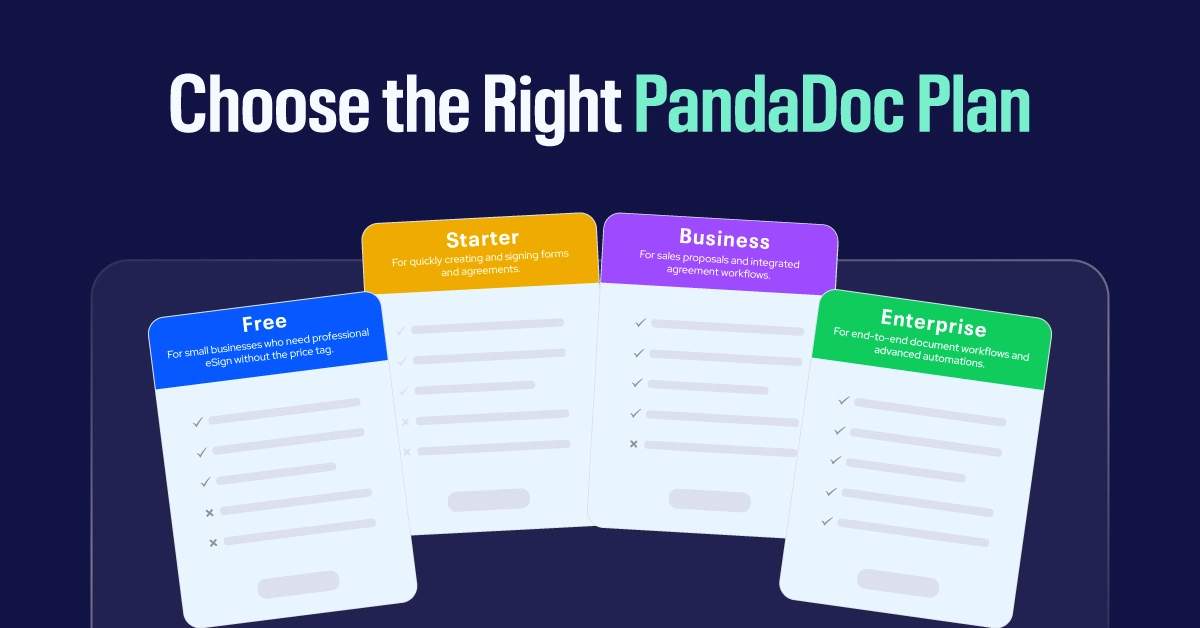
The Free eSign plan supports basic e-signing without proposal tools. Document limits are up to five documents per month, or 60 per year, with additional documents available for $3 each. It is best for freelancers or solo operators who only need occasional signatures.
The Starter plan at roughly $19 per user per month (annual billing) adds custom branding, the template library, and basic analytics. However, the Essentials plan caps seats at two and excludes every CRM integration, which makes it a poor fit for any team that lives inside a CRM.
The Business plan is where most SMBs land. The Business plan at $49/user/month is the most popular option, offering CRM integrations with Salesforce, HubSpot, and Pipedrive, plus workflow automation. This is the tier that unlocks the actual ROI features—CPQ, approval workflows, content library, and integrations.
The Enterprise plan requires a sales conversation and is designed for organizations needing SSO, advanced user roles, conditional content, API access, and bulk sending.
Pro Tip: Before committing to annual billing, take advantage of the 14-day free trial. The PandaDoc trial gives you 14 days of full access to the Business plan features with no credit card required. Use those two weeks to build one real template and send 5–10 actual documents through it—that’s the only way to know if the workflow fits your team.
Step 2: Set Up Your Account and Workspace
Once your plan is selected, the foundational setup determines how clean your workflows will be six months from now. Don’t skip these steps.
Configure your workspace settings. Add your company logo, set your default branding colors, configure your time zone, and define your default document expiration. These settings cascade into every template and document you create.
Add team members and assign roles. PandaDoc uses role-based permissions: Account Owner, Admin, Manager, Member, and Collaborator. Most SMBs do well with one Account Owner (typically the founder or RevOps lead), one or two Admins (sales managers), and Members for individual sales reps. Users with a Collaborator role will be unable to approve or send documents for approval, so reserve that role for finance or legal reviewers who only need read-and-comment access.
Set up workspaces if you operate multiple brands or business units. Each workspace gets its own templates, branding, and team, useful if your SMB operates a parent brand and a sub-brand, or if sales and HR want separate environments.
Connect your single sign-on (SSO) provider if available on your plan. SSO through Google Workspace, Okta, or Microsoft 365 reduces password fatigue and improves security posture from day one.
Step 3: Build Your Template Library
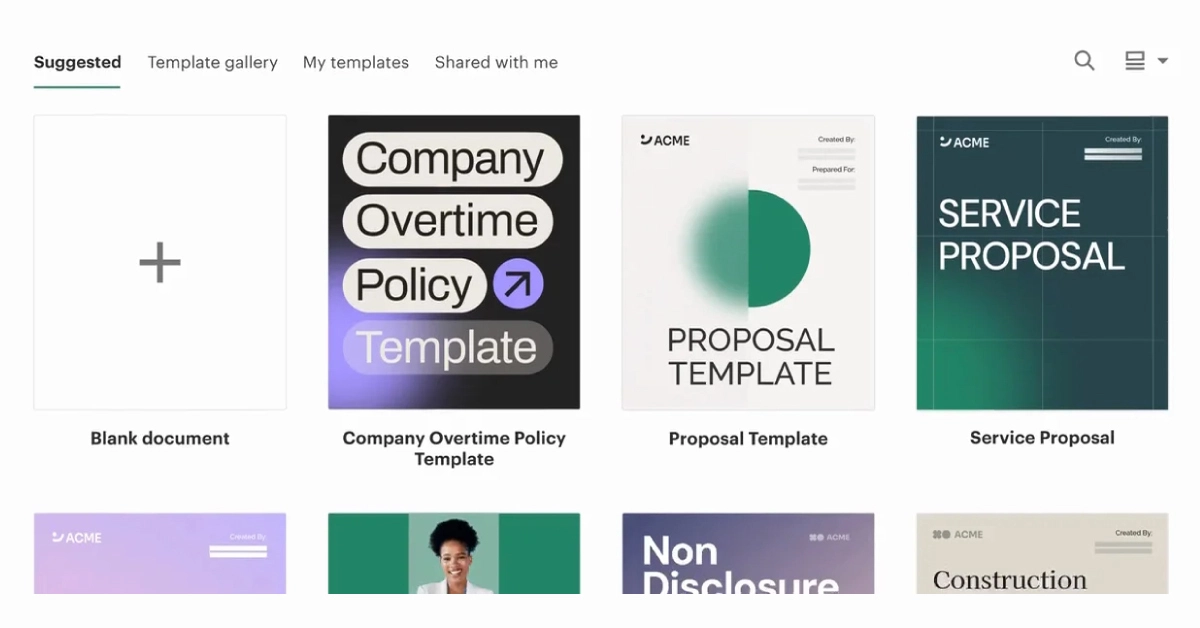
Templates are the engine of your PandaDoc implementation. Get them right, and every downstream workflow benefits.
A template is a reusable master copy of a document. If you frequently send similar proposals, quotes, or contracts, you can create a template once and reuse it – changing only the details that differ per customer.
Start by auditing the documents your team sends most often. For most SMBs, the priority list looks like this:
- Sales proposals (your top revenue driver)
- Service agreements or MSAs
- Statements of work (SOWs)
- Quotes with pricing tables
- NDAs
- Order forms or invoices
For each one, decide whether to start from PandaDoc’s pre-built template gallery or upload your existing document. The gallery is faster for standard agreements; uploading is better when you have heavily lawyer-reviewed language you can’t change.
Use variables for everything that changes per recipient. Customer name, company name, deal value, project start date, and signer email should all be variables, not typed text. This is the single biggest time-saver on the platform.
Add a pricing table to your proposal template. PandaDoc’s pricing table supports tiered options, optional add-ons, and recipient-selectable line items. Buyers can pick what they want, watch the total update in real time, and sign—all in one document.
Build a content library of pre-approved blocks: case studies, team bios, methodology sections, terms and conditions. Drop them into any document with a few clicks instead of hunting through old proposals.
Pro Tip: Cap your initial template build at three to five templates. New PandaDoc users routinely try to template every document type at once and stall out. Ship the proposal template, get reps using it, then add the next one. Iteration beats perfection.
Step 4: Configure Approval Workflows
Once templates exist, decide which documents need internal sign-off before they go out the door. This is where PandaDoc starts replacing your “can you review this real quick?” Slack culture.
An approval workflow routes documents to designated internal reviewers before they reach recipients. You configure approval once on a template — every document created from that template follows the same approval path automatically.
Common SMB approval patterns include:
- Discount thresholds. Any deal with more than 15% discount routes to the sales manager.
- Contract value. Deals above $25,000 require CFO approval.
- Custom legal terms. If the customer redlines the MSA, route to legal counsel before re-sending.
Conditional approvals let you route a document to an approver only when specific conditions are met. If conditions are not met, the document skips that approver and moves to approved status automatically. This is the SMB sweet spot: standard deals fly through, exceptions get the right eyes on them, and nothing sits in someone’s inbox waiting for a manual ping.
Step 5: Connect PandaDoc to Your CRM and Other Tools
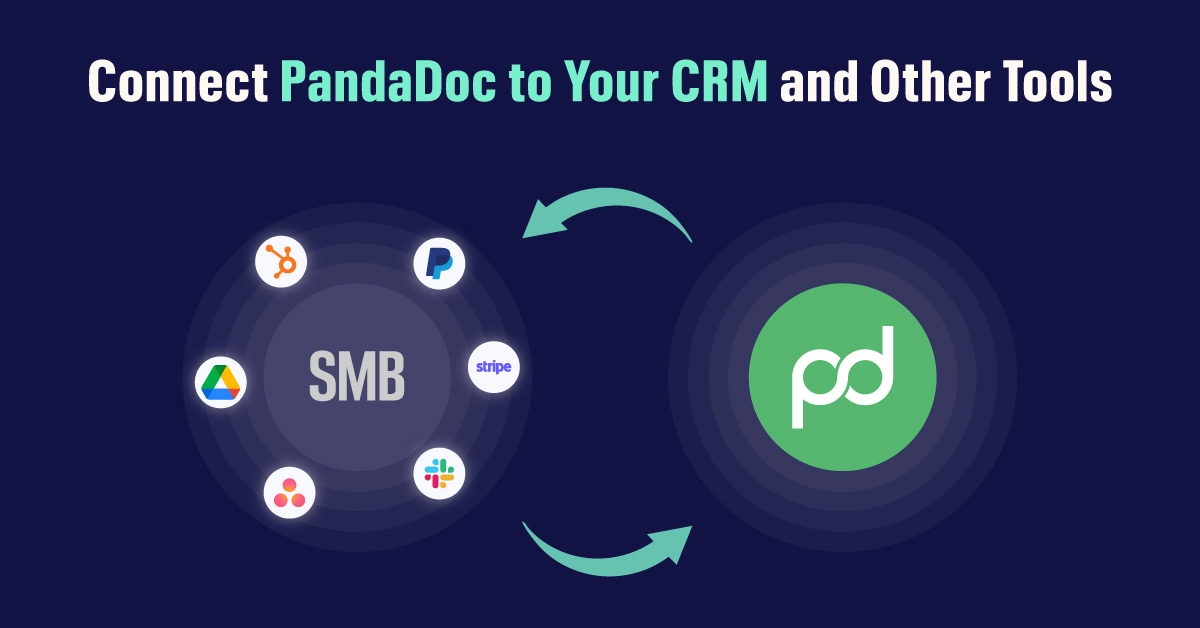
Integrations turn PandaDoc from a document tool into the connective tissue of your revenue stack.
The most common SMB integration stack looks like:
- CRM: Salesforce, HubSpot, or Pipedrive
- Payments: Stripe, PayPal, or QuickBooks
- Storage: Google Drive, Dropbox, OneDrive, or Box
- Communication: Slack, Gmail, or Outlook
- Project management: Monday.com, Asana, or Trello
For some tools, all you have to do is go to their marketplace, find PandaDoc, and hit “Install.” Other tools — especially those that offer more customization options — may require a few additional steps to connect to PandaDoc.
CRM integration is the highest-leverage move. Once connected, your reps create proposals directly from a deal record, customer data auto-populates into the document, and document status (sent, viewed, signed) syncs back to the deal so managers can forecast accurately.
For payments, embedding Stripe or PayPal in a proposal lets customers sign and pay in the same session—the difference between “we won the deal” and “we got paid” can shrink from weeks to minutes.
Pro Tip: Map your CRM custom fields to PandaDoc tokens before you launch. If your Salesforce opportunity has a “Project Scope” field, make sure that field name matches a variable in your PandaDoc template. Mismatched field names are the #1 reason CRM-to-document integrations break in production.
Step 6: Set Up Automations

With templates, approvals, and integrations in place, automation puts repetitive work on autopilot.
PandaDoc automations streamline workflows by automating document actions based on status changes. Automations allow you to save time and automate tasks whenever the status of a document changes to “Sent” or “Completed.” Automations are template-based — so, once you set up an automation for a template, all new documents created from this template will inherit the setup.
High-impact SMB automations include:
- Auto-archive completed contracts to Google Drive in a folder organized by client.
- Send a follow-up onboarding document automatically when a master agreement is signed.
- Update CRM deal stage to “Closed Won” when a proposal is signed.
- Trigger a Slack notification to the customer success team when a new contract goes live.
PandaDoc Automations are available for Business and Enterprise plans. External Automations are available as a paid add-on for Business plan ($39 per month per account/$468 per year per account) and is included in Enterprise plan. Budget for the External Automations add-on if you plan to push status changes back into your CRM or HR system.
Step 7: Train Your Team and Drive Adoption
A perfect implementation that nobody uses is a failed implementation. Adoption is where most SMB rollouts win or lose.
PandaDoc maintains a robust training ecosystem. The PandaDoc Learning Academy includes a 60-minute live class for all PandaDoc users covering workspace setup, template creation, document sending, and key PandaDoc terms, plus role-specific learning paths for sales reps, sales managers, HR ops, and CEOs.
A practical SMB rollout plan:
Week 1: Admin and Account Owner complete setup, build the first template, and run an internal pilot with two volunteer reps.
Week 2: Roll out to the full sales team with a 60-minute kickoff session. Walk through the proposal template live, send a real document together, and review the analytics dashboard.
Week 3: Office hours twice a week. Collect feedback, fix template friction, and add the second template.
Week 4: Lock in the new workflow. Old proposal methods (Word docs, PDFs over email) get retired. Sales managers begin reviewing PandaDoc analytics in their weekly forecast meeting.
Step 8: Measure ROI and Iterate
Implementation isn’t done at launch—it’s done when you can prove the platform is paying for itself.
Track these metrics in PandaDoc’s built-in analytics dashboard and your CRM:
- Time-to-close. Average days from proposal sent to deal closed.
- Document creation time. How long reps spend building proposals before sending.
- Open rate and view time. Are recipients actually reading what you send?
- Win rate by template. Which proposal version is closing the most deals?
- Average deal size. Are pricing tables and upsell options driving larger contracts?
Review these monthly for the first quarter, then quarterly. Use the data to refine templates, add or remove content blocks, and tune approval thresholds.
Common Implementation Pitfalls to Avoid

Even with a clean plan, some patterns trip up SMB rollouts.
- Templating too much, too soon. Three great templates beat fifteen mediocre ones.
- Skipping variables. Hardcoded text in templates means every document needs manual editing—defeating the entire purpose.
- Ignoring the content library. Reps will always reach for last quarter’s PDF if reusable blocks aren’t easy to find.
- No CRM integration. Without it, document status lives in a silo and managers can’t forecast accurately.
- No internal champion. Someone needs to own the implementation—usually a sales operations lead or a tech-savvy rep with manager backing.
Final Thoughts
A successful PandaDoc implementation comes down to three things: pick the right plan, build templates that mirror how your business actually sells, and connect the platform to the systems your team already uses every day. SMBs that follow this sequence routinely see faster proposal turnaround, higher close rates, and cleaner handoffs from sales to operations within the first ninety days.
Start small. Ship one template. Send ten real documents. Then iterate. The teams that treat PandaDoc as a living system rather than a one-time setup project are the ones that get the compounding returns the platform was designed to deliver.
Frequently Asked Questions (FAQs)
1. What is PandaDoc and how does it work for SMBs?
PandaDoc is a cloud-based document automation and e-signature platform that helps small and medium-sized businesses create, send, track, and sign proposals, contracts, quotes, and forms in one unified workflow. It works by combining reusable templates, a drag-and-drop builder, CRM integrations, and legally binding e-signatures so SMBs can replace manual document processes with automated, trackable workflows.
2. How long does it take to implement PandaDoc?
PandaDoc implementation typically takes two to four weeks for most SMBs, depending on team size, template complexity, and integration needs. Basic account setup and template creation can be completed within the first week, while CRM integrations, approval workflows, and team training usually fill out the remaining timeline.
3. Which PandaDoc plan is best for small businesses?
The Business plan is the best fit for most small businesses because it unlocks CRM integrations, workflow automation, content libraries, and analytics. The Free eSign or Starter plans work for freelancers and solo operators, while the Enterprise plan suits larger teams needing SSO, API access, and advanced user controls.
4. Does PandaDoc integrate with CRMs like Salesforce and HubSpot?
Yes, PandaDoc integrates natively with major CRMs including Salesforce, HubSpot, Pipedrive, Zoho, and Microsoft Dynamics. These integrations let sales teams create proposals directly from deal records, auto-populate customer data into documents, and sync document status back to the CRM for accurate forecasting.
5. Are PandaDoc e-signatures legally binding?
Yes, PandaDoc e-signatures are legally binding in the United States, the European Union, and most countries worldwide. The platform complies with ESIGN, UETA, and eIDAS regulations, and it meets industry standards including GDPR, HIPAA, SOC 2, and FERPA for data security and compliance.
6. How many templates should an SMB build during PandaDoc implementation?
SMBs should start with three to five core templates during initial implementation, focusing on the highest-volume document types such as sales proposals, service agreements, statements of work, quotes, and NDAs. Building too many templates upfront slows down rollout, so it is better to launch with a few solid templates and add more as your team grows comfortable with the platform.
7. What is the difference between PandaDoc templates and the content library?
PandaDoc templates are reusable master copies of entire documents like proposals or contracts, while the content library stores pre-approved individual blocks such as case studies, team bios, pricing sections, and terms. Templates give you a complete starting document, whereas the content library lets you drag and drop approved content blocks into any document on the fly.
8. Can PandaDoc automate approval workflows for sales documents?
Yes, PandaDoc supports automated approval workflows that route documents to designated internal reviewers before they reach recipients. You can set conditional approvals based on deal value, discount thresholds, or custom contract terms, ensuring standard deals move quickly while exceptions get the right internal eyes on them.
9. Does PandaDoc offer a free trial for SMBs?
Yes, PandaDoc offers a 14-day free trial that gives you full access to Business plan features without requiring a credit card. The trial allows you to build templates, send up to 50 documents, collect e-signatures, and test integrations, making it the ideal way to evaluate the platform before committing to a paid plan.
10. How do I measure ROI after implementing PandaDoc?
You can measure PandaDoc ROI by tracking key metrics such as time-to-close, document creation time, proposal open and view rates, win rate by template, and average deal size. Most SMBs review these metrics monthly during the first quarter to refine templates, fine-tune approval workflows, and prove the platform is paying for itself.