AI Summary




TL;DR
- Pipedrive links to Gmail in two ways. The Gmail add-on puts a CRM sidebar inside Gmail, and Email Sync logs your email into Pipedrive.
- The add-on installs from the Google Workspace Marketplace and runs as a Google Workspace add-on, so ignore older guides that tell you to click “Add to Chrome.” Pipedrive lists no separate plan requirement to install it.
- Email Sync needs the Growth plan or higher. The add-on’s Meeting Scheduler also needs Growth or higher.
- Syncing a shared team mailbox, or more than one mailbox per user, needs Premium or higher.
- Pipedrive links email to a contact by matching the sender’s or recipient’s address. If a message is not attached, that address is usually missing from the right person in Pipedrive.
If your sales team runs on Gmail but your pipeline lives in Pipedrive, you lose time in the gap between them. You copy an email into a deal, retype a contact, forget to log a reply, and by the end of the week the CRM no longer matches what actually happened. We see this constantly in the Pipedrive setups we audit, and it is straightforward to fix.
The Pipedrive Gmail integration closes that gap with two features that do different jobs. The Gmail add-on gives you a CRM sidebar inside Gmail, so you can view contacts and deals, add records, and update notes while you read email.
Email Sync connects your mailbox so sent and received messages log against the matching contact and link to the right deal, lead, or project. The add-on installs from the Google Workspace Marketplace, and Email Sync starts on the Growth plan.
| Last verified on September 10, 2026 against Pipedrive’s official Knowledge Base and pricing pages. Plans and prices can change, so confirm current details on pipedrive.com/en/pricing before you buy. |
How to Connect Pipedrive to Gmail
Connecting takes three moves. Install the Gmail add-on, sign in to Pipedrive, then turn on Email Sync if you want your inbox logged in the CRM. The add-on gives you a sidebar for quick work in Gmail. Email Sync records the conversations. You can set up one or both.
Install the Gmail add-on
Install the add-on from the Google Workspace Marketplace. It takes about a minute.
- Open Gmail on the desktop.
- Click the “+” icon (Get add-ons) in the right side panel, or open the Google Workspace Marketplace directly.
- Search for Pipedrive CRM.
- Click Install and follow the prompts.
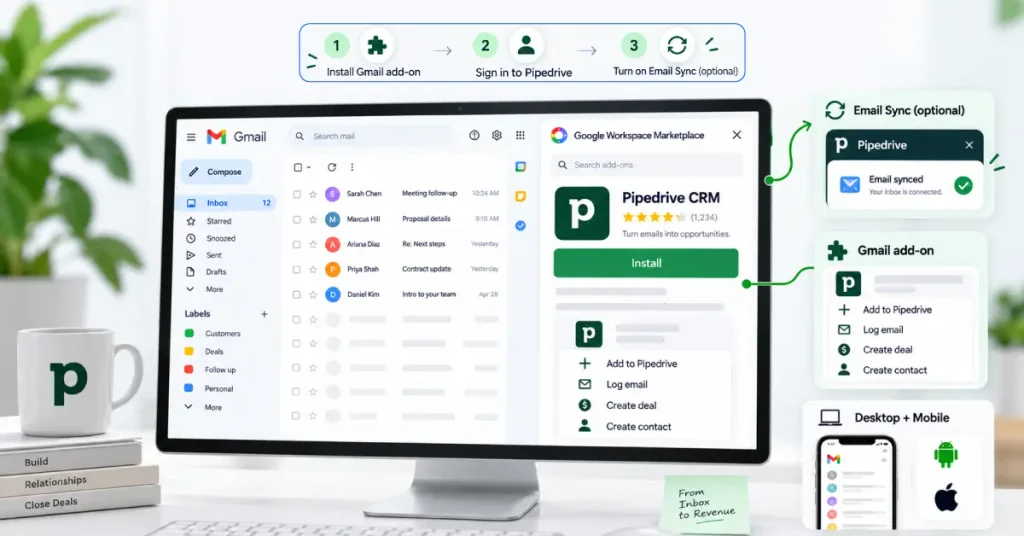
The add-on works in Gmail on desktop and in the Gmail mobile app for Android and iOS.
Connect your Pipedrive account
Authorize the add-on, then log in so the sidebar can read and write your CRM data.
- During install, pick the Google account you want to connect to.
- Review the access Google asks for and grant it so the add-on can work with your Gmail messages and your Pipedrive account.
- Open any email. The Pipedrive add-on appears in the Gmail side panel.
- Click Log in in the sidebar and sign in to Pipedrive.

Configure Email Sync
Email Sync is separate from the add-on and lives inside Pipedrive. It is available on the Growth plan and higher.
- In Pipedrive, open the account menu in the top right and go to Personal preferences.
- Select Email sync and enter the address you want to sync.
- Choose your provider. For Gmail, pick Google and authorize the connection.
- Choose whether this is a personal account or a team account. Team accounts need Premium or higher.
- Set your sync options, then click Start sync.
Set these options on the way in.
- Email visibility: For a personal account, choose private or shared. For a team account, choose team only or shared. This controls who on your team can see the synced emails.
- Past sync start time: Decide how far back Pipedrive pulls existing email.
- Synced folders: Sync all folders, or only the ones that matter such as Inbox and Sent. Leaving out Promotions and Social keeps noise out.
Email Sync works with Gmail, Outlook, and other IMAP or Exchange mailboxes. It does not support POP3.
Gmail Add-On vs Email Sync: What’s the Difference?
The add-on brings CRM data into Gmail. Email Sync brings email into the CRM. They solve different problems, and one does not replace the other.
The add-on is a sidebar for people who work in Gmail and want CRM context while they read and write. It does not sync your inbox on its own. Email Sync connects your mailbox so sent and received messages appear in Pipedrive under the matching contact, linked to a deal, lead, or project. Use the add-on for quick edits in the inbox. Use Email Sync when you want your selected Gmail conversations synchronized and searchable inside Pipedrive. You control which folders and messages are included through your Email Sync settings.
| Feature | Gmail add-on | Email Sync |
| What it does | Work with CRM data while you read email | Log email conversations into Pipedrive |
| Where it runs | Gmail sidebar, desktop and mobile app | Pipedrive Sales Inbox and connected mailbox |
| Contact and deal access | Yes, from the Gmail sidebar | Yes, from within Pipedrive |
| Syncs your inbox | No | Yes, sent and received email, two way |
| Plan needed | No separate plan listed to install | Growth or higher |
The Meeting Scheduler inside the add-on is the one paid piece. It needs the Growth plan or higher.
People sometimes use the terms plugin and extension when searching for the Pipedrive Gmail integration, but technically the official Gmail tool is a Google Workspace add-on. You install it from the Google Workspace Marketplace rather than the Chrome Web Store.
What Can You Do With the Pipedrive Gmail Integration?
Together, the add-on and Email Sync let you run most of your daily sales work across Gmail and Pipedrive without retyping data.

From the Gmail sidebar you can do the following.
- See deal value, stage, activities, and notes next to the open email.
- Add a new person when the sender is not in Pipedrive yet.
- Create and update deals as the conversation moves.
- Add activities and notes, and mark activities as done.
- Edit a person’s name, email, phone, and organization, then save back to Pipedrive.
- Insert a Meeting Scheduler link so the recipient books a time that lands on your calendar. This needs Growth or higher.
When no email is open, the sidebar shows your scheduled activities for the day. With Email Sync on, you also get these.
- Sent and received email logged against the matching contact, then linked to a deal, lead, or project automatically or manually.
- Email tracking, so you see when a recipient opens a message or clicks a link.
- Email templates. Growth includes templates, and Premium and higher add AI email tools.
- Control over which emails are shared with the team and which stay private.
Which Pipedrive Plan Do You Need?
The Pipedrive Gmail add-on installs from the Google Workspace Marketplace, and Pipedrive lists no separate plan requirement to install it. Email Sync and the Meeting Scheduler start on Growth. A shared team mailbox, or more than one mailbox per user, starts on Premium.
Here is where each piece sits, using Pipedrive’s current US list prices.
| Plan | Annual (per user/month) | Monthly (per user/month) | Email Sync |
| Lite | $14 | $24 | No |
| Growth | $39 | $49 | Yes |
| Premium | $59 | $79 | Yes |
| Ultimate | $79 | $99 | Yes |
A few plan notes are worth knowing before you pick.
- The Lite plan does not include Email Sync. Growth is the entry point for logging Gmail into Pipedrive.
- A team inbox and syncing more than one mailbox per user need Premium or higher.
How Pipedrive Links Gmail Emails to Contacts and Deals
Pipedrive matches email conversations to contacts using the sender’s or recipient’s email address. If the address matches a person saved in Pipedrive, the conversation is associated with that contact.
When automatic item linking is enabled, Pipedrive can also link the conversation to a relevant open deal, lead, or project. If the contact has multiple open items, you select the correct one manually.
If a message is not linking, the address is usually not saved on the right person, or the person does not exist yet. Add the address to the correct contact and future email will attach.
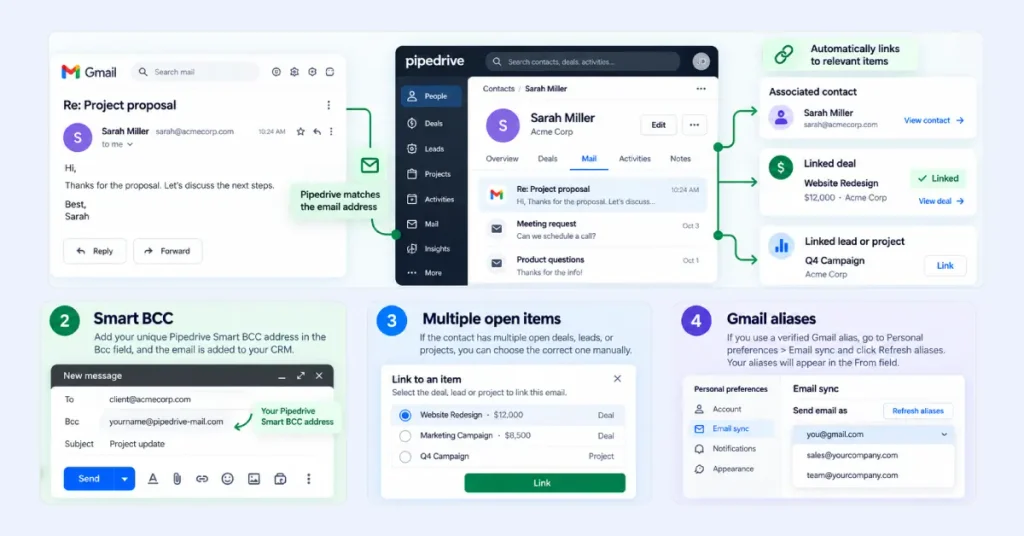
Smart BCC gives you another way to add emails to Pipedrive. Add your unique Pipedrive Smart BCC address to the Bcc field of an outgoing email, and Pipedrive adds the message to your Sales Inbox and associates it with the matching contact.
If automatic item linking is enabled and the contact has only one relevant open deal, lead, or project, Pipedrive can link the conversation to that item automatically. You will find your Smart Bcc address on the Email sync settings page.
Gmail aliases are supported with Email Sync. If you use a verified Gmail alias, go to Personal preferences, then Email sync, find the Send email as section, and click Refresh aliases. Your verified aliases then appear in the From field when you compose an email. This works for Gmail personal and team accounts, but not for Outlook, Exchange, or other IMAP-based providers.
Pipedrive Gmail Integration Not Working?
Most Gmail problems trace back to a browser session conflict, a plan that does not include Email Sync, or an email that cannot match a contact. Work through these.
The add-on does not appear in Gmail. Reload Gmail, then open an email so the side panel loads. If it still does not show, confirm the add-on is enabled in the Gmail side panel settings.
You cannot authorize your Google account. The “Sorry, unable to open the file at this time” error usually comes from having several Google accounts signed in to one browser window. Pipedrive’s own fixes are to install from an incognito window signed in to only the right account, to sign out of all accounts and sign back in to the correct one, or to set up a dedicated Chrome profile for your work account.

Gmail emails are not syncing. Check your plan first. Lite does not include Email Sync, so upgrade to Growth or higher. On a qualifying plan, open Personal preferences then Email sync and confirm the sync is active and the right folders are selected.
Emails are not linking to the expected contact or deal. Email Sync matches on the email address. Add the sender’s address to the correct Pipedrive person, and future messages will link.
Email visibility looks wrong to teammates. Visibility is a setting, not a fault. Review the private, shared, and team-only options in your Email sync settings so the right people see the right threads.
The sync keeps disconnecting. Reauthorize the mailbox. A password change, a security reset, or expired provider access can break the connection. Go to Personal preferences then Email sync, remove the account, and reconnect.
Best Practices
Set the integration up on purpose and it stays clean as your data grows.
- Set email visibility before you sync, so no private thread is exposed and no shared deal is hidden.
- Sync only the folders you need, and skip Promotions and Social.
- Keep the addresses people email from saved on the right Pipedrive person, so email links to the correct record.
- When a contact has several open items, confirm the thread is on the right one.
- Review who can see synced email before a team rollout.
- Connect one rep first, send and receive a few real emails, confirm they log correctly, then roll out to the team.