AI Summary




To set up a Pipedrive pipeline correctly, start with your sales process, not the CRM columns. Define the milestones a real opportunity moves through, agree on what qualifies a deal to enter and leave each stage, and only then build those stages in Pipedrive. This keeps deal tracking consistent, reporting reliable, and forecasting useful.
From there, configure Pipedrive around that process: stage criteria, custom fields, probabilities, rotting rules, automations, visibility and permissions, data migration, and reporting. This guide walks through the full Pipedrive pipeline setup step by step, including the mistakes that lead to stale deals, inconsistent stage usage, unreliable reports, and poor CRM adoption.
Pipedrive updated its plan structure in 2025 to Lite, Growth, Premium, and Ultimate. Some features and usage limits vary by plan, so we flag those differences throughout the guide.
Key takeaways
- A pipeline tracks active, qualified opportunities through observable stages. It is not a contact database.
- Decide what qualifies as a deal before you build stages. Converting every inquiry inflates pipeline value and distorts conversion.
- Design the real sales process first, then configure Pipedrive to match it.
- Name stages after observable events so two reps classify the same deal the same way.
- Keep Won and Lost as deal statuses, not stages.
- Required fields (Premium and higher) block progress. Important fields (Growth and higher) only prompt. Gate data when it becomes knowable, not all at once.
- Stage probability sets a default. Deal probability overrides it. Both feed weighted value.
- Rotting flags idle deals by last-update time. It is not an SLA.
- Moving deals between pipelines changes Insights reporting. Check the impact before you restructure live data.
- Deleting a stage also deletes its deals. Move deals first.
What Is a Pipedrive Pipeline?
A Pipedrive pipeline is a series of sales stages that an active deal moves through until it is marked Won or Lost. Each stage should represent a real step in your sales process.
A Deal is the sales opportunity. It can link to a Person and an Organization, while Activities such as calls, meetings, and tasks record the next actions needed to move the deal forward.
Won and Lost are deal statuses, not pipeline stages.
A Pipedrive pipeline should contain active sales opportunities only. Contacts and customers belong in Person and Organization records, while early or unqualified opportunities can stay in the Leads Inbox.
Keeping non-sales records or inactive opportunities in the pipeline can inflate pipeline value, distort conversion rates, and make forecasting less reliable.
Before creating your stages, define two things: what qualifies as a deal and what milestones that deal must pass through to close.
Decide What Should Enter the Pipeline
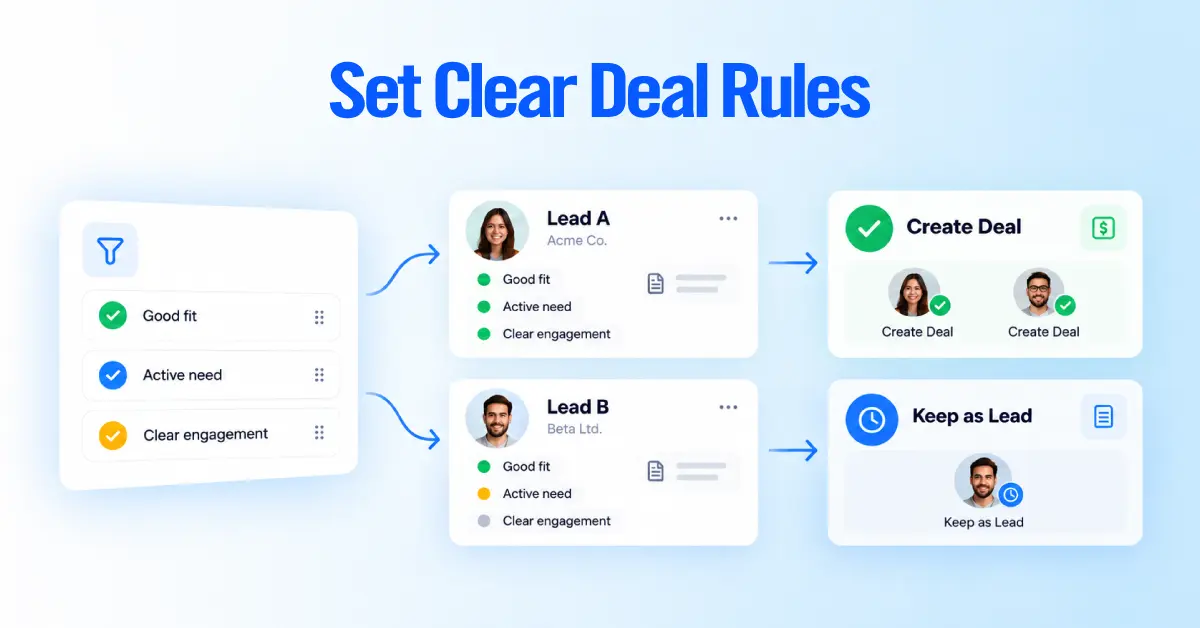
Only qualified opportunities should become deals. Everything earlier belongs elsewhere in Pipedrive.
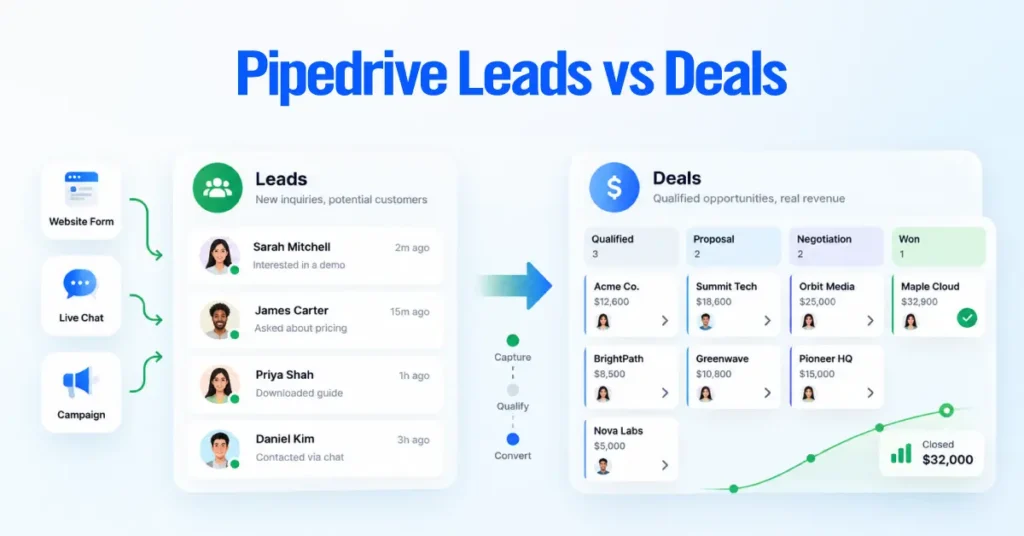
Pipedrive separates early interest from active opportunities through the Leads Inbox, a space for unqualified leads that you convert into deals when they are ready. A lead must be linked to a Person or Organization, and it cannot move along a pipeline until you convert it.
When you do, Pipedrive transfers the linked contacts, notes, comments, and activities to the new deal, then deletes the lead.
| Attribute | Lead | Deal |
|---|---|---|
| Purpose | Hold interest you have not yet qualified | Track a qualified opportunity you are working to close |
| Qualification level | None or partial | Meets your qualification threshold |
| Where it lives | Leads Inbox | A pipeline stage |
| Moves through stages | No | Yes |
| Reporting impact | Counts toward lead volume and conversion | Counts toward pipeline value, conversion and duration |
Converting every inbound inquiry into a deal has predictable effects. Pipeline value stops reflecting real opportunities, conversion drops because the denominator fills with unqualified records, rep workload looks heavier than it is, and reps stop trusting the board.
Teams qualify differently, and that is fine. A high-velocity inbound team and a complex enterprise team should not share one threshold.
Define Your Lead-to-Deal Qualification Rule
Write one repeatable rule for when a lead becomes a deal. The goal is consistency, so two reps looking at similar opportunities reach similar decisions.
You might build the rule from fit, need, engagement, buying path, timing or opportunity value. Those are options, not a required framework. Pick the two or three that predict wins in your business and write a short rule around them.
If you cannot look at two leads and predict how each rep would classify them, the rule is still too vague. For the full lead workflow, see our Pipedrive Leads vs Deals resource, which covers that topic.
Choose One Pipeline or Multiple Pipelines
Create another pipeline when the underlying sales process differs, not when you only want to segment the same process.
Pipedrive supports multiple pipelines, each with its own stages. A genuinely different process usually shows up as different milestones, different information to capture, a different ownership model, different automations, different access, different reporting, or a different sales motion.
When Not to Create Another Pipeline
Skip a second pipeline when only the deal label changes while the selling steps stay the same. Other Pipedrive elements handle that segmentation without splitting your reporting.
A different salesperson, territory, state, city, calendar year, lead source, or a product sold the same way rarely needs its own pipeline. Deal owner, custom fields, filters, products, and visibility settings usually cover those cases.
None of these is automatically right. The test is whether the selling process itself changes.
One Pipeline vs Multiple Pipelines
| Scenario | Same pipeline may work | Separate pipeline may fit | Why |
|---|---|---|---|
| Same offer sold in two regions | Yes | Rarely | Same milestones and data. Use Deal owner and a territory field. |
| New business vs onboarding or delivery | No | Yes | Different milestones, owners and definition of done. |
| Self-serve vs enterprise motion for one product | No | Yes | Different steps, stakeholders and cycle length. |
| Product lines that close the same way | Yes | Sometimes | Use a product field unless access or reporting genuinely differ. |
| Several lead sources into one team | Yes | Rarely | Track with a source field, not a pipeline. |
| A channel or partner process with its own handoffs | No | Yes | Distinct milestones and ownership. |
Each row depends on whether your milestones, data, ownership, access or reporting actually change.
Map the Sales Process Before Configuring Pipedrive
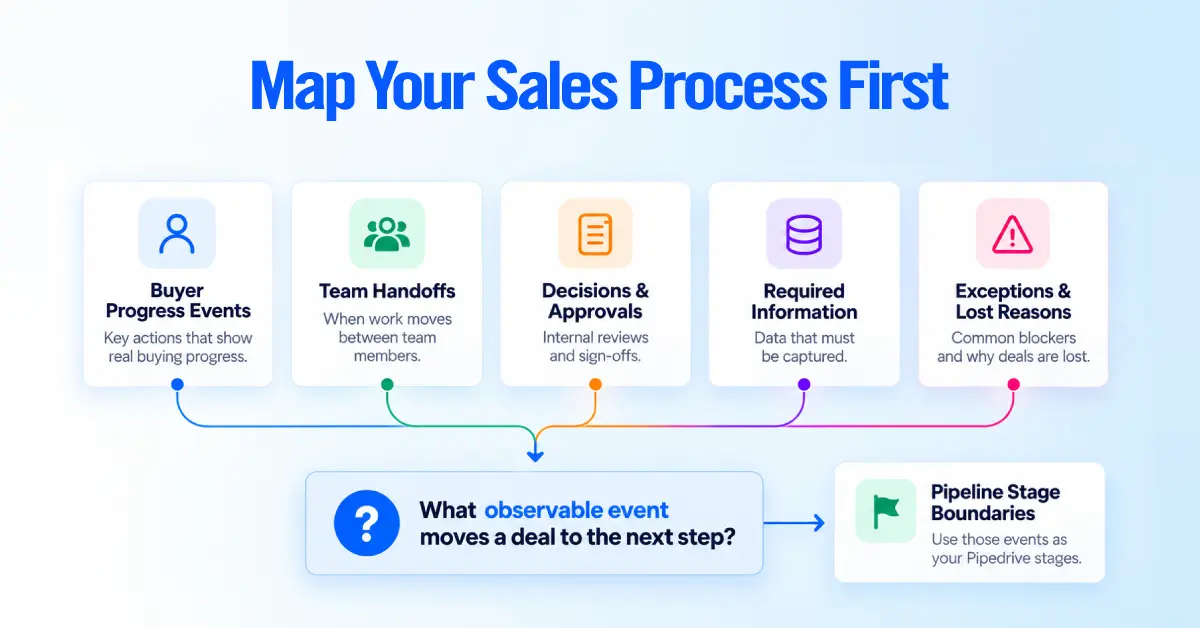
Before creating pipeline stages in Pipedrive, map how a deal actually moves through your sales process.
Start by identifying:
- The events that show real buyer progress
- Internal handoffs between team members
- Key decisions or approvals
- Information that must be captured
- Common exceptions
- Reasons deals are lost or disqualified
Use real sales data, not assumptions. Review recent Won and Lost deals, speak with reps, and look at how opportunities actually move from first contact to close.
For each deal, ask: What observable event moved this opportunity to the next step?
Those events should become the boundaries between your pipeline stages.
If your documented sales process does not match how reps actually sell, fix the process before building it in Pipedrive.
Turn Buyer Milestones Into Pipeline Stages
Each pipeline stage should represent observable progress in the buying process.
A good stage answers:
What has happened that makes this deal different from the previous stage?
Use Specific Stage Names
Prefer stage names based on completed events or confirmed states.
| Better stage names | Avoid |
|---|---|
| Discovery Scheduled | Working |
| Discovery Completed | Interested |
| Solution Confirmed | Hot |
| Proposal Delivered | Follow-Up |
| Commercial Review | Waiting |
| Agreement Sent | Closing Soon |
Names such as Hot, Working, or Interested depend on individual interpretation. Two reps may classify the same deal differently, which makes pipeline reporting less reliable.
Stage names should also match your sales model. A B2B services company, SaaS business, and home-services company will not necessarily use the same stages.
Define Entry and Exit Criteria for Every Stage
Do not rely on the stage name alone.
For each stage, define:
- Entry event: What must happen for the deal to enter?
- Exit event: What must happen before it moves forward?
- Required information: What fields should be completed?
- Next activity: What action should already be scheduled?
- Owner: Who is responsible for the deal?
- Expected time: How long should a deal normally stay here?
- Rotting threshold: When should inactivity be flagged?
- Automation: What should happen automatically?
A simple stage definition might look like this:
| Stage | Entry event | Exit event | Required information | Next activity |
|---|---|---|---|---|
| Discovery Scheduled | Prospect books discovery call | Discovery call completed | Contact, company, need | Discovery meeting |
| Discovery Completed | Discovery call completed | Solution confirmed | Budget, need, timeline | Follow-up call |
| Proposal Delivered | Proposal sent | Buyer begins commercial review | Deal value, proposal date | Proposal follow-up |
This gives the team a shared definition of when a deal should move.
What Pipedrive Can Enforce
Pipedrive can support some of these rules directly.
Native stage settings
- Stage name
- Stage probability
- Rotting threshold
Other Pipedrive features
- Required or important fields
- Activities
- Automations
- Permissions
Document other rules such as what a stage means, whether reps can skip stages, or when deals can move backward separately.
Pipedrive does not automatically prevent every incorrect stage movement, so your internal stage definitions remain important.
Keep Won and Lost as Deal Statuses

Do not create pipeline stages called Won or Lost.
In Pipedrive, Won and Lost are already built-in deal statuses. Using separate Won or Lost stages can interfere with reporting and make the pipeline harder to manage.
When a deal closes:
- Mark it Won when the opportunity successfully converts.
- Mark it Lost when the opportunity is no longer progressing.
- Record a lost reason so you can analyze why deals are failing.
Closed deals are removed from the active pipeline view but remain available through Pipedrive’s Won and Lost filters.
If an opportunity is not lost but is also not ready for active sales, consider moving it back to the Leads Inbox instead of creating a permanent “Nurture” or “Waiting” stage.
When a Final Pipeline Stage Makes Sense
A stage immediately before Won can still be useful when it represents a real milestone.
Examples include:
- Agreement Sent
- Contract Review
- Verbal Approval
- Awaiting Signature
The stage should describe what is happening in the deal, while Won describes the final outcome.
Example Pipedrive Pipeline Template
A simple Pipedrive pipeline for a B2B services team might use the following stages:
| Stage | What it means | Move forward when | Required information | Next activity |
|---|---|---|---|---|
| Qualified | The opportunity meets your basic sales criteria | The prospect agrees to a discovery conversation | Contact, company, need, estimated value | Schedule discovery |
| Discovery Scheduled | A discovery call or meeting is booked | The discovery meeting is completed | Meeting date, participants | Run discovery |
| Discovery Completed | Needs, goals, timeline, and buying context are understood | A suitable solution is confirmed | Need, budget, timeline, decision process | Prepare solution |
| Solution Confirmed | Both sides agree there is a potential fit | A proposal or commercial offer is ready | Scope, pricing, expected close date | Send proposal |
| Proposal Delivered | The prospect has received the proposal | Commercial discussion begins | Proposal value, sent date | Proposal follow-up |
| Commercial Review | Pricing, terms, scope, or procurement are being discussed | Both sides agree on final commercial terms | Final value, objections, decision maker | Review or negotiation call |
| Agreement Sent | The final agreement is waiting for approval or signature | The agreement is signed | Contract value, expected signature date | Signature follow-up |
After Agreement Sent, mark the deal Won when the agreement is completed, or Lost if the opportunity ends.
How the Pipeline Should Flow
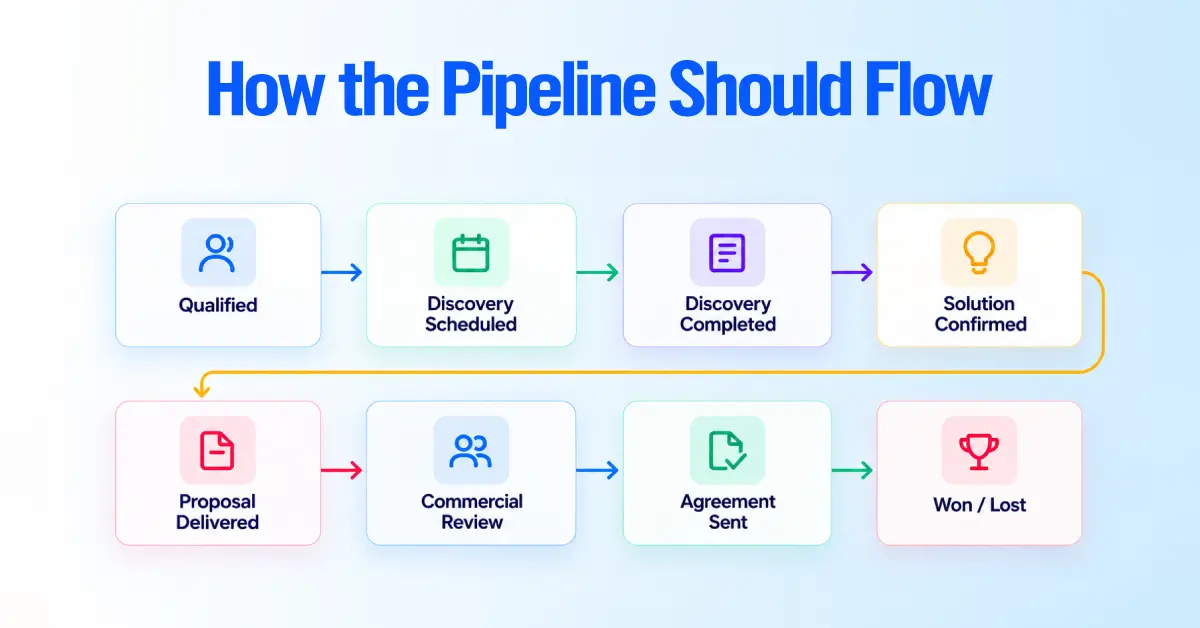
The pipeline should represent increasing buyer commitment:
Qualified → Discovery Scheduled → Discovery Completed → Solution Confirmed → Proposal Delivered → Commercial Review → Agreement Sent → Won/Lost
Each move should be triggered by an observable event, not by how confident the rep feels about the opportunity.
Add Time Expectations to Each Stage
You can also define how long a deal should normally remain in each stage.
| Stage | Example time in stage |
|---|---|
| Qualified | 3 to 5 days |
| Discovery Scheduled | 5 to 10 days |
| Discovery Completed | 3 to 7 days |
| Solution Confirmed | 3 to 7 days |
| Proposal Delivered | 5 to 10 days |
| Commercial Review | 7 to 14 days |
| Agreement Sent | 5 to 10 days |
These are starting points, not universal benchmarks. Your rotting thresholds should reflect your actual sales cycle and the normal time deals spend in each stage.
Adapt the Template to Your Sales Process
Do not copy the stages exactly unless they match how your team sells.
For every stage, ask:
- What happened before the deal entered this stage?
- What must happen before it can leave?
- What information should be known at this point?
- What is the next scheduled activity?
- How long can the deal stay here before it needs attention?
If you cannot answer those questions clearly, the stage is probably too vague. A useful pipeline is usually the shortest pipeline that still shows meaningful changes in buyer progress.
Add another stage only when it represents a distinct milestone your team needs for sales management, automation, forecasting, or reporting.
Configure the Pipeline in Pipedrive
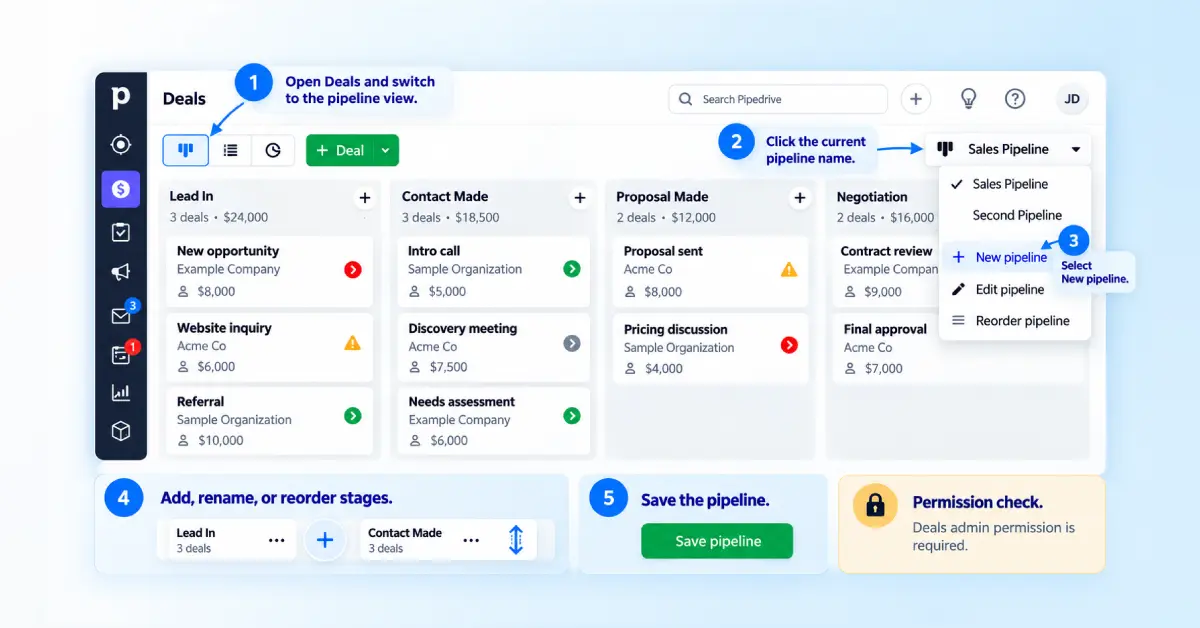
Once you’ve defined your stages and rules, building the pipeline in Pipedrive is straightforward.
Create the Pipeline
- Open Deals and switch to the pipeline view.
- Click the current pipeline name.
- Select New pipeline.
- Add, rename, remove, or reorder stages.
- Save the pipeline.
Use the + between stages to add a new one, drag stages to reorder them, and use the edit control to update existing stages.
Permission check: Only users with Deals admin permissions can create or edit pipelines. If the controls are missing, check permissions first.
Name Stages for Consistent Classification
Stage names should describe something that has actually happened.
| Clear | Ambiguous |
|---|---|
| Discovery Completed | Discovery |
| Proposal Delivered | Proposal |
| Agreement Sent | Agreement |
| Commercial Review | Working |
| Demo Scheduled | Interested |
Discovery Completed tells every rep exactly what happened. Discovery could mean scheduled, happening now, or finished.
The goal is simple: two reps looking at the same deal should choose the same stage.
Create Stage-Specific Data Gates
Collect information when it becomes useful and reasonably knowable. Not all at once when the deal is created. Pipedrive provides two main ways to encourage this:
Required Fields vs Important Fields
| Required field | Important field | |
|---|---|---|
| What it does | Blocks saving or stage movement | Shows a reminder |
| Can reps continue without it? | No | Yes |
| Best for | Information you must have | Information you want soon |
| Main risk | Reps enter placeholder data | Too many reminders get ignored |
| Availability | Premium+ | Growth+ |
When to Make a Field Required
Use a required field when the sales process cannot reliably continue without the information.
For example:
At deal creation
- Contact
- Organization
- Lead source
After discovery
- Need
- Buying timeline
- Decision process
Before proposal
- Deal value
- Proposed solution
- Expected close date
Avoid requiring information too early.
If you ask for budget, decision process, final value, and close date before a rep could realistically know them, you encourage guesses rather than better data.
Know Where Required Fields Apply
Required fields primarily control manual work in the Pipedrive interface. Do not assume the same checks apply identically to:
- Imports
- Bulk updates
- Automations
- API updates
- Third-party integrations
- Web forms
Validate those data paths separately if the information is critical.
Put Data on the Right Pipedrive Object
A field should live on the record it actually describes.
Deal
- Deal value
- Buying timeline
- Product or service interest
- Opportunity requirements
Person
- Job title
- Phone
- Personal email
- Contact role
Organization
- Industry
- Company size
- Company-level information
Avoid storing the same information on multiple objects unless there is a clear operational reason. Duplicate fields tend to become inconsistent over time.
Set Stage and Deal Probabilities Carefully
Pipedrive probability estimates how likely a deal is to be Won and uses that percentage to calculate weighted pipeline value.
There are two types.
Stage Probability vs Deal Probability
| Stage probability | Deal probability | |
|---|---|---|
| Applies to | Every deal in the stage | One specific deal |
| Best for | Stage-level forecasting | Deal-specific exceptions |
| Weighted value | Uses the stage percentage | Overrides the stage percentage |
| Main risk | Arbitrary stage percentages | Rep estimates based on gut feel |
If both exist, deal probability takes precedence.
Do Not Invent Probability Percentages
Avoid automatically assigning:
20% → 40% → 60% → 80%
simply because the stages move forward.
Instead, calculate probability from historical results where possible.
If 32% of deals reaching Proposal Delivered eventually become Won, that historical result is more useful than choosing a percentage because it “feels right.”
If you do not have enough data yet, use an initial model as a temporary baseline and revisit it after enough deals have closed.
Configure Rotting to Find Stalled Deals

Rotting flags deals that have gone too long without activity. It does not mean the deal is:
- Lost
- Low probability
- Past its expected close date
- Unresponsive
- Automatically disqualified
It simply means the deal has not had a qualifying update within the configured period.
How Rotting Works
Rotting is configured per stage. A deal becomes visually flagged when it passes that stage’s inactivity threshold. Activity such as completed tasks or linked email interactions can reset the timer.
Choose Thresholds by Stage
Do not use one universal number for every sales process.
For example:
| Stage | Possible starting point |
|---|---|
| Qualified | 5 days |
| Discovery Scheduled | 10 days |
| Proposal Delivered | 7 days |
| Commercial Review | 14 days |
These are examples, not benchmarks.
Your threshold should reflect the normal pace of your own sales cycle.
Give Every Open Deal a Next Activity
Rotting works best alongside a clear next-action discipline.
A useful rule is:
Every open deal should have a meaningful next activity.
The distinction is important:
Stage = Where is the deal?
Next activity = What happens next?
An open deal with no next activity can sit unnoticed even when its stage is technically correct.
Add Automations After the Pipeline Is Stable
Do not automate an unclear sales process.
Automation makes an existing process run faster. If the process is inconsistent, automation simply scales the inconsistency.
Start With Simple Automations
Most useful pipeline automations follow:
Trigger → Condition → Action
Example:
Trigger: Deal moves to Proposal Delivered
Condition: Deal owner exists
Action: Create a proposal follow-up activity for three days later
Other useful actions include:
- Assigning an owner
- Creating an activity
- Updating a field
- Sending an internal notification
- Sending an email
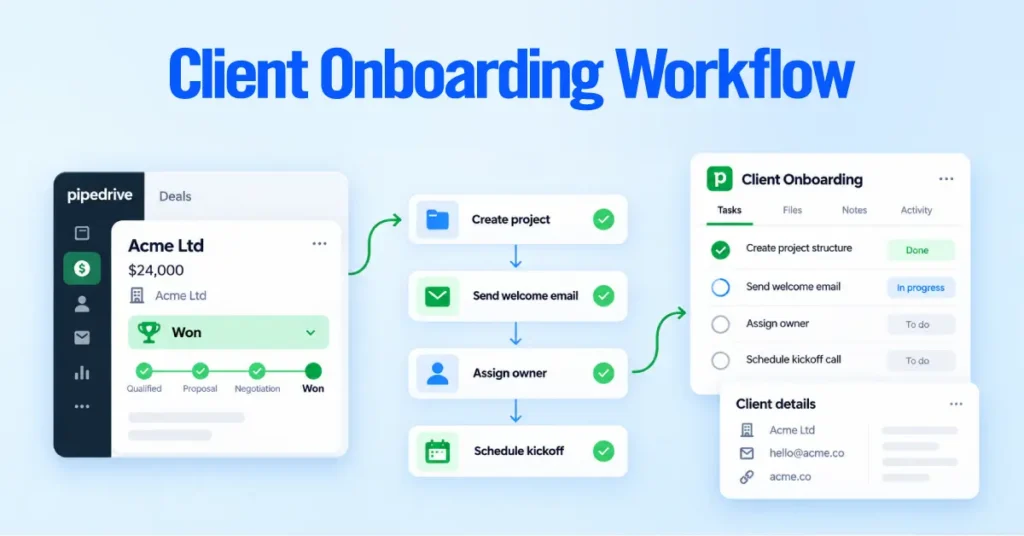
- Starting a post-Won handoff
Some automation functionality and limits vary by Pipedrive plan.
Be Careful With Automatic Stage Movement

Only move deals automatically when the trigger proves that the buyer reached the next milestone.
For example:
Weak trigger: Prospect replies to an email
→ Automatically move to Commercial Review
An email reply does not necessarily mean commercial review has started.
Better trigger: Signed proposal received
→ Mark the deal Won or trigger the appropriate closing workflow
Your automation should reflect the same stage criteria your team uses manually.
Test More Than the Happy Path
Before activating an automation, test:
- Normal forward movement
- Backward movement
- Skipped stages
- Won deals
- Lost deals
- Reopened deals
- Missing fields
- Owner changes
- Imports
- Integration/API events
- Duplicate triggers
Check both:
- Did the automation run at the correct time?
- Is the resulting record still accurate?
An automation firing successfully doesn’t necessarily mean it produced the correct data.
Configure Ownership, Permissions and Visibility
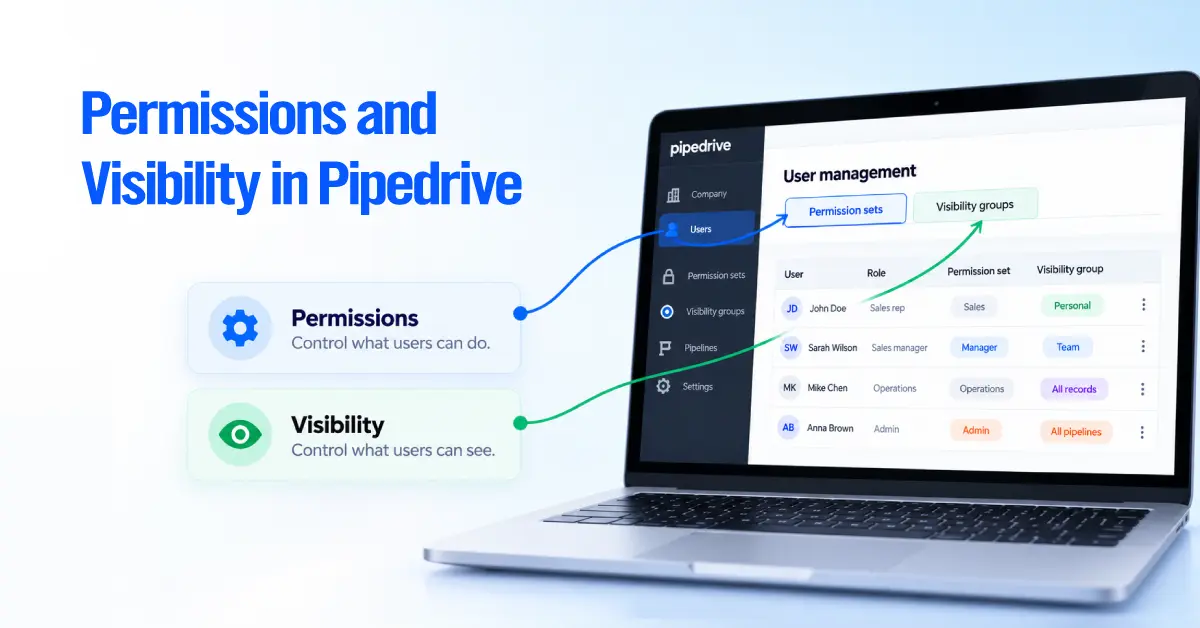
Pipedrive separates what users can do from what users can see.
Permissions vs Visibility
Permission sets control actions.
Examples:
- Create deals
- Edit deals
- Delete records
- Manage pipeline settings
Visibility groups control access to records and pipelines.
A user may therefore be able to see a deal without having permission to edit it.
A Simple Access Model
On Premium and Ultimate, you can use custom visibility groups and permission sets to create a simple role-based access structure:
Sales reps
- Their deals
- Relevant team pipelines
Sales managers
- Team deals
- Wider pipeline visibility
Operations
- Broad record access
- Reporting and workflow access
Admins
- System-wide configuration access
Plan limits matter here. Lite and Growth have one default visibility group and no custom permission sets, so this type of role-based access model is not available on those plans. Premium supports up to 15 custom visibility groups and 15 custom permission sets, while Ultimate supports up to 25 of each.
Pipeline visibility is configured separately, while deal and account admins can retain broader access than standard users. Keep the structure as simple as possible because complex visibility rules are harder to maintain and troubleshoot.
Import or Move Deals Into the New Pipeline
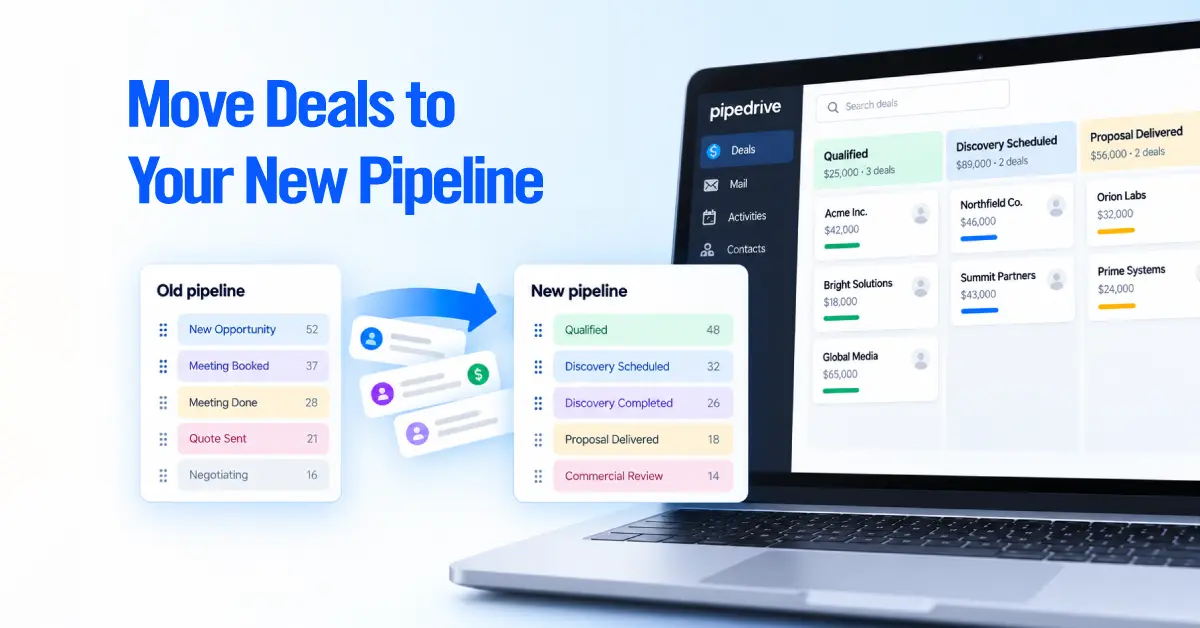
Finalize the pipeline structure before moving large amounts of live data.
Changing the architecture after migration creates unnecessary cleanup and can affect reporting.
Before Moving Deals
Create a mapping such as:
| Old stage | New stage |
|---|---|
| New Opportunity | Qualified |
| Meeting Booked | Discovery Scheduled |
| Meeting Done | Discovery Completed |
| Quote Sent | Proposal Delivered |
| Negotiating | Commercial Review |
Then check:
- Target pipeline
- Target stage
- Required fields
- Deal owner
- Open activities
- Expected close dates
- Automations triggered by the move
Migrate in Small Batches
Use this order:
1. Map
Decide where each existing stage belongs.
2. Test
Move a small sample.
3. Validate
Check fields, activities, ownership, automations, and reporting.
4. Migrate
Move the remaining deals only after the test passes.
Depending on the situation, you can move deals manually, through bulk editing, or during import.
Check Reporting Before Moving Live Deals
Moving a deal between pipelines is not only a visual change.
It can change how Pipedrive reports:
- Stage movement
- Conversion
- Duration
- Pipeline progress
Before restructuring live data, identify the reports that need to remain comparable.
Then decide whether to:
- Move all deals
- Move only open deals
- Keep closed deals in the old pipeline for historical reporting
Do not make that decision after the migration.
Measure Conversion, Duration and Pipeline Health
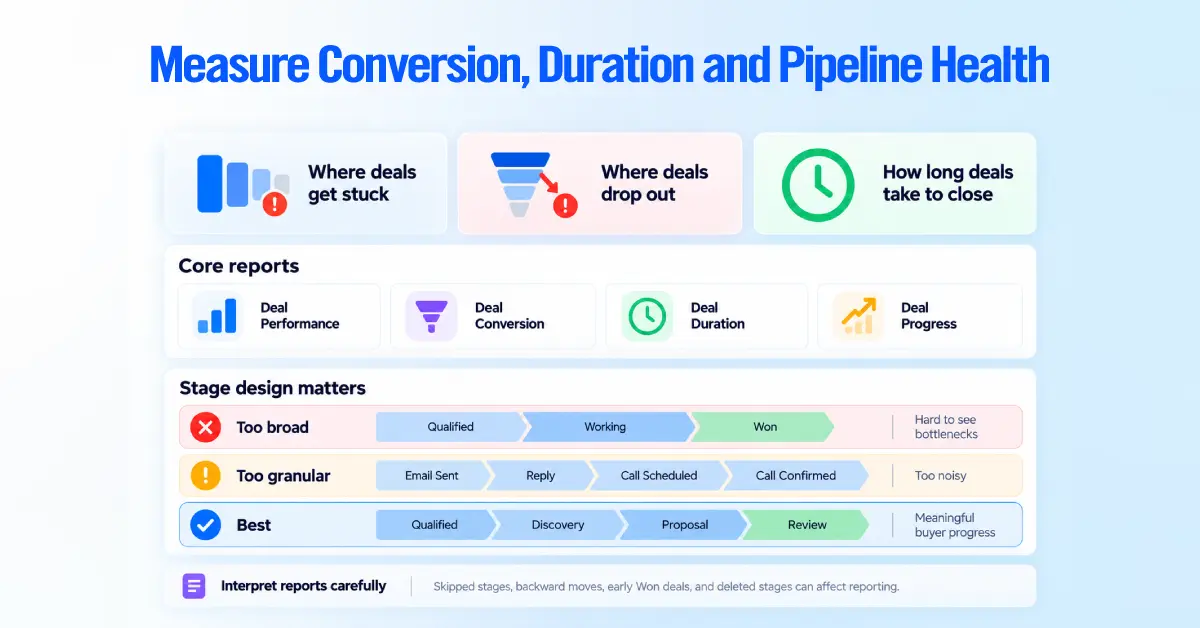
A good pipeline should help you answer three questions:
- Where are deals getting stuck?
- Where are deals dropping out?
- How long does it take deals to close?
Pipedrive Insights provides several reports to answer these questions.
Core Pipeline Reports
Deal Performance
Shows deals started, won, and lost.
Deal Conversion
Shows win/loss rates and funnel conversion between stages.
Deal Duration
Shows how long deals take to move through the pipeline.
Deal Progress
Shows movement through pipeline stages over a selected period.
Your stage design directly affects how useful these reports are.
Why Stage Design Matters
Stages that are too broad
Qualified → Working → Won
You cannot tell where deals are actually getting stuck.
Stages that are too granular
Email Sent → Email Opened → Reply Received → Call Requested → Call Scheduled → Call Confirmed
Reports become noisy and difficult to operate.
Aim for stages that represent meaningful buyer progress.
Know How Pipedrive Interprets Stage Movement
Pipedrive reporting does not always reproduce deal movement exactly as a human would describe it. A few behaviors are worth knowing.
Skipped stages
If a deal jumps from an earlier stage to a later stage, some reports may treat the intermediate stages as entered.
Backward movement
Moving a deal backward affects how its current progress is represented.
Early Won deals
Some conversion and duration reports can treat a Won deal as having completed stages it did not manually move through.
Deleted stages
Removing stages can affect historical duration calculations.
These rules matter when interpreting conversion and duration reports or redesigning a live pipeline.
Establish Your Baseline Before Optimizing
Do not start by asking whether your conversion rate or stage duration is “good.”
Start by measuring your own pipeline.
Track:
- Deals entering the pipeline
- Stage-to-stage conversion
- Overall win rate
- Average deal duration
- Average time in each stage
- Deal age
- Pipeline value
- Deals without a next activity
- Expected close-date slippage
- Lost reasons
Then compare future performance against that baseline.
No universal “good” pipeline conversion rate or stage duration applies to every company. Your sales cycle, market, deal size, process, and data quality all affect the result.
Your own clean historical data is usually the most useful benchmark for improving the pipeline.
Redesign an Existing Pipedrive Pipeline Safely
Treat a live redesign as a change project, because a live pipeline has dependencies a new one does not. The sequence below is our implementation guidance, not an official Pipedrive procedure.
- Document the current pipeline and its purpose.
- Inventory open deals by stage.
- Document current stages and their meanings.
- Map old stages to new stages explicitly.
- Identify exceptions that do not map cleanly.
- Review automations that reference stages or fields.
- Review required and important fields for conflicts.
- Review filters, dashboards and saved reports.
- Review web forms and lead-capture forms.
- Review integrations that write to the pipeline.
- Review scheduled or recurring imports.
- Consider the historical-reporting impact of moving deals.
- Test on a representative sample and validate the data.
- Move the remaining deals.
- Train users, then monitor closely after launch.
The steps that catch teams out are rarely the stage edits. They are the automations, filters, dashboards, forms, and integrations that quietly reference the old structure and break when it changes.
Review Stage and Pipeline Deletion Before Cleanup
Leave deletion until deals and reporting dependencies are handled, because deletion in Pipedrive removes live records. Deleting a stage also deletes the deals in it, so move deals to another stage first, and move deals to another pipeline before deleting a pipeline.
Deleted deals can be restored from the Restore data page within 30 days, but that is a safety net, not a plan. Confirm every deal has moved and every report and automation points at the new structure before you remove the old one.
Common Pipedrive Pipeline Setup Mistakes
- Turning every prospect into a deal. It inflates pipeline value and depresses conversion. Qualify in the Leads Inbox and convert only what meets your threshold.
- Using vague stages. Names like Hot or Working produce inconsistent classification. Name stages after observable events.
- Treating Won and Lost as stages. It breaks Pipedrive’s built-in status handling and filters. Keep them as statuses and record lost reasons.
- One pipeline per salesperson. It fragments reporting for no process reason. Use Deal owner instead.
- Separate pipelines for territories that share a process. The same milestones don’t justify separate pipelines. Use a territory field and visibility.
- Too many stages. Extra stages add friction and noise. Keep only stages that need a distinct action, data point, ownership change, automation, or report. We do not prescribe a maximum.
- Requiring too much too early. It produces placeholder data and resistance. Require fields when they become knowable.
- Guessing probability percentages. Round numbers create false precision. Base them on your own history and treat early models as provisional.
- Relying only on rotting for follow-up. Rotting flags inactivity; it does not say what to do. Pair it with next activities.
- Open deals with no next activity. They get forgotten. Standardize a next activity on every open deal.
- Automating an unstable process. Stabilize stages and rules first, then automate.
- Inconsistent lost reasons. They make loss analysis meaningless. Use a curated predefined set.
- Ignoring reporting dependencies. Structural changes quietly break dashboards, filters, and forecasts. Inventory them first.
- Redesigning live without testing. Untested migrations corrupt data and automations. Test on a sample and validate first.
Maintain the Pipeline After Launch
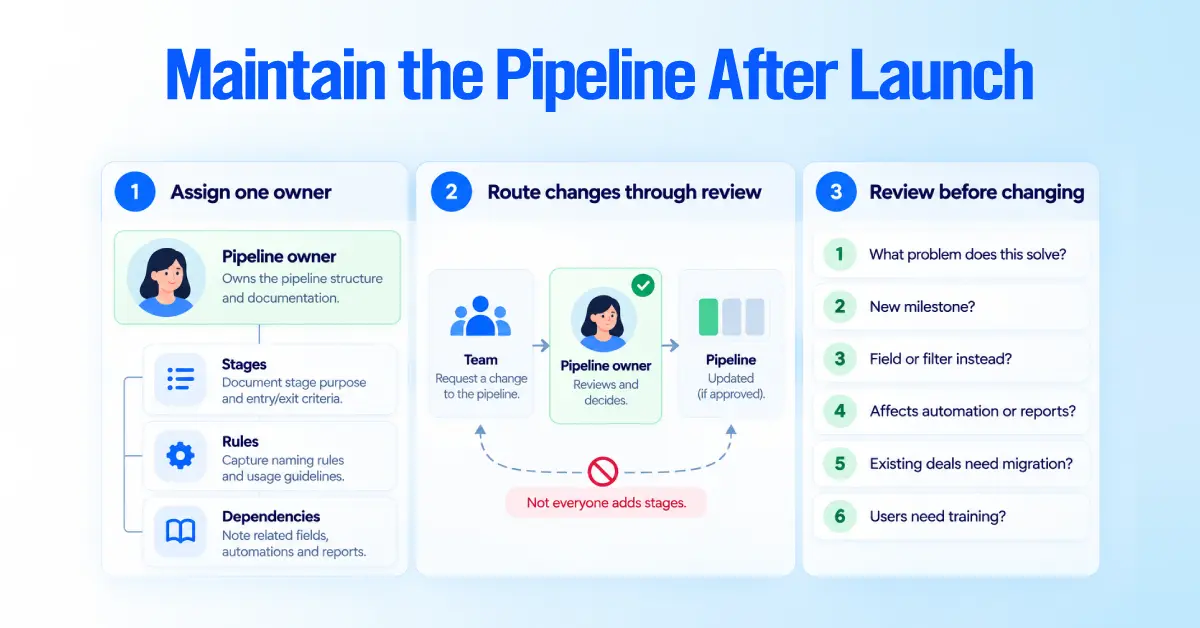
Assign one owner and route structural changes through review. A pipeline degrades fastest when anyone can add a stage on request.
Name a pipeline owner and keep documentation of:
- Stages
- Rules
- Dependencies
Route change requests through that owner.
When someone asks for a change, ask:
- What problem does this solve?
- Is it a genuinely new milestone?
- Could a field or filter solve it instead?
- Will it affect any automation or report?
- Will existing deals need migration?
- Will users need training?
Most requests for a new stage are really requests for a new field or filter. Asking these questions protects the reporting everyone depends on.
When to Use a Pipedrive Pipeline Consultant
Ordinary setup does not need a consultant.
Outside help is worth considering when complexity or live data raises the cost of getting it wrong, for example, when you:
- Run several distinct sales motions
- Migrate from another CRM
- Reconcile conflicting stage definitions across teams
- Design complex permissions and visibility
- Untangle integration and automation dependencies
- Consolidate overlapping pipelines
- Redesign a live pipeline whose reporting must stay comparable
In each case, the operational problem comes first.
Implementation support adds value by mapping dependencies before anything changes, so fields, automations, integrations, and reporting stay intact.
If your team is rebuilding a live Pipedrive environment, changing stage architecture can affect fields, automations, integrations, and reporting. Axis Consulting helps companies design and implement Pipedrive around their actual sales process.