AI Summary




TL;DR
- Custom fields store information that Pipedrive’s default fields don’t cover. You can add them to Deals, Leads, People, Organizations, Products, and Projects.
- Pipedrive offers 16 field types, and you can’t change a field’s type after you create it. Choose it carefully.
- One decision shapes everything: data ownership. Company facts belong on the Organization, personal facts on the Person, and deal-specific facts on the Deal.
- Custom field limits are per company by plan. The current tiers are 30 on Lite, 100 on Growth, 300 on Premium, and 500 on Ultimate.
- Deleting a field also deletes its data, permanently. Audit dependencies before you remove anything.
- Design fields around what you will measure and automate, not just what you will type. Controlled options beat free text.
You can create hundreds of custom fields per company on Pipedrive. But how many of those fields actually belong in your CRM?
Adding a field takes seconds. Deciding where that information should live can save you trouble later.
For example, a customer’s industry is usually company information, so it belongs on the Organization. A person’s job title belongs on the Person. A deal’s expected contract value or sales stage belongs on the Deal. Put these details in the wrong place, and you may end up entering the same information twice or struggling to use it in reports and automations.
That is why custom fields are less about adding more data and more about putting the right data in the right record. Pipedrive lets you create different field types for People, Organizations, Deals, and other records, so you can control both where information is stored and how your team enters it.
In this guide, we’ll break down how Pipedrive custom fields work, what belongs on People, Organizations, and Deals, and how those choices affect reporting, automation, integrations, and data quality.
What are Pipedrive Custom Fields?
Pipedrive custom fields are data fields you create to capture information the default fields do not cover. You can add them to Deals, Leads, People, Organizations, Products, and Projects.
Default fields handle the basics like deal value, stage, owner, and contact name. Custom fields hold what is specific to how you sell, such as lead source, contract term, industry, or decision-maker status.
Once created, a field appears across Pipedrive. You can fill it out and view it in detail and list views, map it during a spreadsheet import, and use it as a trigger or action in automations.
How Pipedrive’s Data Model Works
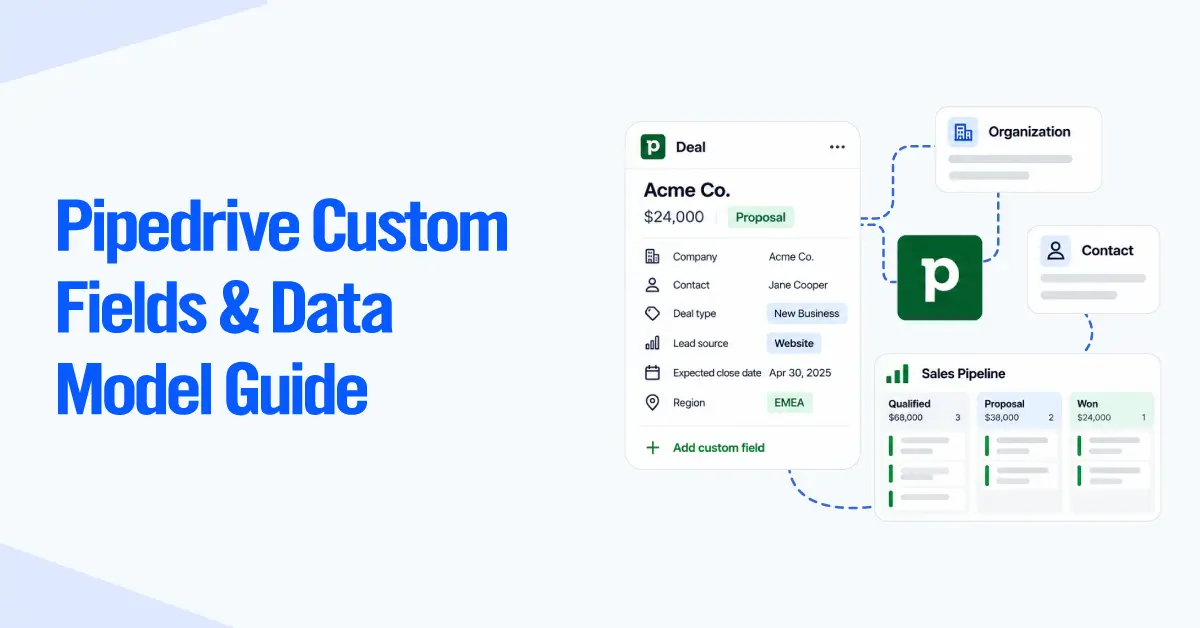
Pipedrive stores your data in a few connected record types, and a custom field lives on whichever type owns the information. You need this picture before you create fields, because a field cannot be moved to another record type later.
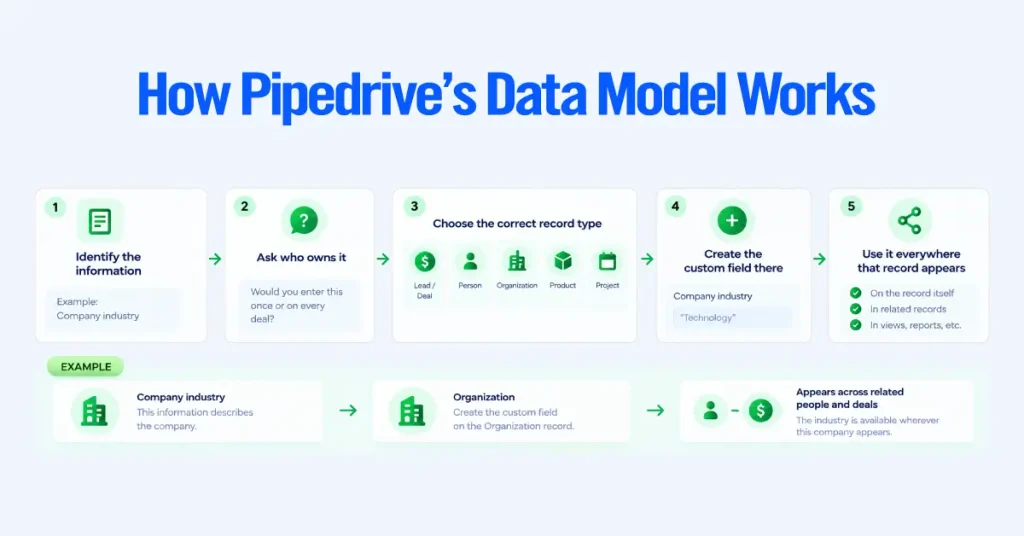
The main Pipedrive objects
- Leads and Deals: A Lead is an early opportunity, and a Deal is a qualified one in a pipeline. They share one field set, so Pipedrive automatically creates a custom deal field for leads.
- People: Individual contacts.
- Organizations: Companies or accounts.
- Products: What you sell, with fields like price and description.
- Projects: Post-sale delivery work, on Premium and higher plans, or a paid add-on on lower plans, with their own board-based fields.
Create each field on the record type that actually owns the information. A company’s industry belongs on the Organization, not on every deal that company appears in.
How the objects relate
An Organization can have many People. A Person can belong to an Organization. A Deal links to a Person and an Organization, and Activities and Projects attach to the Deal.
That structure is why placement matters. Store a value on the record that owns it, and it appears everywhere that record does. Put a company’s industry on the Organization once, and every deal and contact inherits it. Put it on the Deal, and you retype it for every new opportunity, and the values drift apart.
Before you create a field, ask one question. If this company signs ten deals over three years, do you want to enter this value once or ten times? The answer tells you which record should own it.
Where Should a Custom Field Live: Best Practices
Decide ownership before you create the field. Company facts belong on the Organization, personal facts on the Person, and opportunity facts on the Deal. Pipedrive cannot move a field between records after creation, so this choice sticks.
Organization fields
Use these for stable, company-level facts that hold true across every deal and contact at the account.
- Industry
- Company size or employee count
- Customer segment
- Account tier
- Territory or region
- Business type
Person fields
Use these for facts that belong to an individual, independent of any single deal.
- Job title
- Department
- Role in the buying process
- Contact preference
- Decision-maker status
A person’s job title follows them across every deal they touch, so it belongs on the Person.
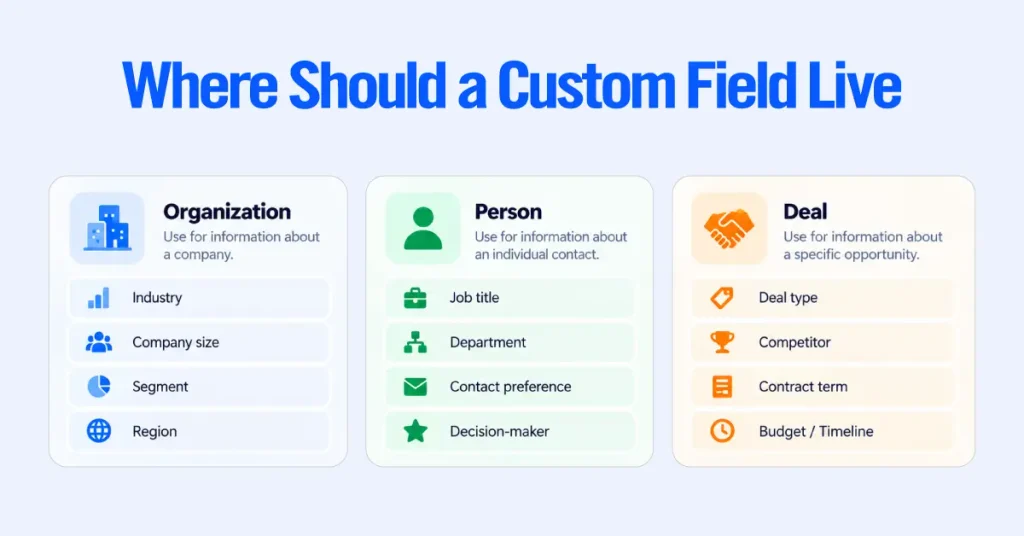
Deal fields
Use these for facts specific to one opportunity, which can change every time the same account opens a new deal.
- Deal type
- Implementation requirement
- Competitor
- Lead source detail
- Contract term
- Qualification detail such as budget or timeline
The same customer might buy a starter package this quarter and an enterprise contract next year. Those details are deal-specific.
The field ownership test
Run every proposed field through three questions.
- Does it describe the company? Likely an Organization field.
- Does it describe the person? Likely a Person field.
- Does it change from one opportunity to the next? A Deal field.
When two answers apply, pick the record where the value stays true the longest.
Which Pipedrive Custom Data Field Type Should You Use?
Choose the type based on how you will filter, report, and automate the value, not how it looks on screen. Pipedrive offers 16 field types, listed below.
| Field type | What it stores | Typical use |
| Text | Notes, URLs, or short text | Comments, secondary emails |
| Large text | Longer notes | Descriptions, detailed context |
| Single option | One choice from a preset list (max 1000 options) | Industry, category, deal type |
| Multiple options | Several choices from a preset list (max 1000 options) | Competitors, regions, product interest |
| Autocomplete | Auto-fills from past entries, up to 255 characters | Tags, recurring text values |
| Numerical | Numbers, and on deals can be calculated by formulas | Units, priority score, ranking |
| Monetary | Numbers with a currency symbol, formula-capable on deals | Commission, cost, estimates |
| User | Tags a Pipedrive user | Secondary owner, project lead |
| Organization | Tags an organization | Partner or holding company |
| Person | Tags a person | Secondary contact, referrer |
| Phone | Phone number with click-to-call | Secondary phone numbers |
| Time | A time from a drop-down | Delivery time |
| Time range | A time range | Office hours, best time to contact |
| Date | A date from a calendar | Deadlines, delivery date |
| Date range | A date range | Event dates, holidays |
| Address | Full address with Google Maps autocomplete | Site or secondary office locations |
The most important decision is controlled options versus free text. Anything you will filter, group, or report on should be a single or multiple-option field. Free text feels faster to enter, but ten reps typing a source by hand produce “LinkedIn,” “Linkedin,” “linked in,” and “LI” in one column, which no report can group. Reserve text for genuinely unique notes nobody will aggregate.
Formula fields
Formula fields are not a separate type. They are a capability you switch on for numerical or monetary Deal fields to calculate a value from other deal data, such as commission or a discount. Plan around the current rules.
- Available only on Premium and Ultimate plans.
- Capped at ten formula fields per company account.
- Inputs must be monetary or numerical deal fields.
- Although created as lead or deal fields, they calculate only in deals.
- A formula will not run until every input field has a value.
To build one, create a numerical or monetary deal field, enable “Apply formula to deals,” and write the calculation using the hashtag symbol to reference fields, with the usual math symbols and brackets. Formula fields cannot handle conditional logic, so anything with if-then rules needs an external automation tool.
How to Create New Custom Fields in Pipedrive
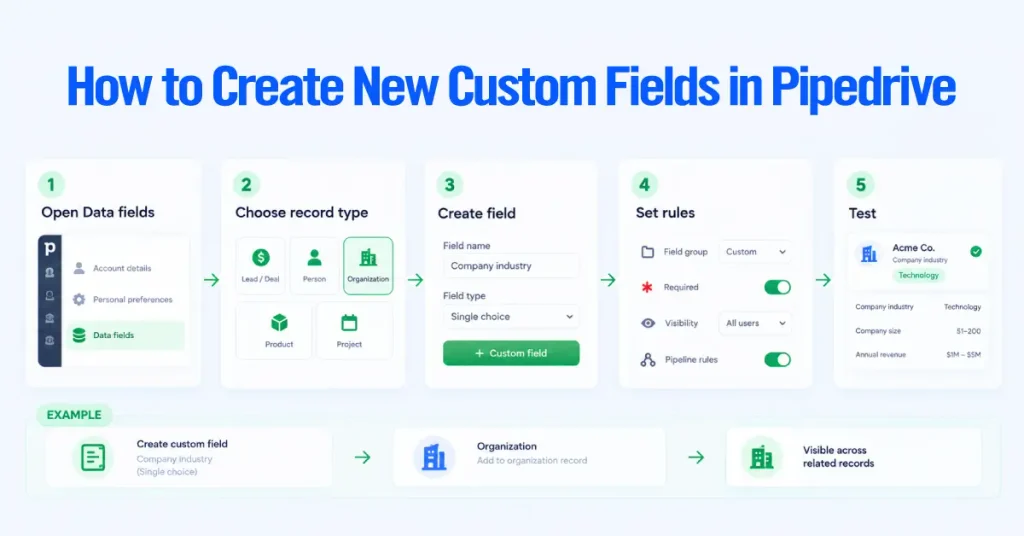
The process is similar across record types, but you need the right global permissions to create or edit fields.
1. Open Data fields
Go to Account menu → Personal preferences → Data fields.
2. Choose where the field belongs
Select the record type: Lead/Deal, Person, Organization, Product, or Project.
Choose carefully. Once created, the field belongs to that record type, so this is where your earlier ownership decision matters.
3. Create the field
Click + Custom field, then:
- Give the field a clear name.
- Choose the appropriate field type.
- Add the available options if it is a single- or multiple-option field.
- Add a field description where supported. For deal and lead fields, descriptions are available on Premium and higher plans.
The field name and field type are the two basic requirements.
4. Set visibility and rules
Configure how the field should work for your team:
- Assign it to a field group.
- Mark it as required or important where your plan supports these settings.
- Set pipeline-specific visibility for deal fields on Premium and higher plans.
- Control whether the field appears when adding a record or in the record’s detail view.
Add restrictions only when they serve a clear purpose. Too many required fields can make everyday data entry harder.
5. Test it before rolling it out
Don’t stop after creating the field. Add a value to a real record and check:
- Does it appear where your team expects it?
- Can you use it in filters and reports?
- Does any automation or integration depend on it?
- Are users entering the data consistently?
For larger teams, test the field with a small group first. It is much easier to fix a field before it becomes part of everyone’s workflow.
A practical custom field architecture example
A clean B2B setup separates fields across the three main records. Treat this as a model for how ownership decisions look, not a list to copy.
| Record | Example field | Field type | Why it belongs here |
| Organization | Industry | Single option | Describes the company, rarely changes |
| Organization | Company size | Single option, banded | Account-level, needs consistent bands for reporting |
| Organization | Account tier | Single option | Applies to the whole account |
| Person | Job title | Single option or text | Belongs to the individual |
| Person | Buying role | Single option | Champion, decision maker, or influencer for that contact |
| Person | Contact preference | Single option | Holds true across deals |
| Deal | Deal type | Single option | New business differs from a renewal |
| Deal | Lead source detail | Single option | Keeps source reporting clean |
| Deal | Contract term | Single option or numerical | Specific to the opportunity |
| Deal | Competitor | Multiple options | More than one can appear in a deal |
Each field sits where the data lives, so industry on the Organization means every linked deal inherits it, and buying role on the Person follows the contact.
Design custom fields for reporting
Your field structure decides what you can measure, so plan reports before data entry. A field that is easy to type into but impossible to group is a reporting dead end.
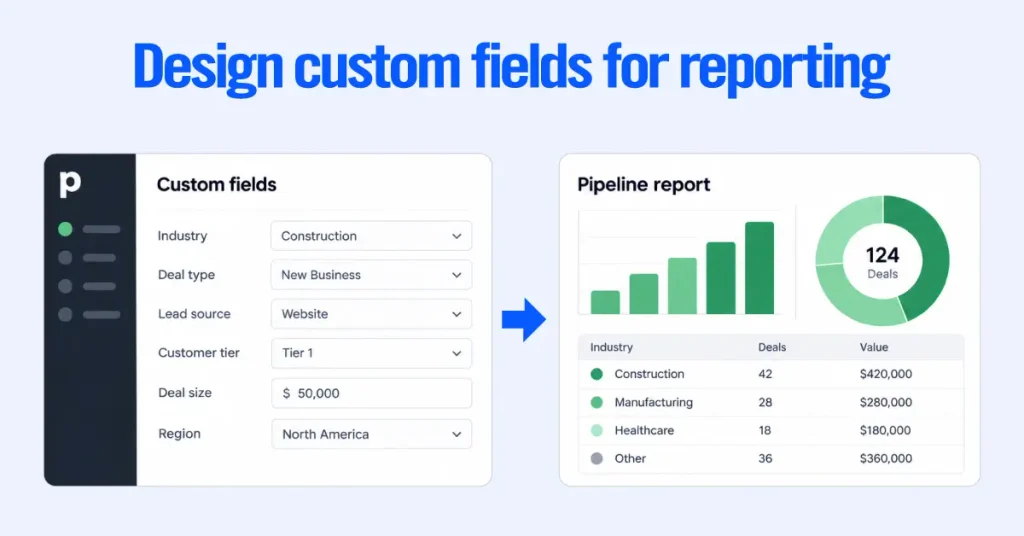
- Controlled options keep values consistent so reports can group them. Free text splits one category into many near-duplicates.
- Placement drives segmentation. Industry on the Organization lets you segment every deal by industry. You can’t trust the same field scattered across deals.
- Decide your dimensions first. List the breakdowns you need, such as by deal type, source, or tier, then build the fields that produce exactly those.
- Do not store the same value on two records. If industry sits on both the Organization and the Deal, your reports will disagree.
- Protect the values reports depend on with required or important fields so gaps don’t distort the numbers.
Decide what you want to measure before you create fields. Teams that build fields first and think about reporting later end up with dozens of fields and no clean way to answer basic pipeline questions.
Design custom fields for automation and integrations
Custom fields are both triggers and targets in automations, so their structure decides what you can automate. An automation can fire when a field value changes, and it can set a field value as an action. Both work far better with controlled options, since a condition that checks for “Renewal” only holds if “Renewal” is a fixed option rather than free text.
Integrations depend on stable field definitions. Renaming or deleting a mapped field can break a sync or a Zapier workflow on the other side, and a value flowing into the wrong field type can fail or create bad data. Always check what reads a field before you change it, and confirm each connector’s behavior against its own documentation.
Custom fields and the Pipedrive API
In the API, custom fields are referenced by a randomly generated 40-character hash, not a readable name. A field labeled “Industry” might appear as dcf558aac1ae4e8c4f849ba5e668430d8df9be12. This catches out most teams building their first integration.
- Find a field’s key in the app under Company settings > Data fields > the entity, then the three-dot menu> Copy API key.
- Retrieve field definitions from the dealFields, personFields, and organizationFields endpoints, with equivalents for other objects. Each returns the name, type, and options.
- Some types add sub-keys. A monetary field also exposes a currency key, and date and time ranges expand into two keys. Fetch one item and inspect its keys to find them.
- Keys are unique per account, so a field with the same name and type in another Pipedrive account has a different key. Map by key per account, never by label.
- Pipedrive runs both v1 and v2 endpoints, and v2 nests values under a custom_fields object keyed by the hashes.
The practical rule for any integration is to read field definitions at runtime and map by key. Hard-coding a label will break.
Required vs Important Fields
Both improve data quality, but they behave differently.
| Aspect | Required fields | Important fields |
| Effect | Blocks saving or a stage move until filled | Shows a visual flag, never blocks |
| Best for | The few values you cannot report or route without | Values you want filled eventually |
| Deal control | Per pipeline and stage | Per pipeline and stage |
| Person, org, product | Always required across the board | Flag only |
| Plan | Growth and higher | Growth and higher |
| Set by | Global admins | Global admins |
Use required fields sparingly. Too many required fields add friction when a rep is trying to log a fresh opportunity, and people respond by typing junk to get past the block. Require only what your process genuinely cannot run without, such as lead source or deal type, and mark the rest as important.
Naming, field groups, and data governance
Fields multiply quietly. Without a few rules, a two-year-old account carries dozens of half-used, confusingly named fields nobody trusts.
- Use clear, consistent names and capitalization so fields are findable and self-explanatory.
- Add field descriptions to record what a field is for and when to fill it. On deal and lead fields, these are Premium and higher, and they double as onboarding notes.
- Group related fields with “+ Field group,” and view fields grouped or as a flat list.
- Search before adding a field to avoid duplicates that split reporting.
- Assign one admin to own each field’s life cycle, and document its purpose outside Pipedrive.
- Review fields on a schedule using Pipedrive’s field statistics, which show completion rates and flag fields nobody fills.
Give every field a defined business purpose before you add it. If you cannot name the report it feeds, the automation it drives, or the decision it informs, it does not need to exist yet.
Importing or migrating custom fields
Create and match your fields before you bring data in. A clean import depends on the destination fields being ready and correctly typed.
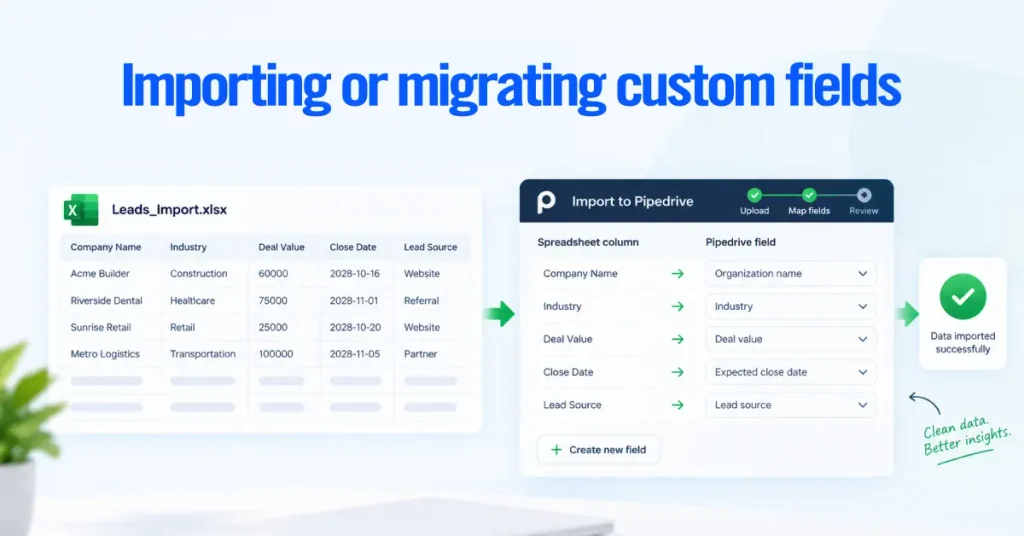
- Map spreadsheet columns to Pipedrive fields during the mapping step. Fields are grouped by item type, and you can create a missing field from that screen without restarting.
- Match data types. A date column maps to a date field, a category to a single-option field, not to text.
- Standardize option values in the spreadsheet first, so you do not create dozens of near-duplicate options on the way in.
- Test with a small sample. If mandatory fields are missing, no items are created, and a skip file shows what failed.
- Clean up duplicate or obsolete fields before migrating so you don’t carry another CRM’s mess into a fresh account.
- Validate after import by spot-checking that values landed in the right fields on the right records.
A source CRM’s “Enterprise” and your new “Enterprise Tier” will not merge on their own, and reconciling them after import is far more work than fixing the spreadsheet up front.
Pipedrive custom field limits and plan considerations
Custom field limits are per company by plan. Pipedrive changed its plan names and limits in 2025, retiring the old five-tier lineup for four plans: Essential became Lite, Advanced became Growth, Professional and Power merged into Premium, and Enterprise became Ultimate. Older figures online are outdated.
| Plan | Custom fields per company |
| Lite | 30 |
| Growth | 100 |
| Premium | 300 |
| Ultimate | 500 |
As of September 30, 2025, legacy accounts also moved to these limits. Several capabilities are gated by plan as well.
- Formula fields, Premium and Ultimate only, capped at ten per company.
- Pipeline-specific deal fields, Premium and higher, global admins only.
- Required and important fields, Growth and higher.
- Single and multiple option fields, up to 1000 options each.
Confirm the current numbers against Pipedrive’s usage limits article before you build near a ceiling. If you hit a limit but do not want to upgrade, you can buy a top-up to raise a specific limit.
How to Audit and Clean Up Existing Custom Fields
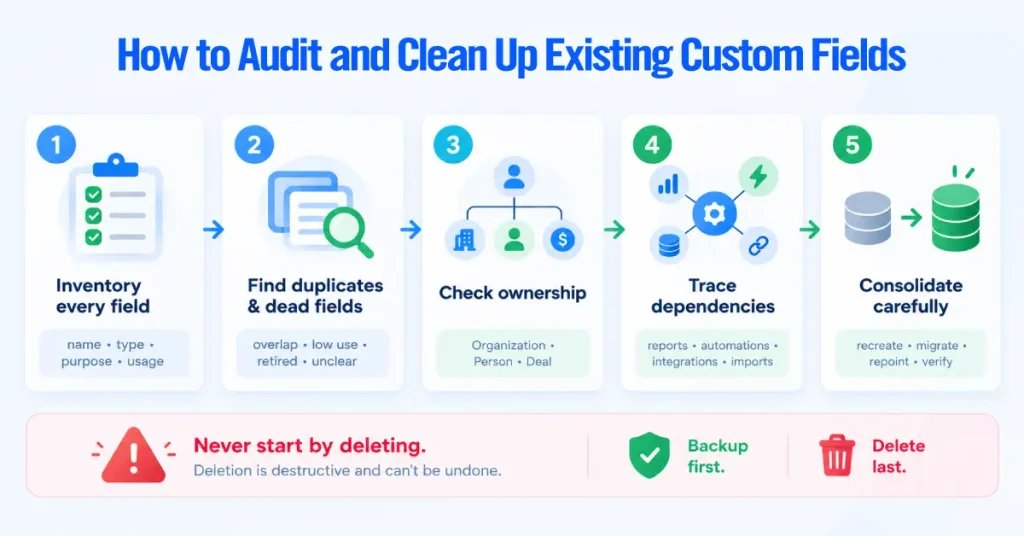
Deletion is destructive, so the order of these steps matters. Never start by deleting.
- Go record type by record type and note each field’s name, type, and business reason. Field statistics show which ones reps actually fill.
- Flag fields that capture the same value, sit near zero completion, tie to a retired process, or have no clear purpose. Flag them as candidates, not deletions.
- Run flagged fields through the ownership test. A company attribute stored on Deals is common, and the fix is to recreate it on the Organization and migrate the values, since Pipedrive cannot move a field.
- Check the reports, automations, integrations, imports, and workflows that use each field. A field that looks unused in data entry may quietly power a critical sync.
- Recreate the correct field, migrate values, repoint every report and automation, verify it works, then delete the old field. Export a backup first, because deletion removes the data for good.
When should you get help with your Pipedrive data model?
Bringing in help pays off when a messy model starts costing more than a proper fix. Common triggers include the following.
- Complex sales processes with multiple deal types or qualification paths a default setup cannot represent.
- Multiple pipelines that need different fields.
- A CRM migration, where field mapping and option standardization decide whether the new account starts clean.
- A large backlog of accumulated custom fields that needs a structured audit.
- Reporting problems where the data exists but duplicates or free text make the answers untrustworthy.
- Automation or integration dependencies are intricate enough that changing a field risks breaking workflows.
- Low CRM adoption because the forms are too heavy.
If two or three of these describe your account, a focused data-model review usually returns the time it takes, because it stops the compounding rework of building reports and automations on a shaky field structure.