AI Summary




Migrating from Salesforce to Pipedrive is a data-model redesign, not a file transfer. Salesforce can spread one deal across Account, Contact, OpportunityContactRole, Opportunity, OpportunityLineItem, and PricebookEntry, with Record Types, Flows, and Apex layered on top. Pipedrive uses Organizations, People, Leads, Deals, Activities, Products and Projects.
Every Salesforce asset therefore needs a decision: migrate, transform, rebuild, integrate, archive, or retire.
One Pipedrive limit makes that discipline important from day one. Custom fields are capped at 30 per company on Lite, 100 on Growth, 300 on Premium, and 500 on Ultimate. A mature Salesforce org can easily carry more fields than that across Account, Contact, Lead, and Opportunity combined.
TL;DR
- What moves depends on the migration route. Spreadsheet import, an assisted tool such as Import2, and a custom API build each support a different set of objects. Email Messages and Opportunity Line Items are clear examples.
OpportunityContactRolehas no single equivalent. The primary role can become the Deal’s linked Person, while additional contacts can become Deal Participants. The Salesforce role itself still needs a separate destination.- Person Accounts, converted Leads, and Contacts to Multiple Accounts each need an explicit migration rule before any load starts.
- Preserve the Salesforce 18-character record ID on every migrated object. Use it as the source-system key for reconciliation, relationship mapping, and delta logic, and maintain a crosswalk to the corresponding Pipedrive System ID to update existing Pipedrive records.
We checked product limits, plan names, API behavior, and migration-tool object support against Pipedrive, Salesforce, and Import2 documentation in October 2026. These products change regularly, so verify current documentation and your own account configuration before planning a production migration.
What Salesforce Data Can You Migrate to Pipedrive?
Most of the Salesforce sales model has a destination in Pipedrive. What varies is the migration route.
The Pipedrive spreadsheet importer accepts people, organizations, leads, deals, projects, activities, notes, and products. Assisted migration and custom API work can go further.
| Salesforce asset | Pipedrive destination | Spreadsheet route | Assisted or API notes |
|---|---|---|---|
| Account | Organization | Yes | Import2 maps Accounts to Companies |
| Account (Person Account) | Person, or Person plus Organization | Yes, once you define the rule | Import2 supports Person Accounts, exported as account plus contact |
Account.ParentId | Related organizations | No | API or manual. In the UI, relationships must be deleted and recreated to change them |
| Contact | Person | Yes | Supported by Import2 |
| Lead (open) | Lead, Person, or Person plus Deal | Yes | Import2 can also create the related contact and account when the Lead carries account data |
| Lead (converted) | Usually nothing new | Exclude | Import2 migrates the Account, Contact or Opportunity it became |
| Opportunity | Deal | Yes | Supported by Import2 |
OpportunityContactRole | Linked Person plus Participants | Participants can be bulk imported when updating existing Deals | Preserve the primary Person carefully; Salesforce Role needs a separate destination |
OpportunityLineItem | Deal product | No. Products import, product-to-deal links do not | Import2 supports Opportunity Line Items on both sides |
| Product2 | Product | Yes | Supported by Import2 |
| Pricebook, PricebookEntry | No equivalent object | No | Import2 exports them from Salesforce but lists no direct Pipedrive destination |
| Task, Event, Note, ContentNote | Activity and Note | Yes | Import2 maps Tasks to Tasks and Events to Meetings |
| EmailMessage | Pipedrive email | No spreadsheet email item type | Import2 supports it. Email Sync is another route |
| Salesforce Files, ContentDocument | File or attachment | No | Import2 supports Files, with Attachments as the Pipedrive destination |
| Case, Campaign, CampaignMember, custom objects | No direct equivalent object | No | Export from Salesforce, then redesign, integrate, archive or retire |
| Flow, Process Builder, Apex | Pipedrive automations or middleware | No | Rebuild |
Read this table as an intersection.
Import2 publishes separate lists for Salesforce as a source and Pipedrive as a destination. An object only flows end to end when it exists on both sides.
Cases, Campaigns, Quotes, Pricebooks, and custom objects may export cleanly from Salesforce but still have nowhere equivalent to land in Pipedrive. Verify both lists against your own org before planning the migration, because tool coverage changes.
Salesforce Relationships That Do Not Map One-to-One
Ten Salesforce constructs have no clean Pipedrive counterpart. Settle each one before you touch an export. These are business-model decisions, not mappings an engineer can safely infer.
The third column identifies the Salesforce field or relationship you use to reconstruct the connection.
| Salesforce construct | Why it does not map cleanly | Join on |
|---|---|---|
| Person Accounts | One record behaves as both Account and Contact | IsPersonAccount |
| Contacts to Multiple Accounts | A Pipedrive Person has one primary Organization | Contact.AccountId for the primary relationship |
OpportunityContactRole | A Deal has one linked Person. Extra contacts can become Participants, but Participant records do not preserve the Salesforce role | IsPrimary for choosing the main Person |
OpportunityLineItem | A relationship between an Opportunity and Product rather than a simple field, and spreadsheet imports cannot create the deal-product link | OpportunityId and Product2Id |
Account.ParentId | Related organizations sit outside the spreadsheet importer | Account.ParentId |
| Pricebook and PricebookEntry | Pipedrive stores prices on Products and price variations rather than through catalog-wide Pricebooks | No direct key. Redesign |
| Record Types | No equivalent. Layouts, required fields, picklist subsets and sales-process behavior do not transfer | RecordTypeId |
WhoId and WhatId | Polymorphic. One Task can relate to a Lead, Contact, Account, Opportunity or custom object | ID prefix of WhoId and WhatId |
Salesforce Files via ContentDocumentLink | One Salesforce file can relate to several records, while a Pipedrive file is attached within a different relationship model | LinkedEntityId |
| Converted Leads | They have already produced an Account, Contact, and often an Opportunity | ConvertedAccountId, ConvertedContactId, ConvertedOpportunityId |
Pipedrive can create and link records that share the same spreadsheet row. For example, a row containing a Person name, Organization name, and Deal value can create and link all three.
That is useful during an initial load, but do not rely on names for later update passes.
Preserve the Salesforce ID as the source-system key, then capture the Pipedrive System ID generated for each migrated record. Maintain a crosswalk such as:
Salesforce Record ID → Pipedrive System ID
Use Salesforce IDs to reconcile and join source data in staging. Use Pipedrive System IDs when spreadsheets need to update or link records that already exist in Pipedrive.
Map Salesforce Objects to Pipedrive

Salesforce Accounts → Pipedrive Organizations
Organization name is the mandatory value for an Organization. Deals and Leads also need a linked Person or Organization when imported.
| Account field | Pipedrive destination |
|---|---|
| Name | Organization name, also one of Pipedrive’s main duplicate signals |
| Website | Native field. The registrable domain is usually a stronger matching key than company name |
| BillingAddress | One address field containing street, city, state, postal code and country |
| Industry, AnnualRevenue, NumberOfEmployees | Native Organization fields available during import |
| OwnerId | Resolve to an active Pipedrive user |
| ParentId | Related organizations, built after the Organizations exist |
Account.ParentId can map to Related organizations. Pipedrive supports Parent, Daughter, and Related relationships and automatically creates sister relationships between daughters of the same parent.
Build these relationships only after the Organizations exist.
Check the direction carefully before creating them. In the Pipedrive UI, you can’t edit an existing relationship in place; you must remove it and recreate it. API-based migration can manage these relationships programmatically.
Salesforce Person Accounts → Pipedrive
A Salesforce Person Account represents an individual through the Account model. Pipedrive has no combined Person-and-Organization object, so choose one destination rule before migration.

- Use Person only when the business sells directly to individuals.
- Use Person plus a matching Organization when Deals, invoicing or reporting depend on an Organization-level record.
- Use Person plus a shared catch-all Organization only when the reporting model requires every Person to belong somewhere.
Flag Person Accounts during the audit using IsPersonAccount, because they should not follow the same migration logic as standard business Accounts.
Import2 documents Person Account support, but test the chosen Pipedrive outcome with a representative sample before production migration.
Salesforce Contacts → Pipedrive People
Name is mandatory. Including email and phone gives you stronger matching and duplicate-review signals.
Salesforce can relate one Contact to several Accounts through Contacts to Multiple Accounts. Pipedrive uses one primary Organization relationship for a Person.
Choose which Account becomes primary and decide what happens to the remaining relationships.
Orphan Contacts can remain standalone People, but decide whether that is intentional or whether they should be attached to a catch-all Organization. The choice affects reporting later.
Two setup details can prevent rework.
Pipedrive creates a job_title Person field automatically when Contact Sync is enabled. Creating another field for the same purpose can split equivalent data across separate API keys.
If you plan to use Campaigns by Pipedrive, also map Salesforce opt-out data to the appropriate Person marketing status during this load.
Salesforce Leads → Pipedrive
Pipedrive Leads sit in a separate Leads Inbox and do not move through pipeline stages. A Salesforce Lead therefore does not automatically need to become a Pipedrive Lead.
Use a routing rule based on how the Lead is actually used.
| Lead population | Destination |
|---|---|
| Open, unworked | Pipedrive Lead |
| Worked and qualified, no Opportunity yet | Person plus Deal |
| Really a contact at a known company | Person, or Person plus Organization |
| Aged, unworked or no longer useful | Archive or retire |
Converted (IsConverted = true) | Usually nothing new |
Converted Leads require special handling.
A converted Salesforce Lead has already produced an Account, Contact and often an Opportunity. If those records are already in migration scope, migrating the Lead again can create a second Person and sometimes a second Deal.
Filter on IsConverted and exclude converted Leads by default.
Keep ConvertedAccountId, ConvertedContactId and ConvertedOpportunityId in staging so you can prove that the records created by conversion reached Pipedrive. Import2 follows the same general approach.
Watch the Pipedrive quota as well.
Pipedrive’s Leads and Deals allowance counts active Leads together with Deals that are not archived or deleted. Limits run from 2,500 records per seat on Lite to 20,000 on Ultimate, with a company-level cap.
Leads also use Deal custom fields, so you cannot design a completely separate custom-field model for Leads.
Salesforce Opportunities → Pipedrive Deals
This mapping carries some of the highest reporting risk in the migration.
| Salesforce | Pipedrive | Notes |
|---|---|---|
| Name | Deal title | Optional. Pipedrive can generate a title from the linked Person or Organization |
| StageName | Pipeline plus Stage | Stages belong to Pipelines, so define the Pipeline first |
| Amount, CurrencyIsoCode, CloseDate | Value, currency, expected close date | Direct mapping |
| Probability | Deal probability | Must be enabled on the target Pipeline first |
| ForecastCategoryName | No direct equivalent | Custom option field, alternative reporting logic, or retire |
| IsWon, IsClosed | Status: open, won or lost | Map explicitly |
| Loss reason field | Lost reason | Standardize values before migration |
| OwnerId | Deal owner | Must resolve to an active Pipedrive user |
| AccountId | Linked Organization | Map through the Account-to-Organization crosswalk |
Primary OpportunityContactRole | Linked Person | See the contact-role section below |
Salesforce stores Probability on the Opportunity, commonly defaulting it from the Stage.

Pipedrive supports both stage probability and deal probability. Stage probability applies to all Deals in a Stage. Deal probability is specific to the Deal, can override the Stage probability, and must be enabled on the Pipeline before it can be used.
Enable it before import if you intend to preserve Salesforce Opportunity Probability.
Forecast Category has no direct equivalent. If Commit, Best Case or similar categories are important to reporting, store them in a custom option field or redesign the reporting process deliberately.
Do not automatically copy StageName values one for one.
Salesforce stage lists often contain obsolete stages or stages created mainly to support forecasting. Translate the stage model first, then map every historical Salesforce value so no open Deal falls into the wrong default Stage.
Do the same for loss reasons.
Pipedrive uses freeform lost reasons by default and can also use a predefined list when configured.
Multi-currency also creates a reporting difference.
Pipedrive converts Deal values to the account’s default currency using exchange-rate data and treats the converted figures as statistical values.
If finance expects historical reporting based on the exact exchange rate at the time an Opportunity closed, reconcile that requirement before migration.
Salesforce Opportunity Contact Roles → Pipedrive Person and Participants
Salesforce can relate several Contacts to one Opportunity through OpportunityContactRole, using OpportunityId, ContactId, Role and IsPrimary.
Pipedrive gives a Deal one primary linked Person and supports additional People as Participants.
A practical migration rule is:
- Map the contact where
IsPrimary= true to the Deal’s linked Person. - Map additional contacts to Deal Participants.
- Give the Salesforce Role value a separate destination when the role itself matters.
Participants are useful, but they are not a one-to-one replacement for OpportunityContactRole. They preserve additional People on a Deal but do not reproduce Salesforce’s Role field.
If one role matters operationally, such as Economic Buyer, a Deal custom field can work.
If the role is only useful as reference history, a Note may be enough.
If nobody uses the role after migration, retire it.
For spreadsheet migration, handle Participants carefully.
Create the Deal and its primary linked Person first. When adding Participants to existing Deals by spreadsheet, use the relevant Pipedrive System IDs for the Deal and existing People.
Pipedrive also warns that bulk Participant imports can affect the Deal’s linked Person. After the Participant pass, validate that the correct primary Person is still attached to every affected Deal and restore it where necessary.
For migrations where preserving the primary contact automatically is critical, an API-based Participant load may provide better control.
Salesforce Tasks and Events → Pipedrive Activities
Salesforce Tasks and Events use polymorphic relationships to link activities to other records.
WhoIdcan reference a Lead or Contact.WhatIdcan reference an Account, Opportunity, Case, Campaign, or supported custom object.
Before importing, identify the object type behind each relationship and map it to the appropriate Pipedrive record. Don’t rely on the ID alone; validate the relationship. Activities linked to Cases or custom objects outside the migration scope need an explicit rule for preserving, redirecting, or excluding those relationships.

Pipedrive activity types are configurable but do not necessarily match Salesforce’s Task.Type picklist. Create the required Pipedrive activity types and map the Salesforce values before importing.
Completed activities can retain their historical completion status and done time when imported correctly. Map these fields carefully. Otherwise, previously completed Salesforce Tasks could appear as overdue activities in Pipedrive, creating unnecessary cleanup and confusion after launch.
Pipedrive does not offer the same user-defined custom-field model for Activities that it provides for Deals, Leads, People, Organizations, Products, and Projects. You can customize its existing Activity fields, but Salesforce Task custom fields generally need an alternative destination.
Depending on the information, preserve the value in an activity note, map it to an appropriate field on a related record, retain it in another system, or retire it if it is no longer needed.
Salesforce Products, Price Books and Opportunity Products → Pipedrive
Salesforce pricing commonly uses four objects.
Product2stores the Product.- A Pricebook groups pricing.
PricebookEntrystores a Product’s price within a particular Pricebook and currency.OpportunityLineItemstores what was actually quoted or sold on an Opportunity.
Pipedrive uses a different model.

Products carry prices directly, including currency-specific prices, and price variations can represent named Product variants with separate prices. Treat this as a pricing-model redesign rather than a straight field mapping.
Product2becomes the Product catalog.- The standard Pricebook entry can usually become the Product’s price in the corresponding currency.
- Additional Pricebook entries by segment, region, or package may become price variations when the model is simple enough. If the difference is really discounting rather than a true catalog variation, apply it at the Deal-product level instead.
- Complex multi-Pricebook or approval-driven pricing may belong in an external quoting or CPQ system, with Pipedrive storing the resulting Deal and Product values.
Price variations are not an exact equivalent to Salesforce Pricebooks.
They belong to individual Products and do not create a catalog-wide Pricebook structure. Count your PricebookEntry combinations before assuming variations can absorb them cleanly.
Opportunity Line Items also depend on the migration route. The spreadsheet importer can import Products but cannot create the Product-to-Deal relationship. Import2 lists Opportunity Line Items as supported on both sides.
A custom API build is usually the better choice when you need transformation, repeat runs, detailed logging, or complex discount logic.
Salesforce Cases, Campaigns and Custom Objects
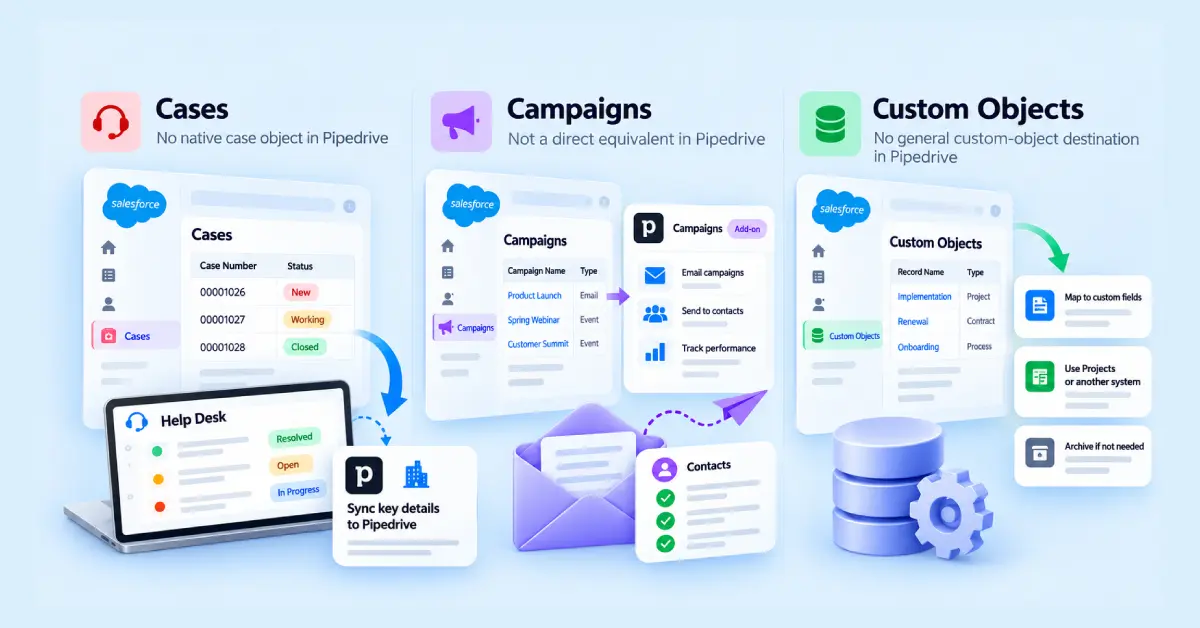
Cases. Pipedrive has no native case or support-ticket object, and Import2 lists no equivalent Pipedrive destination for Cases.
Typical options include moving support into a help desk and integrating it with Pipedrive, summarizing relevant case history on the Organization, archiving the historical data, or retiring it.
Campaigns. Campaigns by Pipedrive is a paid email-marketing add-on that sends to contacts based on marketing status and segmentation.
It does not recreate Salesforce Campaign and CampaignMember, which can carry hierarchy, membership, member status, and influence data.
Split the decision into separate parts. Campaign execution can move to Campaigns by Pipedrive or another marketing platform. CampaignMember history can be archived or selectively flattened into Person-level data. Lead source and campaign source can become fields on Person or Deal where appropriate.
Attribution reporting should either be redesigned for Pipedrive’s reporting model or remain in the marketing platform.
Custom objects. Import2 can export Salesforce custom objects but lists no general custom-object destination in Pipedrive, so assume a redesign is required.
Ask three questions:
- Is the object mainly reference data?
- Is it transactional data related to a Deal or customer?
- Is anyone still using it?
Flat reference data may collapse into custom fields.
Transactional child objects may need Pipedrive Projects or another operational system.
Unused objects should normally be archived rather than rebuilt.
Map Salesforce Fields to Pipedrive Fields
Every Salesforce field should receive one migration outcome.
It maps to a native Pipedrive field, becomes a custom field, is transformed, is combined with another field, is archived, or is retired.
Capture the decision in one mapping sheet.
| Column | Why it matters |
|---|---|
| Source object and field API name | API names are stable identifiers, unlike labels |
| Record Types using it | A field may be required for one Record Type and hidden for another |
| Field type | Pipedrive field types cannot be changed after creation |
| Sample values and population rate | A field used on 2% of records may not justify consuming part of the custom-field allowance |
| Destination object, field and type | Defines the target data contract |
| Reporting and automation dependency | Shows which report, Flow, validation rule or integration still depends on it |
Field type is permanent.
You can’t change a Pipedrive custom field’s type after you create it.
If you create a text field for convenience and later realize the value should be a single-option field, you need a new field and another migration pass.
Option limits are documented differently across Pipedrive resources and matter when Salesforce uses very large picklists.
Pipedrive’s Knowledge Base states 1,000 options per option field, while the developer documentation documents a higher technical limit.
Plan against the lower documented product limit unless Pipedrive confirms otherwise for your account.
Pipedrive formula fields are available on Premium and higher, capped at 10 per company account, and work only on deal number and money fields. A Salesforce formula using text, cross-object references, or complex conditional logic may need to become a static migrated value, a report calculation, middleware logic, or be retired.
Record Types are a cross-object problem.
They can exist on Account, Contact, Lead, Opportunity, Case and custom objects. They may control layouts, required fields, picklist subsets, sales processes and available Opportunity stages.
Pipedrive has no direct equivalent.
Inventory Record Types everywhere they appear, then decide per object whether each should become:
- A single-option field
- A separate Pipeline
- A label
- Different required-field logic
- Or nothing
Record-type-specific picklist subsets are a common source of migration errors because values valid in Salesforce may not exist in the simplified Pipedrive configuration.
Preserve Salesforce Record IDs
Store the Salesforce record ID in a dedicated Pipedrive custom field on every migrated object. It is one of the highest-value fields in the migration.
Use the Salesforce ID as the permanent source-system key for reconciliation, duplicate investigation, relationship mapping, delta logic, and API lookups.
At the same time, maintain a migration crosswalk between the Salesforce ID and the Pipedrive System ID created for the target record.

For example:
- Salesforce Account ID → Pipedrive Organization System ID
- Salesforce Contact ID → Pipedrive Person System ID
- Salesforce Opportunity ID → Pipedrive Deal System ID
This distinction matters. A Salesforce ID stored in a Pipedrive custom field does not automatically become the record identifier used by Pipedrive’s spreadsheet importer.
When a spreadsheet updates existing Pipedrive records, use the relevant Pipedrive System ID.
Use the Salesforce ID to identify the corresponding source record, join exported Salesforce datasets, reconcile results, and locate the correct Pipedrive target through the crosswalk.
For API migrations, the Salesforce ID can also be used as a lookup key in your own migration logic before updating the resolved Pipedrive record.
Standardize Salesforce IDs on the 18-character format. Salesforce supports a 15-character case-sensitive ID and an 18-character case-safe version of the same ID. Different export methods may therefore produce different-looking IDs even though they represent the same record.
Report exports need an additional setup step because CASESAFEID() is a Salesforce formula function, not an export option.
Create a Text formula field on each relevant Salesforce object using:
CASESAFEID(Id)
Add the field to the report, then export it. Data Loader and API-based extracts normally provide 18-character IDs.
Decide What Salesforce History Needs to Move
Give each type of historical data one outcome: operational, searchable, reference only, archived, or retired.
| History type | Realistic handling |
|---|---|
| Completed Tasks and Events | Import useful history as completed Activities, usually within an agreed window such as 24 months |
| Open Tasks and Events | Migrate when they still represent active commitments; close or exclude stale items during cleanup |
| Notes and ContentNotes | Import against the related record. Check formatting, ownership and length |
| EmailMessage | Route-dependent. See below |
| Salesforce Files and legacy Attachments | Separate workstream. See below |
| Historical OwnerId | Preserve where reporting, commissions or audit requirements depend on it |
Salesforce Files need their own workstream.
The legacy Attachment object stores a file against one parent through ParentId.
Salesforce Files instead use ContentDocument, ContentVersion and ContentDocumentLink, where the same file can be related to more than one Salesforce record.
Older Salesforce orgs often contain both models.
A migration that processes only one can silently leave part of the document history behind.
Binary file content can be extracted through the Salesforce Data Export Service or through an API extraction using ContentVersion.VersionData.
Email history depends on the migration route.
The statement that Salesforce email cannot reach Pipedrive is too broad. The limitation belongs to specific migration methods.
| Route | What it does |
|---|---|
| Pipedrive spreadsheet importer | No email item type. EmailMessage records cannot be loaded directly this way |
| Assisted migration | Import2 lists Salesforce Email Messages as a source and Pipedrive Emails as a destination |
| Pipedrive Email Sync | Connects the mailbox on eligible plans and can pull historical mailbox data according to Pipedrive’s sync limits |
These routes are not interchangeable.
Import2 migrates Salesforce email records and their supported relationships.
Email Sync reads from the connected mailbox. It can recover email threads that Salesforce never captured, but it does not reproduce Salesforce’s original EmailMessage relationships exactly.
Import People and Organizations before connecting historical mailbox sync where possible. That gives Pipedrive more existing contacts to associate with synced email.
Licensing constraints can also affect historical scope.
Pipedrive’s Leads and Deals allowance includes Deals that remain in the system unless they are archived or deleted. Migrating ten years of closed Opportunities is therefore not only a data-retention decision; it can also affect capacity planning.
Audit Salesforce Before the Migration
Inventory the Salesforce org after defining the target Pipedrive model.
| Area | What to inventory |
|---|---|
| Data structure | Standard and custom objects, record counts, fields, population rates, formula fields, picklist values and validation rules |
| Record Types | Every object carrying them, plus the layouts, required fields, picklist subsets and sales processes each controls |
| Account model | Person Accounts identified by IsPersonAccount, Contacts to Multiple Accounts usage and ParentId depth |
| Sales model | Open versus converted Leads, Web-to-Lead sources, StageName values and actual usage, Forecast Categories, OpportunityContactRole volume and roles, OpportunityLineItem volume |
| Pricing | Product2 count, Pricebooks and PricebookEntry count by book and currency |
| People and history | Active users, inactive users still owning records, queues, Task, Event, Note, Attachment and ContentVersion volumes |
| Automation | Flows, scheduled Flows, remaining Workflow Rules and Process Builder processes, assignment rules, approval processes, scheduled Apex and triggers |
| Integrations and reporting | Connected Apps, integration users, middleware, ETL jobs, reports and dashboards actually used by the business |
Salesforce ended support for Workflow Rules and Process Builder on December 31, 2025. Existing automation can still remain in orgs that were never fully moved to Flow, so do not assume those tools have disappeared just because they are no longer supported.
Inventory them until you have confirmed otherwise.
Also catalog every Connected App and integration user that can write to Salesforce, and assign an owner to each one.
Any forgotten integration with API write access can continue creating or updating Salesforce records after Pipedrive becomes the live CRM.
How We Run a Salesforce to Pipedrive Migration
We’re currently migrating a coaching practice from Salesforce to Pipedrive. The migration is still underway, so this shows how we’re approaching the work, not a completed case study.
We’ve organized the migration into six phases, with each phase depending on earlier decisions. The goal is to settle data mapping, record relationships, and workflow requirements before loading data, then validate the results rather than assume the import worked as expected.
One detail worth highlighting is how easily familiar routines can get overlooked. Birthday and anniversary reminders, for example, may seem minor compared with moving customer records and sales history.
But if the team relies on them, they need a clear plan to rebuild and test them in Pipedrive. A migration should preserve the workflows people depend on, not just the data they store.
Choose the Right Salesforce-to-Pipedrive Migration Method
| Method | Fits when | Main limitation |
|---|---|---|
| CSV and spreadsheet | Standard objects, few custom fields and simple relationships | No Opportunity Product links, ParentId hierarchy or EmailMessage support. 200,000 rows and 50 MB per file |
| Assisted, such as Import2 | Standard objects and supported line items, emails and files | No equivalent Pipedrive destination for several Salesforce objects, including Cases, Campaigns, Pricebooks and some custom objects |
| Custom API build | Complex relationships, high volumes, repeat runs, delta loads, transformation and logging | Build cost, testing requirements and Pipedrive API limits |
| Hybrid | Migrations that combine standard data transfers with custom transformations or configuration | Requires one clear owner for sequencing and reconciliation |
Spreadsheet. Pipedrive accepts XLS, XLSX, and CSV files with a header row, up to 200,000 rows and a file size under 50 MB. Failed rows appear in a skip file with the reason for each failure.
A global admin can also revert an import from the import history tab within 48 hours. Schedule production imports so the migration team can review errors and respond before the window closes.
Assisted. Pipedrive offers Import2 as a migration route and lists Salesforce among its supported source systems. Its documented migration coverage includes supported Salesforce data such as Opportunity Line Items, Email Messages, Files and Notes, but not every Salesforce structure has a direct Pipedrive equivalent.
Review the supported objects and field mappings before starting. Create the target users and configure the core Pipedrive structure first so ownership, relationships, and field mappings can be planned against the destination.
Custom API. An API-based migration is useful when you need transformation logic, reconciliation against source IDs, repeat runs, detailed logging, delta loads, or relationship handling that a migration tool cannot manage cleanly.
Build against currently supported Pipedrive API versions, using v2 endpoints where they replace deprecated v1 endpoints. Plan against Pipedrive’s API token budget rather than assuming every request costs the same, since different operations consume different amounts and daily capacity varies by plan and seat count.
Avoid expensive search-before-write patterns when a deterministic source-to-target ID crosswalk already exists.
Hybrid. A hybrid migration combines methods where each fits best, such as using an assisted tool for supported objects and API scripts for custom transformations or relationships.
Assign one migration owner to coordinate sequencing, prevent overlapping imports and reconcile the final data against Salesforce.
Export and Transform Your Salesforce Data
Export only what the audit approved.
| Export route | Strength | Constraint |
|---|---|---|
| Data Export Service | Full CSV archive, including images, documents, attachments and Salesforce Files | Availability depends on Salesforce edition and export schedule |
| Data Loader | SOQL filtering and high-volume extraction using Salesforce APIs | Use Export All when archived records also matter |
| Report exports | Quick and filterable | Use an 18-character ID field such as a CASESAFEID(Id) formula when the export needs a stable external identifier |
Your project window may allow only a limited number of convenient full exports.
Every export should include the source record ID, relevant relationship IDs such as AccountId and OpportunityId, OwnerId, Record Type ID and the timestamps required for reconciliation and delta loading.
Examples include:
CreatedDateLastModifiedDateCloseDate- Conversion-related IDs where relevant
Keep an untouched copy of every raw source export.
Generate transformation files from those originals rather than replacing them. When validation disagrees with the transformed data, the original extract becomes the reference point.
Clean and Normalize the Exported Data
Field mapping decides where a Salesforce field belongs.
Transformation decides how the value changes before it gets there.
| Salesforce value | What to do |
|---|---|
| Duplicate Accounts and Contacts | Resolve in staging before the final Pipedrive import |
| Test and sandbox-refresh records | Remove only records confirmed as non-production; do not use inactive ownership alone as the deletion rule |
| Picklist values | Consolidate near-identical values and map historical values, including inactive values and Record Type subsets |
| StageName and Probability | Apply the stage translation, confirm no Deal defaults into the wrong Stage, and enable Deal probability where required |
| Dates, phone, State and Country fields | Normalize formats and time zones. Remember that CloseDate is a date while CreatedDate is a datetime |
CurrencyIsoCode | Confirm every required currency exists in the target Pipedrive account |
OwnerId | Resolve to active Pipedrive users, with an approved fallback for inactive Salesforce owners |
| Missing required links | Ensure each Deal and Lead has the required Person or Organization relationship |
| Product2 values | Normalize Product codes and units and resolve duplicate catalog records before building Deal-product relationships |
Run these transformations through repeatable scripts or controlled rules rather than one-off spreadsheet edits.
You will almost certainly run the transformation more than once.
Run a Salesforce-to-Pipedrive Test Migration
Test a representative sample, not a convenient sample. Include cases that exercise the parts of Salesforce that do not map cleanly. Your test set should include:
- A Person Account
- A Contact related to more than one Account
- Accounts in a
ParentIdhierarchy - A converted Lead to confirm exclusion
- An Opportunity on an obsolete or unusual Stage
- Lost Opportunities with loss reasons
- An Opportunity with several
OpportunityContactRolerows - Records owned by an inactive Salesforce user
OpportunityLineItemrows with discounts- Records using a non-default Record Type
- A Task with
WhoIdon a Lead andWhatIdon an Opportunity - A legacy Attachment
- A
ContentDocumentlinked to more than one Salesforce record
Migrate Salesforce Data in Dependency Order
Pipedrive resolves many relationships during import, so migration order matters. A practical sequence is:
- Users, created and activated, with the
OwnerIdmapping finalized - Configuration: Pipelines, Stages, Deal probability settings, Activity types, lost reasons and custom fields
- Organizations from Salesforce Accounts
- People from Contacts, linked through the Account mapping, plus Person Accounts under the agreed rule
- Products from Product2
- Leads routed according to the agreed Leads Inbox rule, with converted Leads excluded
- Deals from Opportunities, linked to their Organization and primary Person
- Deal Products from
OpportunityLineItem - Deal Participants from non-primary
OpportunityContactRolerows, followed by validation of the Deal’s primary linked Person - Related Organizations from
Account.ParentId, plus price variations or other Product configuration that requires an API or separate pass - Activities from Tasks and Events, split according to
WhoIdandWhatId - Notes, then Salesforce Files and external document links
- Email history through an assisted tool, Email Sync, or a combination of approved routes
Also monitor the account’s Leads and Deals allowance. When limits are reached, different creation routes can behave differently, so do not assume every rejected record will surface in the same place.
Rebuild Salesforce Automation for Pipedrive
Salesforce automation does not transfer automatically. Inventory the full automation surface first:
- Record-triggered Flows
- Screen Flows
- Scheduled Flows
- Remaining Workflow Rules
- Remaining Process Builder processes
- Assignment rules
- Approval processes
- Email alerts
- Scheduled Apex
- Apex triggers and classes
- Logic living inside integrations or middleware
For each automation, record:
- Trigger
- Conditions
- Actions
- Owner
- Business outcome
The business outcome matters more than the Salesforce implementation.
For example, “Assign new web Leads to the next SDR within five minutes” is a migration requirement. “Process Builder 14b” is not.
Pipedrive’s automation limits shape how much Salesforce logic can move directly.
| Limit | Growth | Premium | Ultimate |
|---|---|---|---|
| Active automations per company | 50 | 150 | 250 |
| If/else conditions per automation | 3 | 10 | 20 |
| Delay steps per path | 3 | 10 | 10 |
| Actions per path | 10 | 10 | 10 |
Automations are not available on Lite.
A Salesforce Flow with twelve branches is unlikely to fit cleanly into one Pipedrive automation. Split it, simplify it, or move the more complex business logic to middleware.
Approval processes also need redesign, not literal conversion. A simple approval may become a required field plus a Stage gate. A multi-level approval with audit requirements may need another system or middleware.
Apex has no direct equivalent.
Custom logic may become:
- Middleware
- A small integration service using the Pipedrive API
- Native Pipedrive automation
- Or nothing, when the process is no longer necessary
Validation Rules also need a separate review.
Pipedrive’s required and important fields can cover some validation needs, but they are less expressive than Salesforce Validation Rules and depend on the plan.
Validate the Salesforce-to-Pipedrive Migration
Validate against Salesforce constructs, not only total record counts.
| Salesforce check | What to verify in Pipedrive |
|---|---|
| Account → Organization | Counts reconcile and every migrated Organization carries its Salesforce ID |
Account.ParentId → Related Organizations | Relationships exist and point in the correct direction |
IsPersonAccount records | Landed under the approved Person Account rule, with no unintended empty Organizations |
Opportunity.AccountId → Deal | Every Deal reaches the correct Organization |
Primary OpportunityContactRole | Each Deal has the intended main Person |
| Non-primary contact roles | Participant counts per Deal reconcile with the approved Salesforce source rows |
OpportunityLineItem | Line counts and totals per Deal match, including discounts and quantity |
| StageName, Probability, Forecast Category | Historical Stages map correctly, Probability behavior matches the design and the Forecast Category decision is implemented |
CurrencyIsoCode and Amount | Totals by currency reconcile before any target-system conversion |
Inactive OwnerId | Reassigned to the approved fallback rather than becoming unintentionally unowned |
WhoId and WhatId | Activities appear on the correct target records |
ContentDocumentLink.LinkedEntityId | Files are attached to the intended records, including files that had multiple Salesforce links |
| Converted Leads and Record Types | No duplicate People or Deals were created from converted records, and Record Types were translated according to the approved model |
| Skipped rows | Every skipped entry is explained, corrected or formally accepted |
Switch From Salesforce to Pipedrive
Cutover fails when something continues writing into Salesforce after Pipedrive becomes the active CRM.
Those records can remain invisible to the operating team for weeks.
Use a controlled cutover:
- Freeze normal user edits in Salesforce, so the final delta has a known boundary.
- Disable or repoint every Salesforce writer using the inventory below.
- Capture the final delta using
LastModifiedDate. - Match each Salesforce delta record to the migration crosswalk.
- Use the corresponding Pipedrive System ID to update existing Pipedrive records rather than creating duplicates.
- Re-run validation on the delta.
- Activate the production Pipedrive automations that were built and tested earlier.
- Confirm reporting, user access, mobile access, and Email Sync.
- Make Pipedrive the active CRM.
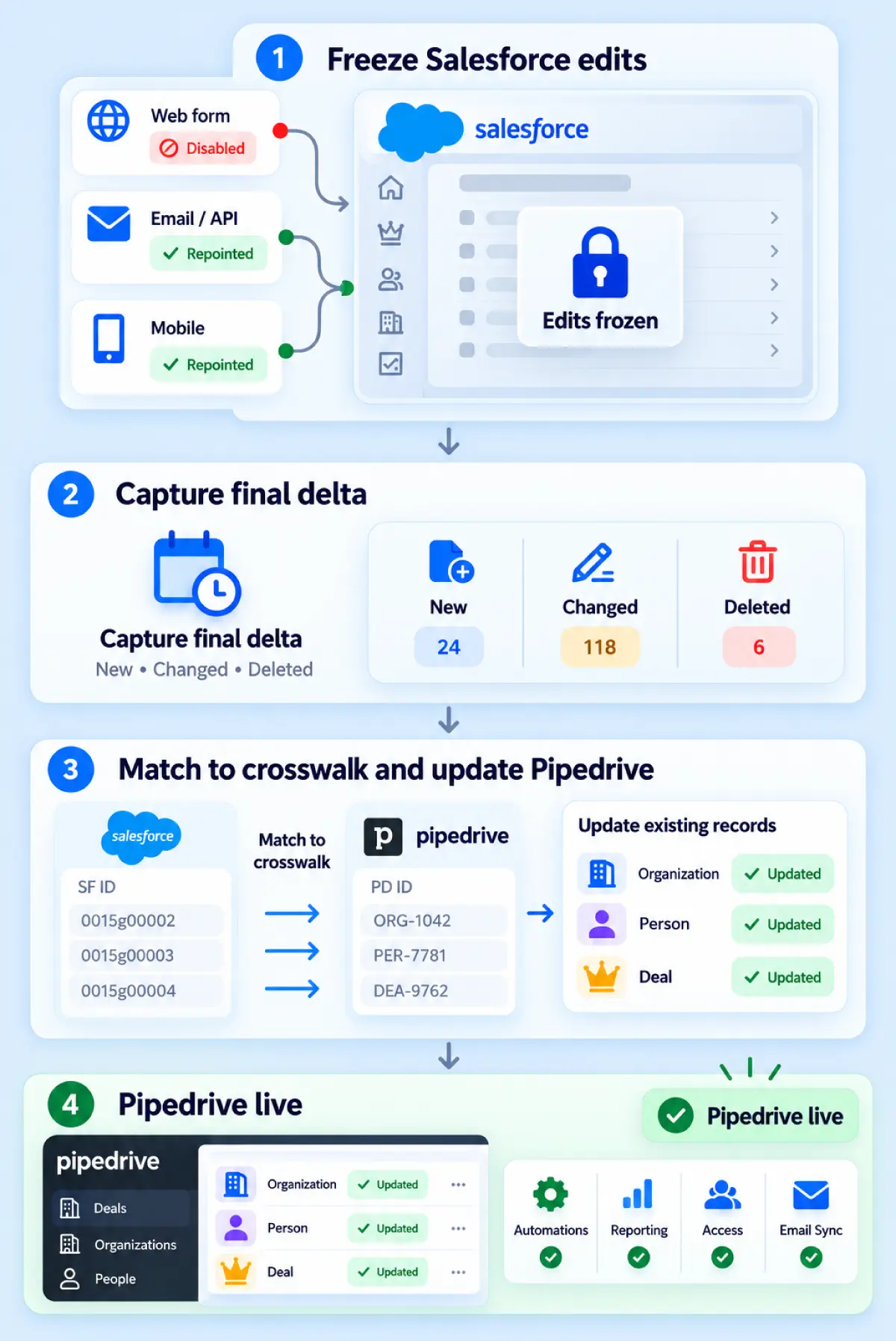
If the delta is loaded through an API instead of spreadsheets, the same principle applies: resolve the correct Pipedrive target first, then update it.
Every system below needs a recorded decision: disabled, repointed or deliberately left running.
| Writer | Typical action |
|---|---|
| Record-triggered and scheduled Flows, remaining Workflow Rules and Process Builder | Deactivate, or restrict to an approved read-only/reference use case |
| Apex triggers and scheduled Apex | Deactivate or repoint. Scheduled Apex deserves special attention because it may not produce visible activity every day |
| Assignment rules and approval processes | Deactivate after resolving in-flight work |
| Web-to-Lead and Web-to-Case endpoints | Repoint to a Pipedrive form, integration or replacement system |
| Connected Apps with API write access | Revoke or repoint one at a time, with the owner confirming the replacement |
| Integration users | Disable only after confirming nothing still authenticates through them |
| Middleware, marketing, billing and support systems | Repoint and test scheduled jobs, including marketing-status synchronization where relevant |
| Scheduled ETL and data loads | Disable the schedule itself, not only the current job |
Monthly and quarterly jobs deserve special attention.
A scheduled Apex job that runs on the first day of each month may never appear during a two-week cutover test.
What Should You Monitor After the Migration?
Monitor failure patterns specific to Salesforce-to-Pipedrive mapping.
| Signal | Likely Salesforce migration cause |
|---|---|
| Deals show only the primary contact when users expect several people | Non-primary OpportunityContactRole rows were not loaded as Participants |
| Participant-based role reporting no longer matches Salesforce | Participants preserve additional People but not the Salesforce Role model; role data needs a separate field or reporting design |
| Duplicate People appear for known customers | Converted Leads were migrated alongside the Contact created by conversion |
| Organizations have no parent or the hierarchy is reversed | Account.ParentId was mapped incorrectly |
| Deals have a value but no Products, or Product totals do not reproduce | OpportunityLineItem links were not created or Pricebook logic was simplified without a clear pricing rule |
| Activities or files appear on the wrong records | WhoId, WhatId or ContentDocumentLink.LinkedEntityId was mapped incorrectly, or legacy Attachment records were missed |
| Forecasts do not match historical Salesforce figures | Forecast Category was redesigned, Deal probability was not configured as expected, ownership changed or currency behavior differs |
| Individual customers behave incorrectly in reports | Person Accounts were loaded under the wrong target rule |
| New records continue appearing in Salesforce | A Flow, Connected App, scheduled Apex job, integration or external writer is still active |
Salesforce-to-Pipedrive Migration Checklist
Architecture decisions
- Person Accounts identified and a destination rule approved
- Contacts to Multiple Accounts reviewed and a primary relationship rule agreed
- Converted Leads identified by
IsConvertedand excluded unless explicitly required OpportunityContactRolemapped, with theIsPrimaryrule, Participant strategy and destination for Role agreedAccount.ParentIdmapped to Related Organizations and the relationship-creation method chosenOpportunityLineItemmigration route selected- Pricebooks and PricebookEntry volumes reviewed and the pricing redesign approved
- Record Types inventoried across every relevant object
- StageName translation approved
- Forecast Category treatment documented
- Cases classified
- Campaign and CampaignMember handling decided
- Custom objects inventoried and classified
WhoIdandWhatIdrouting rules defined- Salesforce Files extraction method selected
- Email-history migration route selected
Data and automation preparation
- Salesforce IDs standardized to 18-character values and stored on migrated Pipedrive records
- Salesforce ID → Pipedrive System ID crosswalk designed
- Deal probability configured where required
- Lost reasons standardized
- Owner mapping completed, including fallback rules for inactive Salesforce users
- Picklist values consolidated, including historical and Record-Type-specific values
- Test migration completed
- Skip file reviewed
- Flows, scheduled Flows, Workflow Rules, Process Builder, Apex, assignment rules, approval processes and Validation Rules inventoried
- Connected Apps, integration users and Web-to-Lead endpoints documented with owners
Frequently Asked Questions
What happens to Salesforce Person Accounts when migrating to Pipedrive?
They need their own migration rule. A Salesforce Person Account represents an individual through the Account model, while Pipedrive separates Organizations and People.
Depending on how the business sells and reports, a Person Account may become:
- A Person only
- A Person plus a matching Organization
- A Person under a shared Organization when reporting requires one
Identify them with IsPersonAccount during the audit and test the chosen rule before production migration.
What happens to Salesforce Opportunity Contact Roles in Pipedrive?
The contact marked IsPrimary = true can become the Deal’s main linked Person.
Additional contacts can become Deal Participants.
This is not a one-to-one replacement because Participants do not preserve the Salesforce OpportunityContactRole.Role value.
If role information matters for reporting, automation, or sales process, give it a separate destination such as a Deal custom field, note, or another structured data model.
For bulk Participant imports, also validate that the correct primary Person remains linked to each Deal after the import.
Can Salesforce Opportunity Products be migrated to Pipedrive?
Yes, but the route matters. The Pipedrive spreadsheet importer can import Products but cannot directly create Product-to-Deal relationships.
That route therefore needs a separate post-import step through the API or another supported method. Import2 lists Salesforce Opportunity Line Items as supported in its migration coverage.
A custom API migration is usually preferable when the project requires discount transformation, repeat runs, reconciliation, or detailed logging.
Can Salesforce email history be migrated to Pipedrive?
Yes, but not through every migration route. The Pipedrive spreadsheet importer has no email item type, so Salesforce EmailMessage records cannot be imported that way directly. Import2 supports Salesforce Email Messages as a source and Pipedrive email data within its supported migration model.
Separately, Pipedrive Email Sync can connect to the mailbox and synchronize historical email according to the account’s plan and sync configuration. These methods solve different problems.
An assisted migration moves Salesforce email records and supported associations. Email Sync reads from the mailbox and may recover messages that were never captured in Salesforce, but it does not recreate the Salesforce relationship model exactly.
Will Salesforce Flows transfer to Pipedrive?
No. Salesforce Flow, Process Builder, Workflow Rules, and Apex do not automatically transfer to Pipedrive. You’ll need to rebuild each automation, simplify it, move it to middleware, keep it in another system, or retire it.
Pipedrive automation limits also differ from Salesforce’s Flow model, so complex Flows with many branches often need to be split into smaller workflows. Approval processes and custom Apex logic usually require redesign rather than direct conversion.
How do you know the migration was successful?
A successful migration is more than matching total record counts.
Counts should reconcile after accounting for deliberate exclusions and skipped records. Relationships should hold. Primary Opportunity Contact Roles should become the correct Deal contacts.
Additional approved contacts should reach the intended Deals. Opportunity Products should reconcile to their Deals.
Ownership, Stage, Probability, currency, and historical reporting should match the approved migration design. Rebuilt automations and integrations should work as expected.
Most importantly, nothing should continue writing into Salesforce unintentionally after cutover. A practical final test is simple: a sales rep should be able to complete a normal working day in Pipedrive without opening Salesforce to find missing operational information.