AI Summary




TL;DR
- Pipedrive workflow automation uses a Trigger → Condition → Action model to eliminate repetitive CRM tasks like lead assignment, follow-ups, stage updates, and handoffs.
- Automation requires the Growth plan ($39/user/month) or higher. The Lite plan has zero workflow automation.
- The 10 workflows below cover lead assignment, proposal follow-up, deal rotting alerts, won/lost deal actions, round-robin routing, and retainer renewals.
- Pipedrive Sequences handle human-led sales follow-up. Workflow Automation handles CRM admin tasks. They solve different problems.
- Use native Pipedrive automation first. Only add Zapier, Make, or n8n when you need cross-app workflows or complex branching logic that Pipedrive cannot handle alone.
Most service businesses we onboard to Pipedrive have the same story. The pipeline looks great. Deals are organized, stages make sense, and the team knows where things stand.
But when we look closer, a third of those deals have no next activity scheduled. Proposals are going out without follow-ups. Leads are landing from ads and sitting unassigned for days.
And the delivery team keeps finding out about closed deals from the client rather than from sales.
That is not a people problem. It is a setup problem. Pipedrive has a solid built-in automation engine, but most teams never configure it beyond the default settings.
According to CRM.org’s 2026 industry data, 32% of sales reps spend more than an hour every day on manual data entry in their CRM. For a five-person service team, that is over 25 hours a week of work the CRM should be doing on its own.
We typically reclaim 5 to 8 hours per rep per week in our first round of Pipedrive automation. Nothing fancy. Just letting the CRM do the work it was already designed to do.
What Pipedrive Workflow Automation Actually Does?
It builds “if this happens, then do that” rules inside your CRM so repetitive tasks run without anyone clicking a button.
Every automation follows a three-part structure: a trigger starts it, an optional condition filters when it should run, and an action executes the result. You set these up under Tools and apps → Automations in your Pipedrive account.
That single rule means no rep forgets to follow up on a high-value proposal. It fires every time, for every qualifying deal, without anyone remembering to create the task.
The scope of what you can automate covers lead routing, task creation, pipeline stage movement, field updates, internal notifications, and simple email sends.
According to Pipedrive’s automation documentation, automations can involve creating, updating, or deleting a person, organization, activity, or deal.
You can also use date triggers that initiate workflows based on a specified date, such as a contract renewal or event deadline.
| What Pipedrive automation does not do: behavior-based email drip campaigns, advanced audience segmentation, or multi-channel sequences across email, SMS, and social. If you need marketing automation, you need a separate platform for it. Pipedrive stays in its lane as a sales CRM, and the automation engine reflects that. |
The Trigger-Action Model: How Pipedrive Automation Works

Every Pipedrive automation has three layers:
- Trigger = the event that starts the workflow. Examples: deal created, deal moved to a new stage, activity marked as done, a specific date reached.
- Condition: an optional filter that determines whether the workflow should run. Examples: deal value is above $5,000, deal owner is on the enterprise team, lead source is “website form.”
- Action = what Pipedrive does next. Examples: create a follow-up call, send an email, update a custom field, assign a new owner, add a note.
| Common Pipedrive Automation Triggers 1. New lead created 2. Deal created 3. Deal stage changed 4. Activity created or updated 5. Activity marked as done 6. Activity overdue 7. Date-based trigger (contract renewal, expected close date, custom date field) 8. Person or organization updated 9. Deal field updated (up to 10 monitored fields per automation) | Common Pipedrive Automation Actions 1. Create an activity (call, meeting, task, email) 2. Send an email (from your synced email account) 3. Update a deal, person, or organization field 4. Assign or change the deal owner 5. Move a deal to a different stage or pipeline 6. Add a note to a record 7. Notify a team member via Slack or Microsoft Teams (native integration) 8. Create a task in Asana or Trello (native integration) 9. Add a deal or lead to a Sequence 10. Trigger an external workflow through a webhook (for Zapier, Make, or n8n) |
Note: Data imports into Pipedrive do not fire event-based automations. Only date-trigger automations can fire after an import. Also, Pipedrive currently does not offer automation triggers based on emails being sent, received, or linked to an item.
| Here is what a real automation looks like in practice: Trigger: Deal moves to “Proposal Sent” Condition: Deal value is above $5,000 Action: Create a follow-up activity for the deal owner, due in 3 days, titled “High-value proposal check-in” |
Which Pipedrive Plan Includes Workflow Automation?
Workflow automation is available on the Growth plan and higher. It is not available on the Lite plan.
Pipedrive restructured its plan names in late 2025. The current plans are Lite, Growth, Premium, and Ultimate.
These replaced the older Essential, Advanced, Professional, Power, and Enterprise tiers. If you are reading older tutorials that reference “Advanced” or “Professional,” those map to Growth and Premium, respectively.
Here is a quick summary of automation limits by plan (based on Pipedrive’s usage limits documentation, updated December 2025):
| Plan | Price (Annual) | Active Automations | If/Else Conditions | Sequences |
| Lite | $14/user/month | None | None | None |
| Growth | $39/user/month | 50 per company | 3 per workflow | 5 |
| Premium | $49/user/month | 150 per company | 5 per workflow | 10 |
| Ultimate | $79/user/month | 250 per company | 20 per workflow | 50 |
Note: Automation limits are per company, not per user. A 15-person team on the Growth plan still only gets 50 total active automations. Each automation path can have a maximum of 10 actions, 10 delay steps (3 on Growth), and a 90-day total time limit.
Growth vs Lite: What You Lose Without Automation
For most service businesses with more than one salesperson, Lite is not a realistic option. The jump from $14 to $39 per user per month is the cost of having a CRM that actually works for you, rather than the other way around.
If your team stays on the Lite plan, you lose access to:
- Automated follow-up task creation after stage changes
- Automated lead assignment and round-robin routing
- Deal-stage-based activity creation (no “move to Proposal Sent → create follow-up call”)
- Simple handoff workflows between sales and delivery teams
- Stale-deal alerts and deal rotting notifications triggered by inactivity
- Email sync (Lite also lacks this feature entirely)
What Happens When You Hit Automation Limits
The most common bottleneck we see is Growth teams hitting the 50-automation ceiling within their first few months of active use.
Teams building lead nurture workflows, follow-up automations, task assignment rules, and deal routing logic can quickly consume 30 to 40 of those 50 slots.
| When you are near or at the limit: 1. Audit existing automations. 2. Combine overlapping workflows where possible. 3. Two automations triggered by the same event and with similar conditions can often be merged into a single automation with multiple actions. 4. Remove inactive or outdated automations. Teams frequently leave old test automations active. 5. Add conditions to narrow when automations fire. Removing unnecessary triggers reduces both the count and the processing load. |
Pipedrive also enforces frequency caps to prevent loops. If automation A updates a deal and automation B triggers on deal updates to create an activity that triggers automation A again, Pipedrive’s loop detection will pause the chain.
These stopped executions do not always appear in the automation history, so test your workflows carefully before activating them in production.
The 10 Pipedrive Automation Workflows We Built First
For each workflow below, we cover the pain it solves, the trigger → condition → action setup, who it is best for, and the most common mistake teams make.
1. New Lead Created → Assign Owner + First Task
Every unassigned lead is one for which no one is responsible. In many service businesses, this is where response time starts to break down.
A form submission enters Pipedrive, sits in the pipeline, and waits until someone notices it or a manager assigns it.
The automation should remove that delay. When a new deal is created, Pipedrive can check the lead source, assign the correct owner, and automatically create the first contact activity.

Recommended workflow:
Deal Created → Lead Source Checked → Owner Assigned → First Contact Task Created → Follow-Up Due Within 2 Hours
Always link the activity to the person, organization, and deal. Unlinked activities can create messy records and cause downstream automations to behave incorrectly.
If different lead sources require different assignment rules, build separate automations for each source rather than forcing all rules into a single workflow.
2. Deal Moves to Proposal Stage → Follow-Up Email
Proposals are where deals go quiet. The rep sends it, mentally moves on, and nobody checks whether the prospect even opened the document.
Some reps follow up in two days. Some never do.
This automation sends a short confirmation email the moment a deal reaches the proposal stage.
The message should be two or three sentences, not a sales pitch. Something like: “Hi [First Name], just confirming you received our proposal. Happy to walk through any questions.”
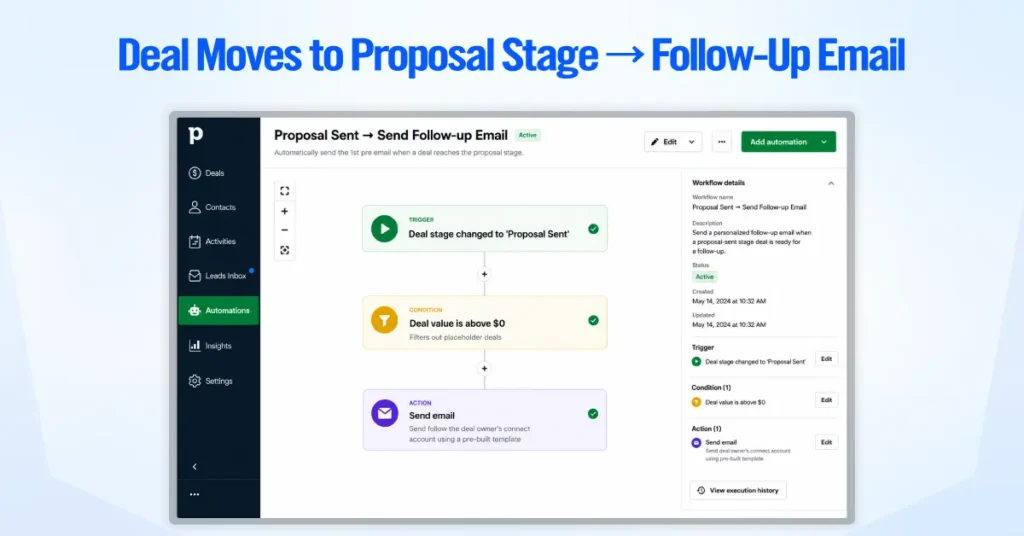
Recommended workflow:
Proposal Sent → Deal Value Confirmed → Placeholder Deals Excluded → Follow-Up Email Sent by Deal Owner
The temptation is to automate a long, polished email here. Resist it. Automated emails that sound automated do more harm than good.
If you want the rep to personalize the message before it goes out, use a Sequence step with a manual email draft instead of an automation action.
3. No Activity for 5 Days → Deal Rotting Alert
If a deal has no next activity scheduled, it is already dying. Pipedrive calls this activity-based selling, and it is the core philosophy behind the platform’s design.
This automation forces the issue when a deal goes quiet.
The threshold matters. Two days is too aggressive for most B2B service sales and will flood reps with alerts they start ignoring. Five to seven days is a better starting point.
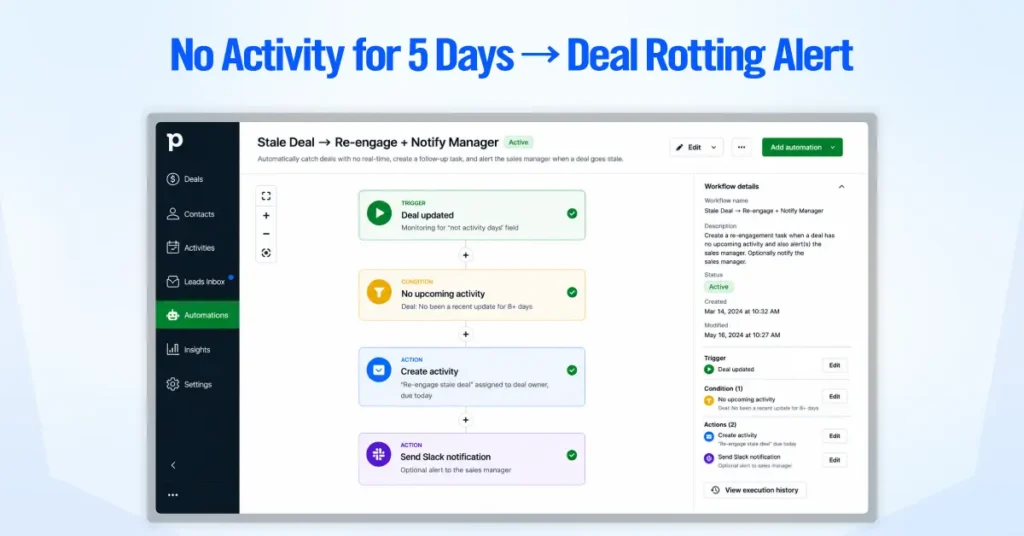
Recommended workflow:
Deal Updated → No Next Activity → 5+ Days in Same Stage → Re-Engage Task Created → Optional Manager Alert
Pipedrive has a native “deal rotting” visual indicator that you can configure for each pipeline stage.
Combine that visual cue with this automation so reps are not just seeing a rotting icon but are forced to act on it.
Adjust the day threshold based on your average sales cycle length.
4. Deal Won → Notify Team + Onboarding Task
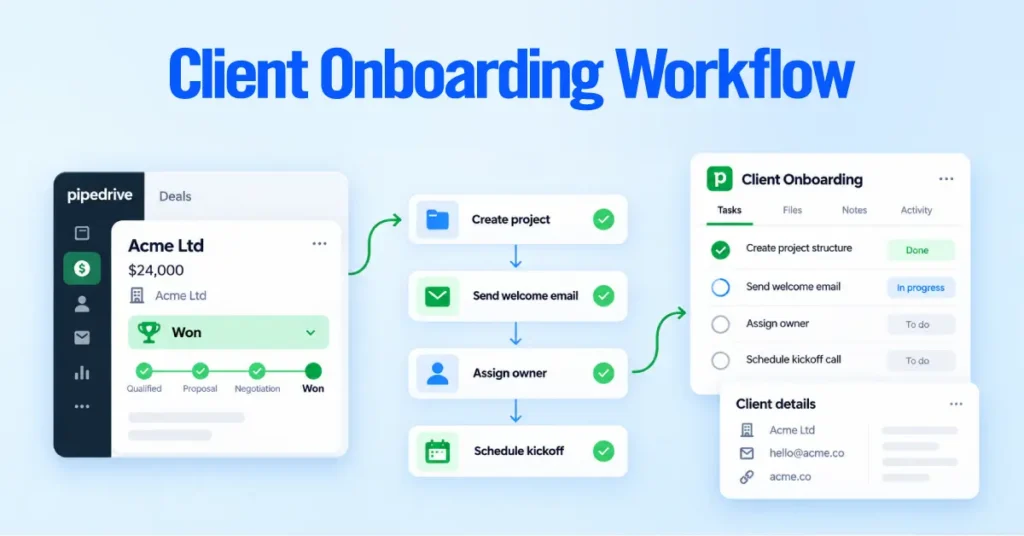
The sales-to-delivery handoff is where service businesses lose the most goodwill. The client signs, then nothing happens for days because the delivery team did not know the deal was closed.
This automation bridges that gap the moment a deal is marked won, notifying the right people and creating the first onboarding step without anyone needing to remember.
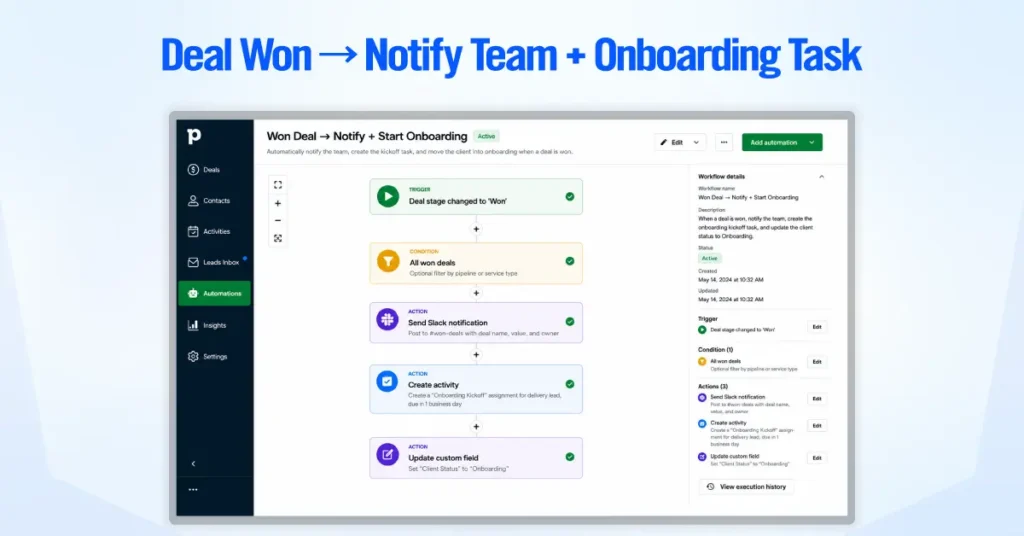
Recommended workflow:
Won Deal → New Client Alert → Onboarding Kickoff Scheduled → Client Status Set to “Onboarding”
The most common mistake here is that the onboarding task gets assigned to the deal owner by default. That means the salesperson gets it, not operations.
Always set a specific user or team in the action step. If your delivery lead varies by service line, use if/else conditions to route to the right person.
5. Deal Lost → Tag Reason + Re-Engagement List
Lost deals are not dead deals. They are a future pipeline if you track why they were lost and follow up at the right time.
This automation captures the reason for the loss, categorizes it, and queues a re-engagement task for 90 days.
The key condition: only trigger when the lost reason field is not empty. Without a reason, the workflow has no context for re-engagement.

Recommended workflow:
Lost Deal → Reason Captured → Category Assigned → Re-Engage Label Added → 90-Day Follow-Up Created
Configure Pipedrive to require a reason for loss before a rep can mark a deal as lost. Otherwise, you end up with a database full of lost deals tagged “No reason provided,” which helps nobody. The upstream data quality fix is what makes this automation actually useful downstream.
6. Proposal Sent → 3-Day Automated Follow-Up
This pairs with Workflow #2 but solves a different problem. Workflow #2 sends an immediate email confirmation on day zero.
This one handles the scenario where three days have passed and the prospect has gone quiet. The action here is a phone call task, not another email.
Running both together gives reps an email send on day zero and a call task on day three. That is the combination we recommend for most service businesses.

Recommended workflow:
Proposal Sent → No Follow-Up Scheduled → Wait 3 Days → Follow-Up Call Created for Deal Owner
If both Workflow #2 and #6 are active, make sure your team knows. The day-three call should reference the earlier email naturally, not feel like a separate cold touchpoint.
Coordinate the messaging across both automations so they work as a sequence rather than two disconnected nudges.
7. Meeting Booked → Confirmation + Prep Checklist
A meeting where the rep shows up unprepared is worse than no meeting at all. The prospect can tell within the first two minutes.
This automation creates a prep task the moment a meeting is scheduled, so the rep has time to review the deal, check the prospect’s background, and build a brief agenda.
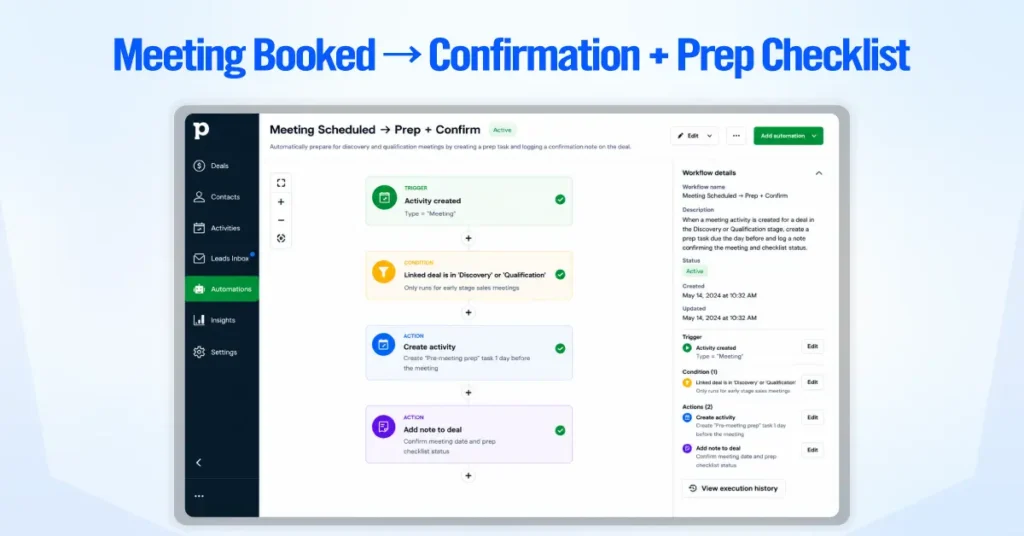
Recommended workflow:
Meeting Activity Created → Deal Stage Checked → Discovery or Qualification Confirmed → Pre-Meeting Prep Task Created → Meeting Note Added to Deal
If meetings come from Calendly or Google Calendar, confirm the sync creates the activity as a “Meeting” type in Pipedrive, not a generic “Event.”
If the activity type does not match your trigger condition, the automation will not fire. Test with one real booking before rolling it out to the team.
8. Contract Signed → Move Stage + Invoice Task
In many service businesses, the moment a contract is signed and the moment the CRM reflects it are not the same.
The contract gets signed in DocuSign or PandaDoc, the deal sits in “Proposal Sent” until someone remembers to update it, and the invoice never gets created because no one tells finance.
This automation closes that gap by reacting to a contract status field change and handling the CRM update, invoice task, and handoff in one chain.
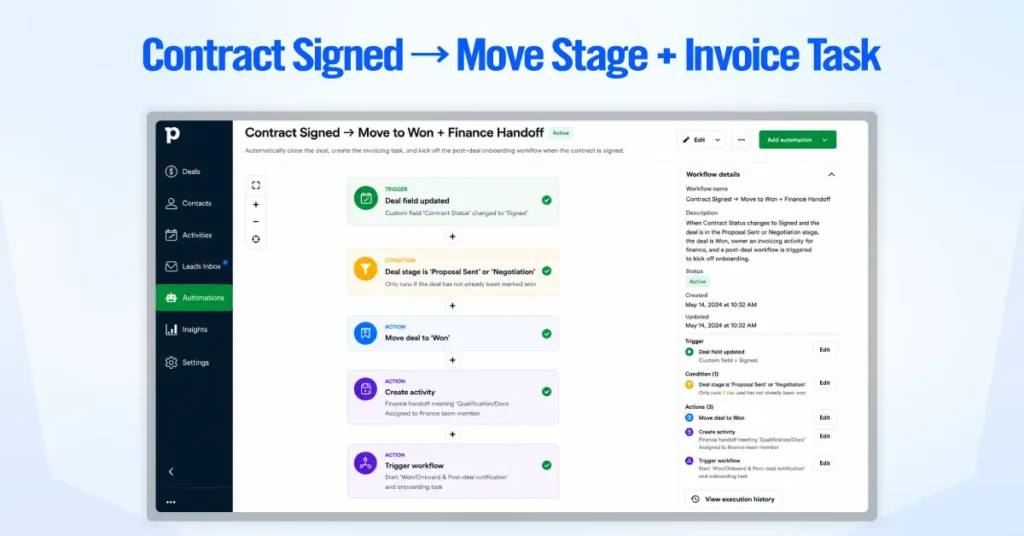
Recommended workflow:
Contract Status Updated → Signed Status Confirmed → Current Stage Checked → Deal Moved to Won → Invoice Task Created → Onboarding Workflow Triggered
Pipedrive cannot natively watch DocuSign or PandaDoc for signing events.
The “Contract Status” field is either updated by a Zapier/Make workflow that monitors the e-signature tool or by the rep manually.
Agencies and Consulting Firms
This is one of the workflows where an external automation tool genuinely earns its place.
9. Round-Robin Lead Assignment to Sales Reps
When every inbound lead goes to the same person, or the manager distributes them manually each morning, or reps cherry-pick, and the harder leads rot, you have a distribution problem that costs you deals.
Pipedrive handles basic round-robin natively in the automation builder. The setup is straightforward: trigger on deal created, filter by source, and cycle ownership through selected team members.

Recommended workflow:
Deal Created → Lead Source Checked → Inbound Lead Confirmed → Round-Robin Rule Applied → Deal Owner Assigned
Native round-robin works well for teams handling similar lead types. It breaks down when you need territory-based, skill-based, or workload-based routing.
For those, use if/else conditions inside Pipedrive or build the logic in Zapier/Make. Also, Pipedrive’s round-robin does not skip reps on vacation.
You will need to manually remove them from the rotation or handle availability externally.
10. Retainer Due → 30-Day Renewal Reminder
For agencies, MSPs, legal firms, accounting practices, staffing companies, and any service business that relies on recurring revenue, this automation pays for the entire Pipedrive subscription.
A missed renewal is not a lost deal. It is a client you already had who left because nobody picked up the phone.
The two-stage approach (30-day heads-up plus 15-day action reminder) consistently outperforms a single reminder that is easy to acknowledge and forget.
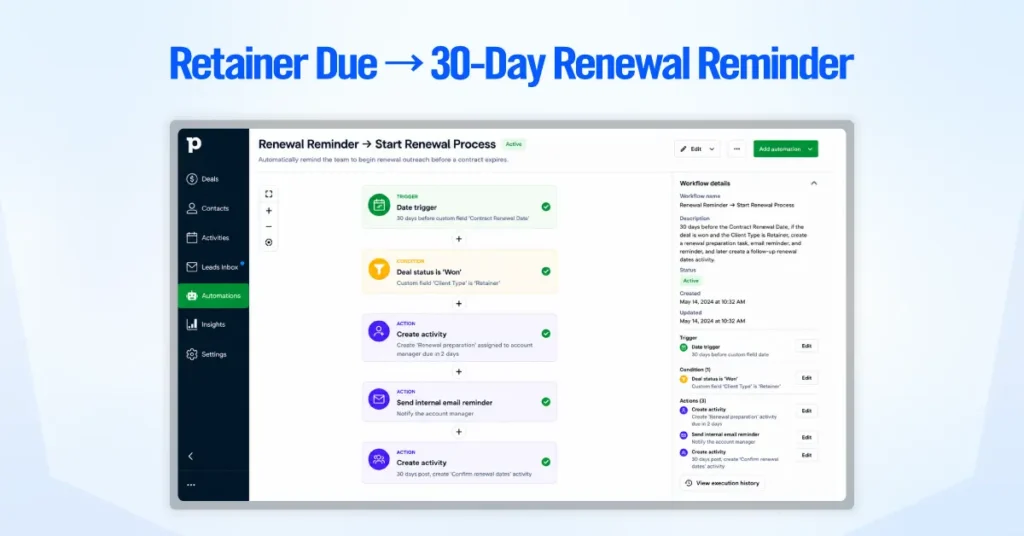
Recommended workflow:
30 Days Before Renewal → Retainer Client Confirmed → Renewal Task Created → Account Manager Reminder Sent → 15-Day Status Check Created
A single reminder 30 days out is often too early for action but too late for strategic planning. The second reminder at 15 days creates accountability. If the first conversation does not happen, the 15-day task forces the issue to be addressed before the renewal date arrives, and the client quietly churns.
Pipedrive Automation by Service Business Type
Not every service business needs the same Pipedrive automation setup. A consulting firm, an HVAC company, and a managed IT provider all sell services, but their sales cycles, handoffs, and follow-ups differ significantly.
Use this section as a starting point. Pick the business type closest to yours, then build the first few workflows that solve your biggest follow-up or handoff gaps.
1. Agencies and Consulting Firms
Agencies and consultants usually need automations that protect the proposal process and ensure delivery starts smoothly after a deal is won.
Proposal follow-up automation
Send a confirmation email when a proposal is sent, then create a call task a few days later if the deal has not moved forward.
Client onboarding handoff
When a deal is marked as won, notify the delivery team with the deal value, service type, client notes, and next steps.
Retainer renewal reminder
Create renewal tasks 30 days and 15 days before the contract renewal date, with a QBR reminder if the client has not had a review recently.
Lost-deal reactivation
Tag the lost reason, then create a re-engagement task after 90 days for deals that may still be worth revisiting.
2. IT and Managed Services Providers
IT and MSP businesses need automations that connect sales activity with service tickets, renewals, onboarding, and account expansion.
Ticket-to-deal automation
Push tagged upsell opportunities from tools like ConnectWise or Autotask into Pipedrive as new deals using Zapier or Make.
Contract renewal automation
Create renewal tasks based on contract dates, contract tier, and account value so reps know when to renew and when to upsell.
Post-close check-in
Create a follow-up task 60 days after a deal is won to check in with the client and strengthen the relationship early.
Client onboarding checklist
When a contract is signed, automatically create the onboarding steps needed for setup, access, kickoff, and internal handoff.
3. Home Services: Plumbing, HVAC, Landscaping, and Field Services
Home service businesses need automations that keep jobs moving from booked to scheduled, completed, reviewed, and followed up.
Job booked to dispatch notification
When a deal moves to “Scheduled,” notify the dispatch or operations team with customer and job details.
Appointment confirmation task
Create a task for the office manager to confirm the appointment, customer details, address, and service notes.
Post-job review request
After the job is completed or marked as won, create a task to request a review. This can also be automated through tools like Podium or Birdeye.
Seasonal maintenance follow-up
Create a follow-up task after the job to offer maintenance plans, seasonal service, or repeat work opportunities.
4. B2B Service Firms: Staffing, Legal, Finance, and Professional Services
B2B service firms usually have more complex buying journeys, multiple stakeholders, compliance steps, and document requirements.
Start with:
Multi-stakeholder follow-up routing
Use if/else conditions to create different follow-up tasks based on how many contacts are attached to the deal.
Compliance task creation
Use custom fields like location, jurisdiction, service type, or client category to trigger the right internal checklist.
Renewal and reactivation automation
Cover both sides of the lifecycle: re-engage lost deals after a set period and remind account owners before contracts expire.
Document collection workflow
When a deal moves to onboarding, automatically create a checklist of required documents, forms, approvals, or client information.
Pipedrive Sequences vs Workflow Automation
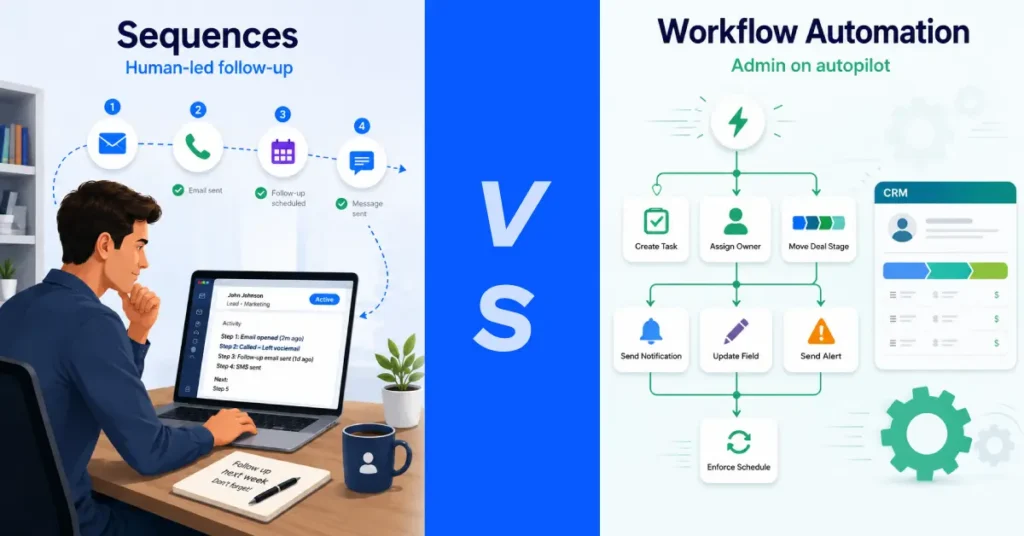
These two features solve different problems, and confusing them is one of the most common mistakes we see.
Pipedrive Sequences are step-by-step workflows for structured, human-led follow-up.
They are part of the Pulse toolkit and let you create linear flows that include manual email drafts, automated emails, and scheduled activities (calls, meetings, tasks). Sequences are designed for lead nurturing and personal outreach.
Workflow Automation handles broader CRM operations triggered by conditions across your pipeline. It creates tasks, assigns owners, moves deals, updates fields, sends internal notifications, and manages handoffs.
| Feature | Sequences | Workflow Automation |
| Purpose | Human-led sales follow-up | CRM admin and process automation |
| Typical use | Cold outreach, prospect nurturing, follow-up cadences | Lead assignment, task creation, stage changes, alerts |
| Email type | Manual drafts + optional auto-send | Fully automated from a synced account |
| Trigger | Manual enrollment or automation-triggered enrollment | Event-based (deal created, stage changed, field updated) or date-based |
| Available on | Growth (5), Premium (10), Ultimate (50) | Growth (50), Premium (150), Ultimate (250) |
The most powerful setup combines both: use a Workflow Automation to automatically enroll a deal into a Sequence when it reaches a specific stage.
Pipedrive Native Automation vs Zapier, Make, and n8n
Pipedrive’s native automation handles CRM-internal workflows well. But the moment your process spans multiple tools, you need an external workflow platform.
Here is how the options compare:
| Tool | Best For | Strengths | Limitations |
| Pipedrive Native | CRM-internal workflows | No extra cost, fast to build, zero latency | Limited to Pipedrive data and actions. Max 10 actions per automation. No multi-app logic. |
| Zapier | Simple app-to-app connections | Huge app library, easy setup, no coding | Gets expensive at volume. Limited branching. Each “zap” is a single linear path. |
| Make (Integromat) | Multi-step logic with branching | Visual builder, advanced data manipulation, cost-effective at scale | Steeper learning curve than Zapier. |
| n8n | Technical teams wanting full control | Self-hosted option, no per-task pricing, full API flexibility | Requires technical setup and maintenance. Not suited for non-technical teams. |
Simple Rule: Native First, External Tools Only When Needed
Do not route every automation through Zapier. Every external step adds latency, a potential point of failure, and ongoing cost.
If Pipedrive can handle the workflow natively, build it natively. Add Zapier or Make only when the action needs to happen outside Pipedrive, or when the logic requires branching and conditions that exceed Pipedrive’s native if/else limits.
A practical approach: build your first 10 automations natively inside Pipedrive. Only reach for external tools when you hit a specific use case that Pipedrive cannot solve on its own.