AI Summary




Moving from HubSpot to Pipedrive is not as simple as copying your data from one CRM to another.
Some records can move directly. Others, such as workflows, lifecycle stages, and automation rules, need to be rebuilt because Pipedrive handles them differently. And some HubSpot features may not have a direct equivalent at all.
That is why a successful HubSpot-to-Pipedrive migration starts with one question: what should you transfer, redesign, or retire?
In this guide, we will break down what can move to Pipedrive, what needs a new approach, and what is better left behind.
CRM plan limits and feature availability can change over time. We verified the figures in this guide against the vendors’ official documentation in October 2026, with links included where relevant.
Before choosing a plan or finalizing your migration scope, check the linked vendor page to confirm the latest limits, features, and availability.
Key Takeaways
- Not a copy job. Each HubSpot asset gets one verdict. Transfer, redesign, or retire.
- Contacts, companies, deals, products, activities, and notes move. Tickets, quotes, and custom objects have no Pipedrive home.
- Lifecycle stage, lead status, pipeline, and deal stage are four different things. Translate them; do not merge them.
- Workflows do not export. Rebuild the outcome inside Pipedrive’s automation limits, or move it to an email tool.
- Plan caps on deals and custom fields set your scope. Validate associations, owners, and reports before cutover.
What transfers, what changes, and what must be rebuilt
| Transfers with mapping | Transfers only after redesign | Must be rebuilt or replaced |
|---|---|---|
| Contacts and companies | Deals, because pipelines and stages change | Workflows |
| Products and line items | Lifecycle stages and lead statuses | Forms and landing pages |
| Calls, meetings, tasks and notes | HubSpot Leads records | Lists and segmentation |
| Most email engagement | Quote history | Marketing email and nurture |
| Attachments | Tickets and custom objects | Reports and dashboards |
Three practical notes sit behind that table. Email engagement moves with documented exclusions. Tickets and custom objects have no Pipedrive object waiting for them. Quoting itself continues in Pipedrive through Smart Docs, but your historical HubSpot quote records do not become Pipedrive quote records.
What Can You Migrate From HubSpot to Pipedrive?
You can extract most of what lives in your HubSpot CRM objects. The constraint sits on the receiving side, because Pipedrive has fewer object types and no custom objects in the HubSpot sense.
| HubSpot asset | Usual Pipedrive destination | Verdict |
|---|---|---|
| Contact | Person | Transfer |
| Company | Organization | Transfer |
| Deal | Deal in a pipeline and stage | Transfer, pipeline redesigned |
| Lead (Leads object) | Lead in the Leads Inbox, or Person plus Deal | Redesign |
| Lifecycle stage | Custom field, lead state, or nothing | Redesign |
| Lead status | Lead label or custom field | Redesign |
| Calls, meetings, tasks | Activities | Transfer |
| Notes | Notes | Transfer |
| Email engagements | Emails linked to people and deals | Partial |
| Attachments | Files on records | Partial |
| Products | Products | Transfer |
| Line items | Deal products | Transfer |
| Quote records | No matching object; quoting rebuilt in Smart Docs | Redesign |
| Tickets | No direct equivalent | Redesign, replace, or archive |
| Custom objects | No direct equivalent | Redesign or replace |
| Workflows | Automations | Rebuild |
| Forms | Web forms or an integrated form tool | Rebuild |
| Lists | Filters and saved views | Rebuild |
| Marketing emails and campaigns | Campaigns add-on or another platform | Replace |
| Reports and dashboards | Insights | Rebuild |
Two Pipedrive limits that change the plan
Pipedrive publishes its usage limits by plan. Two numbers on that page affect migration scope directly.
Leads and deals are capped. The limit counts active leads plus open, won, and lost deals that have not been archived or deleted. Current plans allow 2,500 to 20,000 per seat. An absolute ceiling of 300,000 per account applies to every plan except Enterprise.
Deals created above the limit during an import go to the import skip file instead of into the account. Pipedrive states that it applies no usage limit to contacts, so the pressure lands on deal history rather than on people.
Custom fields are capped. Current plans allow 30, 100, 300, or 500 custom fields per company account. HubSpot portals often carry several hundred properties across contacts, companies, and deals. For those accounts, one-to-one property copy isn’t available.
Contacts and Companies
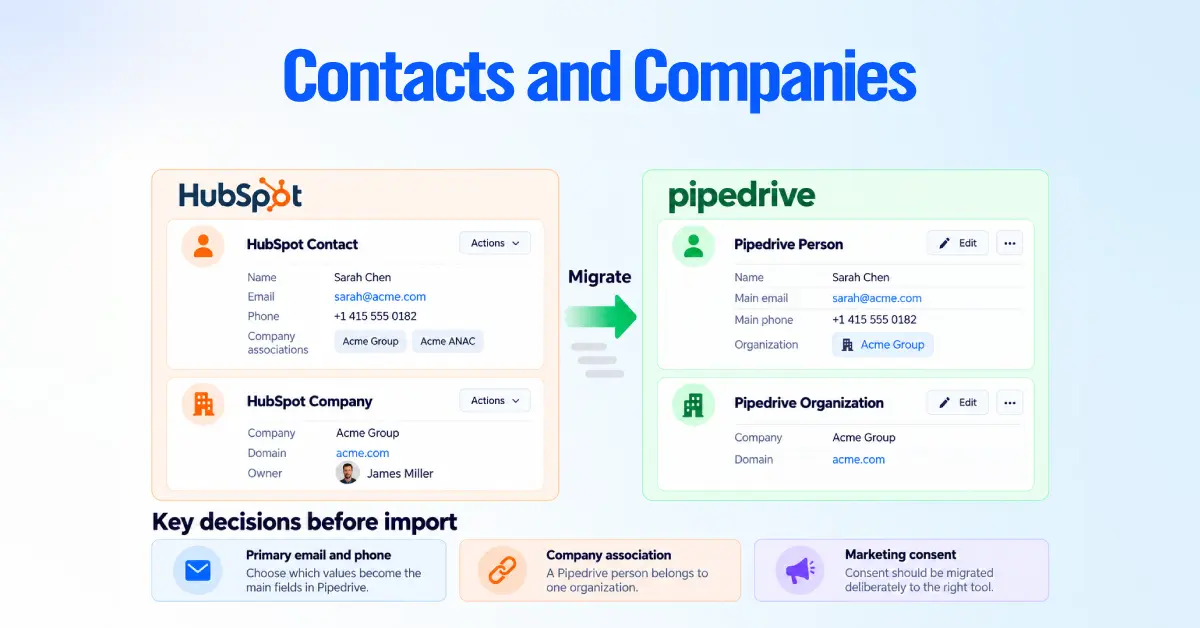
HubSpot Contacts become Pipedrive People. HubSpot Companies become Pipedrive Organizations. This is the cleanest part of the migration, and the part teams tend to over-trust.
Settle these questions before you export anything.
- Which HubSpot email and phone property becomes the primary value in Pipedrive? A Pipedrive person holds several labeled emails and numbers on one record, so the rest need labels rather than deletion.
- What happens to secondary company associations? A Pipedrive person belongs to one organization, while a HubSpot contact can be linked to several.
- Whether the company domain comes across as a field, it matters if you use it for matching or enrichment.
- Who owns records whose HubSpot owner is no longer an active user? Pipedrive can only assign owners that exist at import time.
- What becomes of lifecycle information? That has its own section below.
- Where marketing consent lives next. HubSpot subscription types sit inside HubSpot’s own email tool and do not travel as a CRM property.
On that last point, Pipedrive does have a destination if you adopt its email tool. The Campaigns add-on stores consent in a marketing status field on the person, with values for no consent, subscribed, unsubscribed, bounced, and archived.
The status attaches to an email address, and it can be set during a spreadsheet import. Campaigns will only send to contacts with a subscribed status.
If you are moving marketing email to a different platform instead, load the suppression and consent state there. Either way, this is deliberate, not a side effect of the CRM import.
Parent and child companies
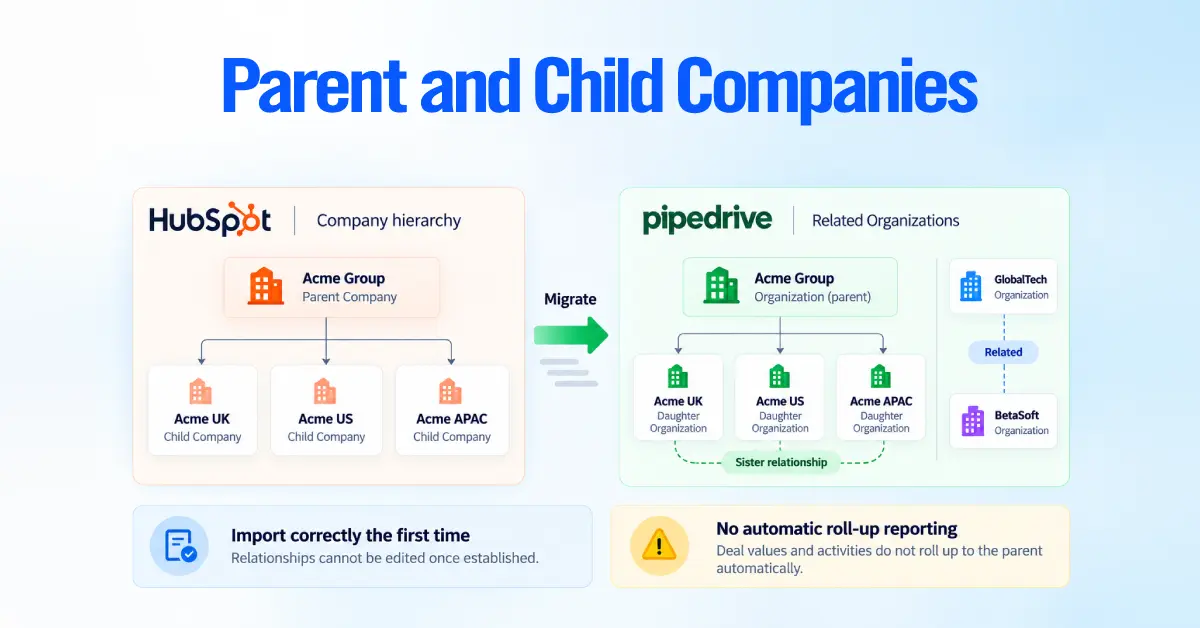
HubSpot company hierarchies have a real Pipedrive destination. Related organizations lets you link two organizations as parent, daughter, or simply related, and making one organization the parent of several creates a sister relationship between the daughters.
Two caveats shape how much weight you can put on it. Pipedrive’s documentation states that relationships cannot be edited once established, so the import has to be right the first time.
The feature records the relationship for people reading the record rather than rolling deal values or activity up to the parent, so group-level reporting still needs a field, a filter, or an external report.
Deals, Pipelines and Stages
HubSpot Deals can become Pipedrive Deals. The bigger job is deciding how your pipeline should work after the move.
Map the core deal data first:
- Deal owner
- Pipeline and stage
- Deal status
- Amount and currency
- Expected and actual close dates
- Linked person and organization
- Products or line items
Plan for multiple contacts

Pipedrive handles deal contacts differently from HubSpot.
A deal has one main contact person. Add additional contacts as participants.
Before migration, decide which HubSpot contact should become the main person on each deal.
Handle participants as a separate migration step. Pipedrive requires existing deal IDs when importing participants, and bulk participant imports can affect the deal’s main contact. Treat participant migration as its own controlled pass rather than adding extra contact columns to the main deal import.
Redesign the pipeline instead of copying it
Do not automatically recreate every HubSpot stage in Pipedrive.
Older CRMs often contain:
- Stages nobody uses
- Stages created only for reporting
- Duplicate stages
- Steps reps regularly skip
Build the Pipedrive pipeline around how your sales process works today.
Then create a simple mapping table:
HubSpot Stage → Pipedrive Stage
Have the sales team approve that mapping before importing deals.
This is often where the real value of a migration comes from.
Decide how much closed-deal history to move
You may not need every historical deal inside the new CRM.
A practical approach is to migrate:
- All open deals
- A defined period of won and lost deals
- Older records only when reporting or compliance requires them
Keep anything else in your migration archive.
Activities, Notes, Emails, and Files
Much of your HubSpot activity history can move to Pipedrive, but not everything transfers perfectly.
Typical mappings include:
| HubSpot | Pipedrive |
|---|---|
| Calls | Activities |
| Meetings | Activities |
| Tasks | Activities |
| Notes | Notes |
| Emails | Linked email history |
| Attachments | Files linked to records |
Some historical data may still be excluded depending on the migration method.
For example, Import2 documents limitations around items such as:
- Call recordings
- Marketing emails
- Inline email images
- Email open and click tracking
- Comments on meetings and notes
- Hidden files
- HubSpot Leads records
Instead of trying to move every historical interaction, ask:
What history will the sales team actually need after go-live?
For many teams, the useful working history is:
- Recent conversations
- Important notes
- Open tasks
- Documents attached to active deals
If you need the full history for compliance or recordkeeping, keep a complete HubSpot export as your archive and move only the useful working history into Pipedrive.
Products and Line Items
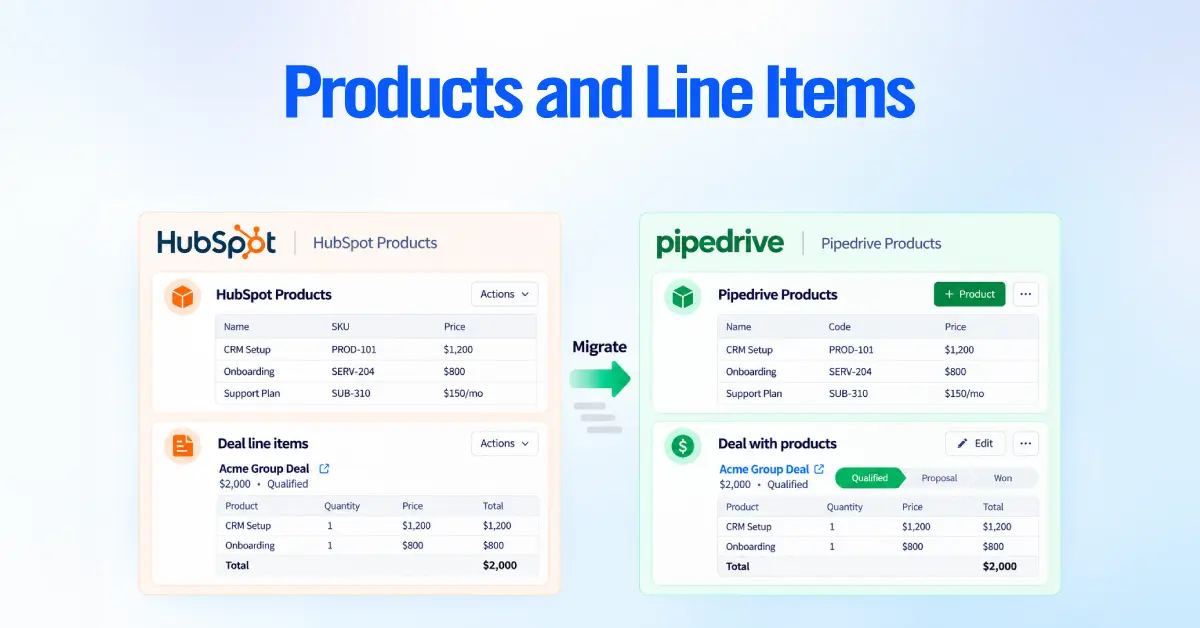
HubSpot Products can move to Pipedrive Products, while line items can become products attached to deals.
Before migrating them, check:
- Product names and codes: Do they still match what the team sells?
- Pricing: Are prices and currencies correct?
- Currencies: Are the required currencies enabled in Pipedrive?
- Discounts: Where should line-item discounts live?
- Old products: Are retired products worth importing?
A migration is a good opportunity to clean the catalog instead of carrying outdated products into the new CRM.
Quotes
HubSpot Quotes do not have a direct one-to-one Pipedrive object. Instead, decide how quoting should work after the migration.
Pipedrive’s Smart Docs can create proposals, quotes, and contracts using information from deals, contacts, products, and projects. It can also support eSignatures.
That leaves two decisions.
For future quotes
Either:
- Rebuild your quoting process using Smart Docs, or
- Continue using your existing proposal or document platform
For historical quotes
Either:
- Keep them in your HubSpot archive, or
- Store the important information in Pipedrive, such as:
- Quoted amount
- Quote date
- Quote status
You usually do not need to recreate every historical quote as a live document.
Tickets and Custom Objects
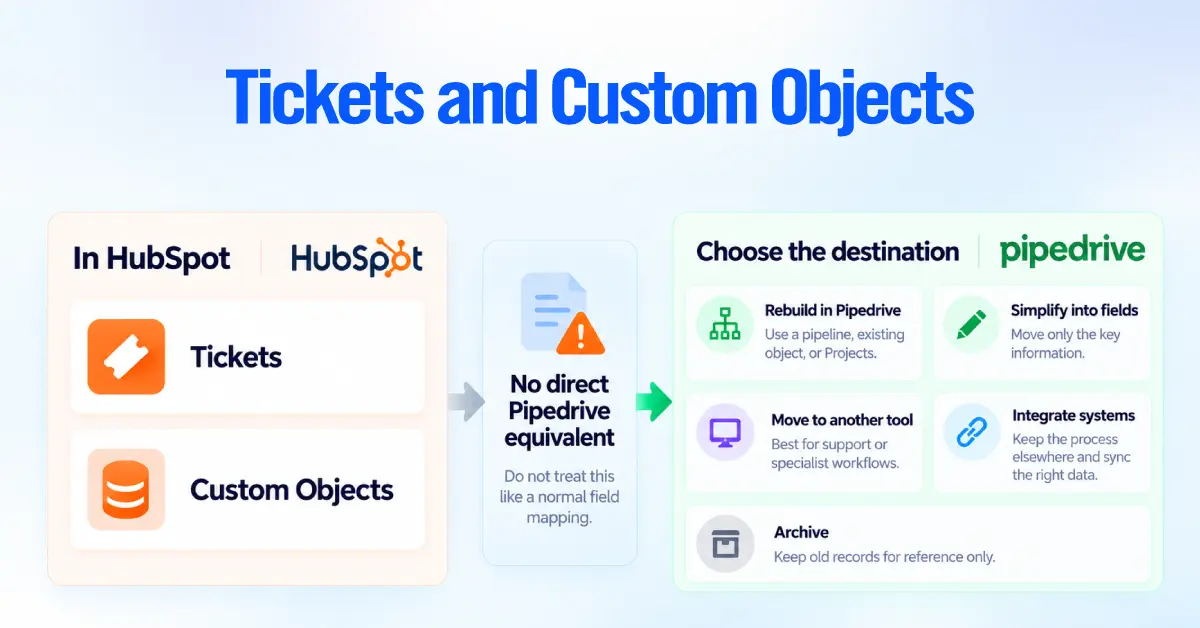
HubSpot Tickets and Custom Objects do not have direct equivalents in Pipedrive. That means these records need a process decision rather than a simple field mapping. For each ticket process or custom object, choose one of these approaches:
- Rebuild it in Pipedrive. Use an existing Pipedrive object, a separate pipeline, or Projects when the workflow fits.
- Simplify it into custom fields. Move only the important information onto a person, organization, deal, or project.
- Move it to another tool. This is often the better option for support ticketing or specialist workflows.
- Integrate the systems. Keep the process in another platform while showing the relevant information inside Pipedrive.
- Archive it. Keep the old records for reference without bringing them into the new CRM.
Do not leave these decisions until the end of the migration.
Tickets and custom objects often contain important business processes. If nobody decides where those processes will live before go-live, the new CRM can feel incomplete even when the sales data migrated successfully.
Audit Your HubSpot Portal Before You Migrate
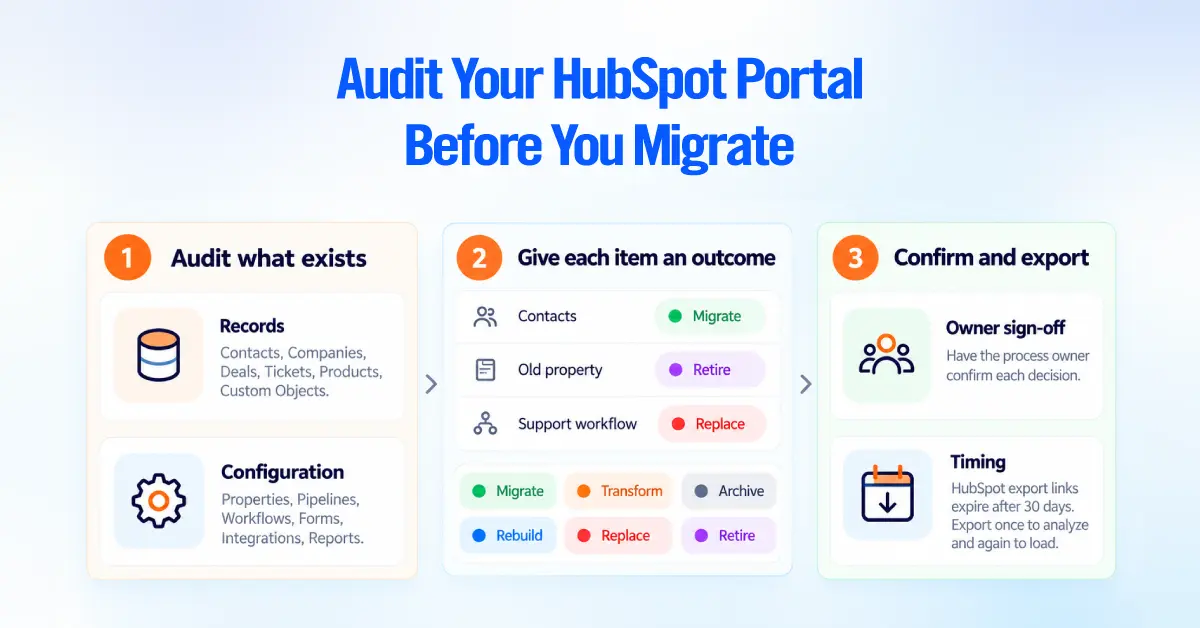
Count what exists before anyone discusses tools. The generic cleanup advice lives in the migration pillar. What follows is HubSpot-specific.
Records. Contacts, companies, deals, leads, tickets, products, line items, quotes, and every custom object.
Configuration. Properties per object with their types and option values, pipelines and deal stages, lifecycle stages, lead statuses, owners, teams, deactivated users, workflows, sequences, forms, lists, integrations, and the reports people actually open.
Then give every item one of six outcomes. Migrate, transform, archive, rebuild, replace, or retire. Write the verdict beside the item. Have the person who owns that process confirm it.
A property with almost no populated values and no workflow depending on it is usually a retire. The audit is the right moment to settle that, rather than during cutover week.
One timing detail catches people out. HubSpot export download links expire after 30 days. An export pulled during the audit may not still be downloadable if go-live slips. Plan to export twice, once to analyze and once to load.
Map HubSpot Data to the Right Pipedrive Objects
Matching field names is not mapping. The mapping that matters is object-to-object, and where a relationship changes shape.
Three of those shape changes need a written rule.
- A HubSpot contact linked to several companies becomes a person attached to one organization, with the other relationships handled through related organizations, a field, or a decision to drop them.
- A HubSpot deal associated with several contacts becomes a deal with one linked person plus participants.
- A HubSpot Lead, which is a separate object in the newer sales workspace, becomes either a Pipedrive lead in the Leads Inbox or a person and deal, depending on how your team qualifies.
Preserve HubSpot Associations
A contact export on its own will not rebuild your CRM. Associations carry the meaning, and they are stored separately from properties.
HubSpot’s export tool downloads current property values and associations. Choose the option that includes all properties and associations rather than only the columns in your current view.
Associations default to 1,000 per row, which is generous for a contact and tight for a large parent company. You can lift that by selecting all associated records, available on CSV exports only, or by setting the override flag if you export through the API.
Record how each of these will be reconstructed.
- Contact to company, including which link is primary
- Contact to deal, separating the linked person from participants
- Company to deal
- Deal to products and line items
- Engagements to the contacts, companies, and deals they belong to
- Ticket associations, if tickets are in scope for archive or redesign
- Parent and child company hierarchies, which map to related organizations
- Custom object associations
Spreadsheet imports handle simple relationships well, because one row can create and link a person, an organization, and a deal together. Many-to-many relationships are where spreadsheet migrations usually break. That is the signal to change the method rather than force it.
Map HubSpot Properties to Pipedrive Fields

Recreating every HubSpot property as a Pipedrive custom field is impossible on most plans and unreadable on the rest. Give each surviving property one of six verdicts instead. Map to a native field, create a custom field, transform the values, merge it with another property, archive it in the export, or drop it.
Six questions decide the verdict.
- What decision or report does this value drive
- What is its field type, and does Pipedrive support that type
- What share of records actually hold a value
- How many option values are in use rather than merely defined
- Does a workflow, list, or report depend on it
- Which Pipedrive object should own it
That last question catches a frequent mistake. HubSpot’s shared property model lets similar data sit on contacts and companies at once.
In Pipedrive, a value describing the account belongs on the organization. Copying it onto every person creates drift as soon as someone edits one copy.
Clean and Normalize Property Values
Clean in the export, before mapping. Spreadsheet cleanup is fast and reversible. The same work inside Pipedrive is slow and visible to users.
| HubSpot problem | What it breaks |
|---|---|
| Dropdown options differing by case or trailing space | Duplicate field options in Pipedrive |
| Dates stored as text | Rows rejected into the import skip file |
| Mixed national phone formats | Matching, dialing and deduplication |
| Domains with protocols and trailing slashes | Organization matching and enrichment |
| Owner names with no live Pipedrive user | Silent reassignment to the import admin |
| Deal currencies not enabled in Pipedrive | Wrong or rejected deal values |
| Blank values that should be a default | Reporting gaps after go-live |
| Legacy option values on a few records | Clutter in every dropdown |
Preserve HubSpot Record IDs
Add one custom field per object to hold the HubSpot Record ID, and populate it during import. Three custom fields pay for themselves the first time something goes wrong.
The HubSpot ID gives you a stable key for reconciliation. It also supports matching records across two systems during a phased cutover. This second pass updates records instead of duplicating them, and traces a broken record back to its source.
Keep it separate from Pipedrive’s own identifier. Pipedrive’s system fields include an ID used when updating existing records through a spreadsheet. That one identifies the destination record. The HubSpot ID says where the record came from. Label both clearly.
Translate HubSpot Lifecycle Stages and Lead Statuses
This is a common place for a HubSpot migration to go wrong, because four distinct concepts get collapsed into one Pipedrive dropdown.
- Lifecycle stage describes the relationship, sits on contacts and companies, and is largely automated. HubSpot can set it on creation and sync it from company to contacts and from deal stage to associated records.
- Lead status describes what a rep is doing right now with a qualified lead.
- Pipeline is a sales process.
- Deal stage is a position inside that process.
Copying lifecycle stage into a Pipedrive custom field is easy and rarely useful, because the automation that produced the value stays behind in HubSpot. The field goes stale, and reps stop trusting it.
| HubSpot concept | Sensible Pipedrive destination |
|---|---|
| Lifecycle stage, pre-customer values | Presence in the Leads Inbox, or a deal in an early stage |
| Lifecycle stage, Customer | Won deal history, or an organization field used for segmentation |
| Lead status | Lead label, or a small custom field on the lead or deal |
| Pipeline | Pipeline |
| Deal stage | Deal stage |
| Historical stage values kept for reporting | The archived export, not a live field |
One test settles most arguments. If nobody and no automation will update the value in Pipedrive after go-live, it is reporting history. Reporting history belongs in the archive.
Design Pipedrive for Your HubSpot Data

Build the destination before you load anything. Import2 is direct about one consequence of skipping that step, because if the migration starts before users are invited and pipelines are created, the data ends up owned by whoever started it.
For a HubSpot source, the minimum destination setup covers seven things.
- Every user created, with the HubSpot owner-to-Pipedrive user mapping written down and a fallback owner for records belonging to deactivated users.
- Visibility and permissions decided, since HubSpot teams and Pipedrive visibility groups work differently.
- Pipelines and stages built for the process you are moving to
- Activity types matching how your team logs calls and meetings
- Currencies enabled before any deal import
- Custom fields created for the properties that survived the audit, within your plan’s field limit
- Products loaded if deals carry line items.
Full configuration belongs in our Pipedrive setup guide. The point here is that Pipedrive should be designed around the sales process you want, not reverse-engineered from the portal you are leaving.
Choose How to Migrate From HubSpot to Pipedrive

Associations and history drive this choice far more than record count does.
| Method | Fits when | Breaks when |
|---|---|---|
| Import2 | You want the bulk of CRM objects and engagement moved with mapping support | You need tickets, quotes, or custom objects inside Pipedrive |
| Spreadsheet | Data is mostly flat with one-to-one relationships | Many-to-many links, files, or repeated delta loads |
| API or hybrid | Transformations, custom object redesign, large history, files, logging | Nobody is available to build and test it |
Import2
Pipedrive partners with Import2 and surfaces it under Tools and apps, then Import data, then Import from other software. HubSpot is a supported source. The function runs on trial and paid accounts and requires a global admin user.
Pipedrive’s knowledge base states that Import2 offers free migration of up to 1,000,000 records, with paid migrations above that. Three documented behaviors matter during a project.
- Import2 can automatically create pipelines, stages, and custom fields. Switch that off when you’ve deliberately designed Pipedrive.
- You can filter the data, turn off specific record types, and adjust field mappings in the settings tab.
- You can undo and redo the migration at no extra cost, which makes a genuine rehearsal practical.
The tool moves records. You still design the destination, map properties, resolve ownership, decide which associations matter, scope the history, test with real records, and validate the result.
Spreadsheet Migration
Pipedrive accepts XLS, XLSX, and CSV files with up to 200,000 rows and 50 MB per file, one tab per import. One row can create a person, an organization, and a deal at once. Rows that fail land in a downloadable skip file with a reason for each one, which is the most useful artifact in the whole process.
This fits core contacts, companies, and deals with straightforward fields. It struggles with many-to-many associations, bulk engagement history, files, and repeated loads that need to update rather than duplicate.
API or Hybrid Migration
Move to the API when the project needs something the other two cannot do. Rebuilding complex associations. Turning custom object data into Pipedrive fields or projects. Loading large history in controlled batches. Transferring files at volume. Field-level transformations that are easier in code than in a spreadsheet. Repeatable delta loads so the final sync is small. Logging detailed enough to trace every record.
Hybrid is common and sensible. Use the assisted tool for most contacts, companies, deals, and activities. Use the API or targeted spreadsheet passes for the objects and transformations it cannot handle.
Run a HubSpot to Pipedrive Test Migration
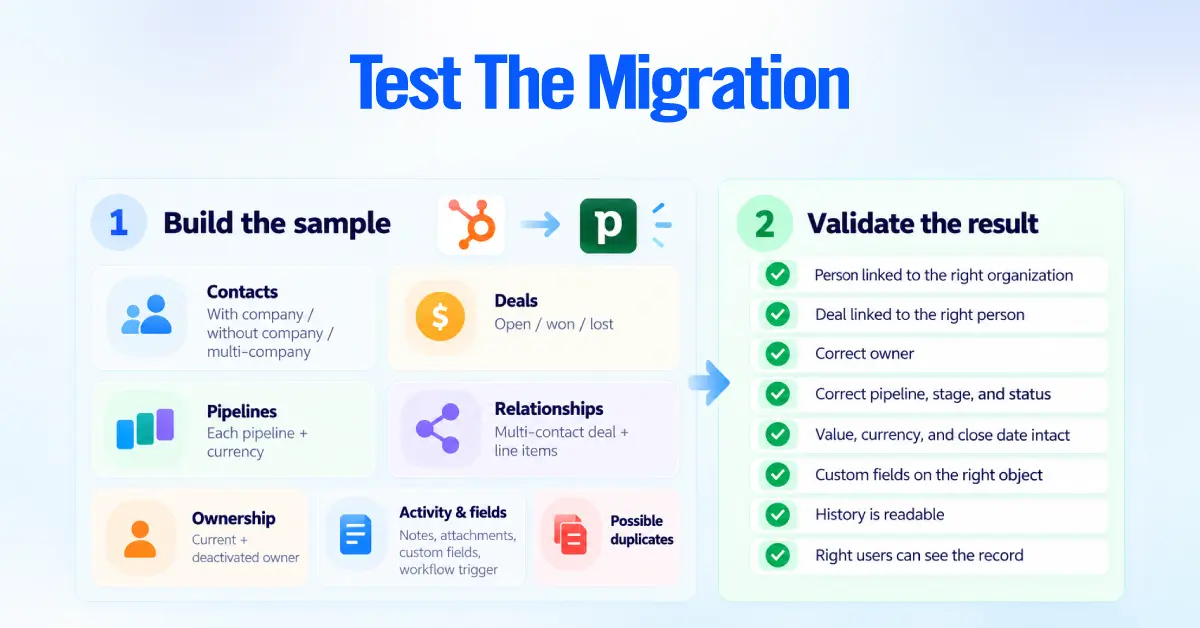
Test with records chosen to break things, not with the first rows of the contact export.
Build the sample from edge cases. A contact with a company and one without. A contact linked to several companies. An open deal, a won deal, and a lost deal. Deals from each pipeline and each currency.
A deal with multiple line items and several contacts. Records owned by a current user and by a deactivated one. Records with activities, notes, and attachments. Records carrying each custom property type. Two records that look like duplicates. At least one record that triggers a HubSpot workflow today.
Check what counts cannot show you.
- Did the person attach to the right organization, and the deal to the right person?
- Is the owner correct, or did it quietly default?
- Did the deal land in the right pipeline and stage with the right status?
- Are the value, currency, and close date intact?
- Did custom fields map to the intended object?
- Is the history legible?
- Can the right users see the record?
A matching record count for every deal owned by the admin who ran the import is a failed migration that looks fine on the status page.
Migrate HubSpot Data in Dependency Order
Pipedrive has to find the parent record before it can attach the child, so order matters.
- Users, currencies, pipelines, stages, activity types, and custom fields
- Organizations
- Related organization relationships, which cannot be edited later
- People, linked to their organizations
- Products
- Deals, linked to people and organizations, with line items
- Leads, where a separate pre-qualification stage is being kept
- Projects, where post-sale delivery moves into Pipedrive
- Activities
- Notes and the supported engagement history
- Deal participants, as a separate pass using the Pipedrive System ID
- Relationship corrections and anything that failed the first pass
- The final delta of records created or changed in HubSpot during the migration window
An assisted tool handles much of this sequencing for you. The order still matters, because it tells you what to validate at each step, and because the delta pass is the part teams forget to schedule.
Rebuild HubSpot Workflows in Pipedrive
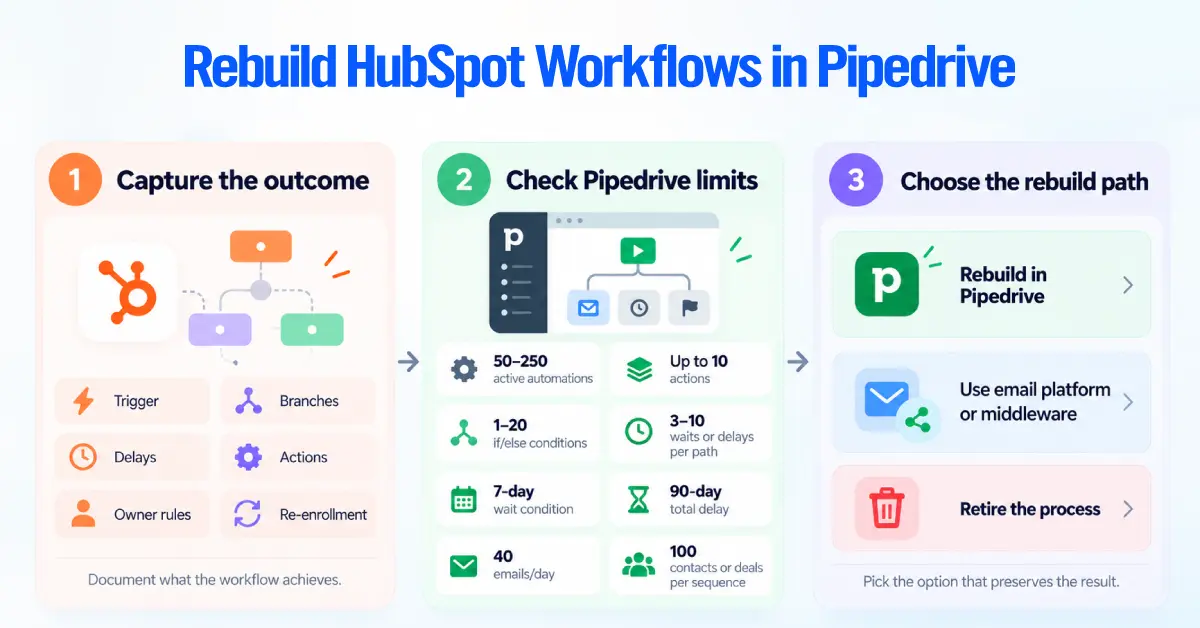
HubSpot workflows do not export into Pipedrive, and recreating them step for step is the wrong goal anyway. The two automation engines have different shapes.
Document the outcome, not the configuration. For each workflow that matters, record the trigger, enrollment criteria, branching, delays, actions, owner, suppression rules, re-enrollment setting, and the business result it produces. The business result is what you rebuild.
Then check that result against Pipedrive’s published automation limits. The automation limits article and the usage limits page set out the current position.
- Active automations are counted per company rather than per user, with plan allowances ranging from 50 to 250
- Each automation can include up to ten actions
- Each automation allows 3 if/else conditions on Growth, 10 on Premium, and 20 on Ultimate
- Delay steps and wait-for-condition steps are limited to 3 or 10 per path depending on plan
- A wait-for-condition step can run up to seven days, and total delay per automation is capped at 90 days
- Email actions are rate-limited to 40 per minute within a company account
- Sequences are limited to 100 deals or contacts per sequence
Read those numbers against your portal. A nurture workflow with many branches and a six-month delay sequence will not fit inside one Pipedrive automation. It becomes an email platform, a middleware scenario, or a retired process.
Each workflow then gets one of five verdicts.
- Rebuild it in Pipedrive automations
- Rebuild it through an integration that already owns part of the process
- Rebuild it in middleware when branching or timing exceeds Pipedrive’s limits
- Keep it in another platform, which is normal for marketing nurture
- Retire it, which is the right answer more often than teams expect
Rebuild Forms, Routing and Sequences
Lead capture is the part of a migration the outside world can see, so it needs a dated plan.
For every HubSpot form, landing page, and lead source, answer four questions.
- Where does the submission arrive in Pipedrive?
- Does it create a person, a lead, or a deal?
- Who owns it?
- What happens next, and how long does it take?
Pipedrive offers web forms and chatbot capture through LeadBooster. Plenty of teams keep a dedicated form tool and connect it instead. If you adopt Campaigns, a Pipedrive web form can include an opt-in checkbox that sets marketing status directly.
Round-robin does not need middleware. Pipedrive’s automatic assignment tool creates rules for deal added, deal updated, and lead added, and assigns either to a named user or to a team using round-robin distribution.
Team assignment depends on the Teams feature, which Pipedrive restricts to higher plans, and it retains assignment history for seven days. Reach for middleware only when your routing depends on shift patterns, weighting, or escalation after a timeout.
Pipedrive sequences exist but are limited by plan and capped at 100 deals or contacts per sequence. Check the number and size you need against what your plan allows.
Switch forms at cutover rather than before, and watch submissions manually during the first days. A lead that lands in a dormant HubSpot portal is an expensive record to lose.
Decide What Replaces HubSpot Marketing and Service Features
Moving CRM records to Pipedrive does not replace Marketing Hub, Service Hub, or Content Hub. Name the replacement for each capability you rely on before cutover.
| HubSpot capability | What it needs in the new stack |
|---|---|
| Marketing forms and landing pages | LeadBooster web forms or a form tool, plus a site or landing page platform |
| Lists and segmentation | Pipedrive filters for sales, plus segmentation in the email platform |
| Marketing emails and nurture | Campaigns by Pipedrive, sold as a paid add-on, or a third-party platform |
| Subscription and consent state | Marketing status in Campaigns, or the consent model of the platform you choose |
| Campaign reporting | Campaign reporting covers opens, clicks, and performance over time, and flags artificial clicks from security software |
| Attribution across channels | A reporting layer outside Pipedrive, since Insights reports on sales objects |
| Ads audiences | The ad platforms or the new email tool |
| Lead scoring | Pipedrive custom scoring on Premium and Ultimate, or a rule in middleware |
| Tickets and service processes | A help desk, or a redesigned Pipedrive pipeline for simple cases |
| Website and content hosting | A CMS, with its own project and its own timeline |
Two of these carry more risk than the rest. Consent and suppression state has legal weight, and it has to arrive intact in the sending platform before the first campaign goes out. Website and content migration should not share a go-live date with a CRM cutover.
One scope note on Campaigns. It is an email tool with reporting, not a replacement for HubSpot’s full marketing automation. If your nurture logic depends on deep branching, scoring models, and multi-channel attribution, compare carefully rather than assuming parity.
Validate Your HubSpot to Pipedrive Migration
An import status of complete describes the tool. Reconcile against the scope you approved instead.
| What to check | What you are looking for |
|---|---|
| Records in scope against records created | A number you can explain, not just a number that matches |
| Excluded and skipped records | A reason and a decision for every row in the skip file |
| Person to organization links | Correct links across small and large accounts |
| Deal to person and deal to organization links | No orphaned deals, and the right linked person |
| Participants | Present on the deals that need them, with the linked person intact |
| Related organizations | Correct parent and daughter direction, since it cannot be edited later |
| Owners | Nothing defaulted to the migration admin |
| Pipeline and stage placement | Deals landing correctly in redesigned stages |
| Values, currencies and close dates | Figures that match the HubSpot export |
| Required history | Activities and notes readable on real records |
| Custom fields | Right object, right type, right values |
| Marketing status | Consent state matching the source, if you adopted Campaigns |
| Duplicates | Including merges Pipedrive performed during import |
| HubSpot Record IDs | Present and populated on every object |
Sampling beats totals. Pull a random sample of each record type, open them beside HubSpot, and have the person who uses that record type daily confirm it reads correctly. Size the sample to your volumes and your risk tolerance, and sample more heavily where the mapping was complex.
Test Automations, Integrations and Reports
Record checks prove the data arrived. These checks prove the business still runs.
- Create a record that should fire each rebuilt automation, and confirm it fires once rather than repeatedly. Submit every live form and confirm the record arrives with the right owner.
- Check that assignment rules distribute as intended, and review the assignment history while it is still retained.
- Exercise each integration in both directions
- Trigger a deliberate failure and confirm somebody is notified
- Create a near-duplicate and confirm your duplicate handling behaves
- Open every report a manager relies on and compare totals against the HubSpot equivalent, with any gap explained by scope
- Log in as a standard user, not an admin, and confirm they can see and edit what they need
Switch From HubSpot to Pipedrive
Cutover runs as a sequence over several days. The generic version sits in the migration pillar. These are the HubSpot-specific parts.
- Freeze structural changes in HubSpot. No new properties, pipelines, stages, or workflows once mapping is approved, because every change invalidates part of your test.
- Capture final exports while the portal is still fully active, remembering that download links expire after 30 days.
- Move the delta of records created or changed since the main load.
- Switch forms and lead capture to their new destinations on a named date.
- Repoint integrations, then turn on the Pipedrive automations you approved and only those.
- Validate production reporting with real post-cutover data, and confirm every user can log in and work.
Two decisions belong in writing before go-live. How long HubSpot stays accessible and at what seat level, since read-only access for an archive period usually costs less than re-subscribing later.
And the rollback conditions, including what level of failure sends you back and who makes that call. That decision is hard to make well on go-live morning, with a sales team waiting.
HubSpot to Pipedrive Migration Checklist

Before migration
- Inventory objects, properties, associations, lifecycle stages, pipelines, workflows, forms, sequences, and integrations.
- Classify each item: Migrate / Transform / Archive / Rebuild / Replace / Retire.
- Design your Pipedrive structure: users, currencies, pipelines, stages, and custom fields.
- Map HubSpot objects and properties to Pipedrive.
- Create fields for HubSpot Record IDs.
- Choose your migration method.
- Run a test migration using representative records.
During migration
- Import records in dependency order.
- Preserve agreed associations.
- Review the complete skip/error file.
- Check for duplicates.
- Verify ownership and field values using sample records.
- Import participants and related organizations deliberately.
- Rebuild workflows within Pipedrive’s automation capabilities.
- Reconnect forms, routing, and integrations.
- Set up replacements for required HubSpot marketing/service functionality.
Before cutover
- Reconcile migrated records against the approved scope.
- Validate associations, deals, values, and history.
- Test automations, forms, assignments, and integrations end-to-end.
- Rebuild and compare reports.
- Test permissions as a standard user.
- Run the final delta migration.
- Assign an owner to every remaining go-live risk.
After cutover
- Monitor new records and ownership.
- Watch automations and integrations for failures.
- Confirm reports continue to return expected numbers.
- Use the HubSpot Record ID trail when correcting migration issues.
- Maintain HubSpot archive/read-only access for the agreed retention period.