AI Summary




Migrating to Pipedrive means moving your live sales operation into a new system without losing the data, relationships, and processes your team depends on. It is not a single CSV upload.
A real Pipedrive migration runs through a predictable sequence.
- Define the migration scope to clarify which records, users, and historical data must move.
- Clean the source data by removing duplicates, updating outdated records, and fixing formatting errors.
- Configure Pipedrive settings by creating custom fields, pipelines, stages, and user roles before importing data.
- Map records and fields to match source system attributes with target Pipedrive properties.
- Select a migration method based on data volume and complexity, such as native import tools, third-party apps, or custom APIs.
- Run a sample test migration on a subset of data to identify mapping errors or broken links.
- Import data in strict relational order starting with users and companies, followed by contacts, and ending with deals and activities.
- Rebuild active workflows and integrations inside Pipedrive to ensure business logic fires correctly.
- Validate migrated data against your source database to confirm accuracy and completeness.
- Cut over to Pipedrive and monitor live usage to catch missing records and support end-user adoption.
If you skip the early steps, the data still lands. It just lands broken. Deals attach to the wrong contacts, owners go missing, and reports stop matching reality.
No migration is fully automatic, and no honest process promises zero data loss. The goal is a controlled move you can verify.
This guide walks through the full process so the switch to Pipedrive holds up when your team uses it every day.
We are running this process right now for a coaching practice moving off Salesforce. Our plan followed six phases, and because that migration is still open, the detail here reflects decisions we are making on a live account rather than a tidy retrospective. The parts of a migration that go wrong are easier to describe honestly while you are still in them.
TL;DR
- Clean duplicates, formatting, and dead records in the source CRM before migrating. Pipedrive does not detect duplicate deals at all.
- Set up users, pipelines, stages, custom fields, and permissions in Pipedrive before importing any production data.
- Map source records to Pipedrive objects by business meaning, not by matching field names. Preserve old CRM IDs in a custom field.
- Test the migration on your messiest records first. Perfect test data hides the problems that break at scale.
- Build and test automations during the migration project. Activate them at cutover, not after.
What Should You Migrate to Pipedrive?
Migrate the records that run your sales process, not everything your old system happens to store. Pipedrive lets you import people, organizations, leads, deals, projects, activities, notes, and products. You also carry over the structure they live inside.
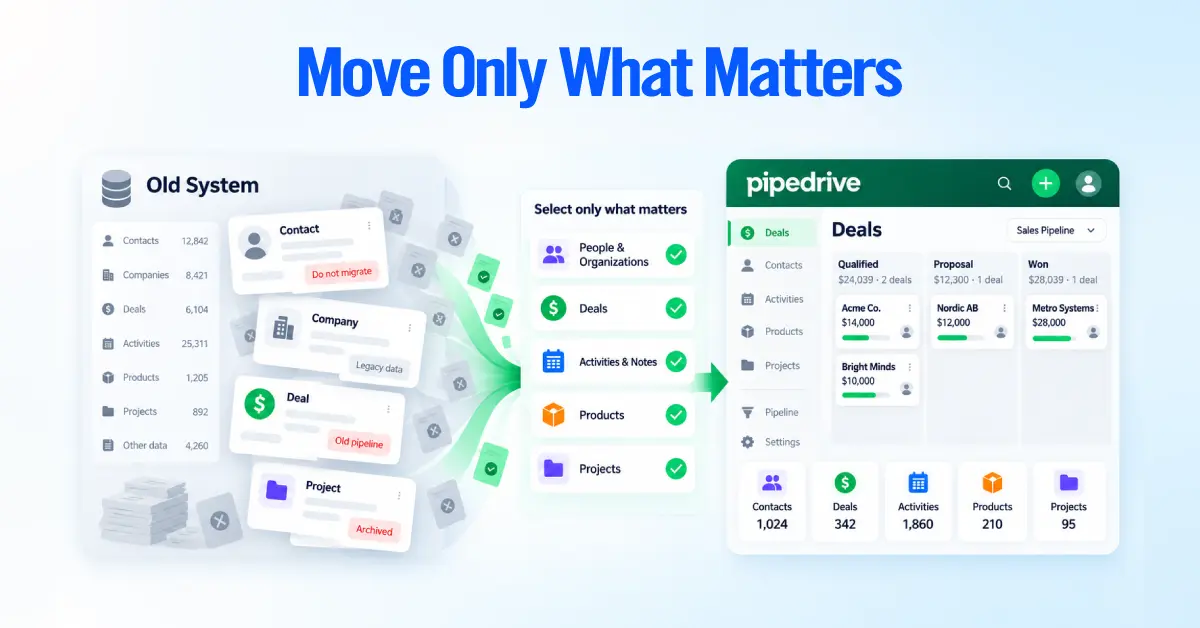
A typical scope includes the following.
- People and organizations, which are your contacts and companies
- Leads and deals, your pipeline in progress and won or lost history
- Activities and notes, the interaction history attached to those records
- Products, if you sell defined items or services
- Projects, if you use Pipedrive for delivery work after the sale (Projects is included on Premium and higher plans, or available as a paid add-on on Lite and Growth)
- Users and record owners, so accountability stays intact
- Pipelines, stages, and custom fields, which you configure rather than import as rows
Not every field and record earns a place in the new system. A migration is a chance to leave old weight behind.
What Should You Leave Behind?
Leave behind anything that adds noise instead of value. Migrating junk data just moves the problem into a cleaner interface.
Good candidates to drop include duplicate records, test records left over from your old setup, contacts that have gone cold for years with no path forward, obsolete custom fields nobody fills in, retired pipeline stages, and abandoned processes.
For everything else, sort each record into one of four buckets. Migrate it, clean or transform it first, archive it outside Pipedrive for reference, or retire it entirely. Making that call before the migration keeps the import focused and the validation step manageable.
We ran this on our own Pipedrive on 06/21/2026. We cut 91 custom fields down to 65 and reduced Lead Source from 42 options to 19. One field deletion was blocked because a live automation still referenced it, which is a useful reminder that retiring a field is a configuration change and not only a data decision. Check what depends on a field before you drop it.
Clean and Prepare Your CRM Data Before Migration
Fix your data in the source system before it moves, because problems are far cheaper to solve there than inside a fresh Pipedrive account. Cleaner source data makes mapping, importing, and validation easier at every later step.
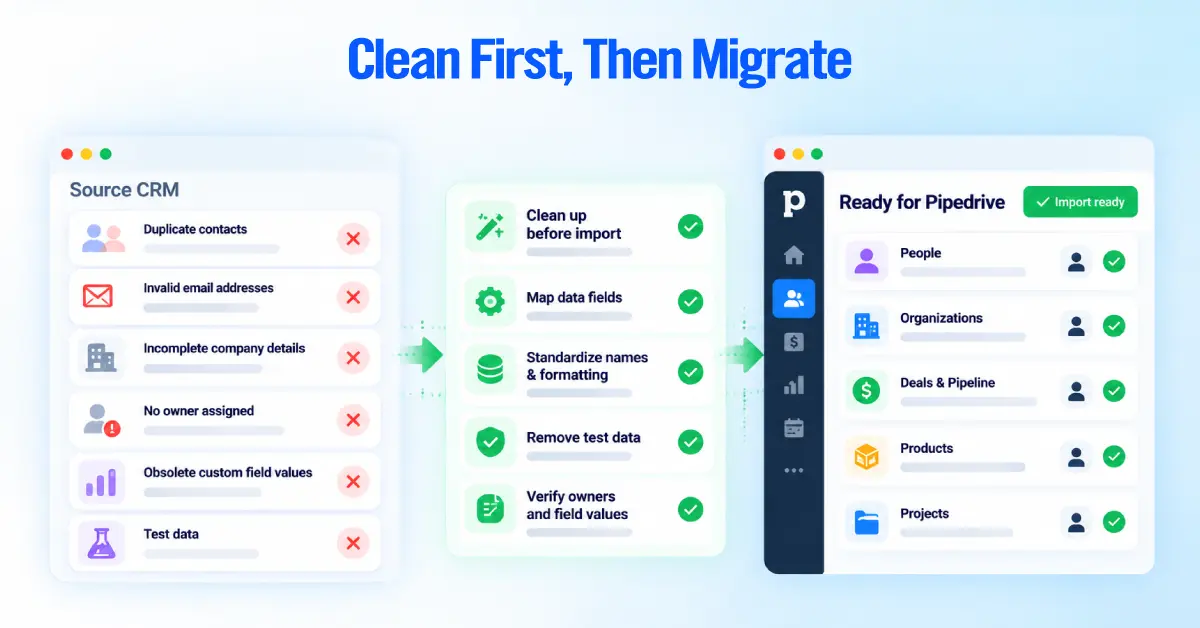
Focus your cleanup on the issues that break imports or corrupt reporting.
- Duplicate people and duplicate organizations
- Invalid or long-dead email addresses and phone numbers
- Inconsistent name formatting, such as “IBM” versus “I.B.M.” versus “ibm”
- Phone numbers stored in mixed formats
- Dropdown values that mean the same thing but read differently
- Records with no owner assigned
- Records still owned by users who have left
- Obsolete custom fields and retired stage values sitting in the data
- Test data and sandbox records that should not travel to production
A single trailing space can do real damage. On one business brokerage account, a listing ID carried a trailing space, and a Zapier filter matching on that ID stopped firing on three deals. No error, no alert, just three deals quietly dropping out of the automation. Formatting problems rarely announce themselves.
Duplicate prevention belongs in this cleanup phase, not after the migration. Pipedrive detects duplicates based on specific field matches during import.
For people, it looks for a name plus a matching email, phone, or organization.
For organizations, it looks for a matching name and address. Deals have no duplicate identifier at all, so two deals with identical names will both import. Cleaning names, emails, phone numbers, and addresses in the source system is the single most effective way to prevent duplicates from appearing in Pipedrive after import. A clean record going in rarely needs a fix coming out.
Set Up Pipedrive Before Importing Your Data
Configure Pipedrive before you load production data, because records need a structure to land in. If you import deals before your pipelines and stages exist, they arrive with nowhere sensible to sit.
Prepare the account foundations first.
- Users, so owners in your file map to real people
- Ownership rules, permissions, and visibility settings
- Pipelines and the stages inside them
- Activity types that match how your team actually works (Pipedrive’s defaults are call, meeting, task, deadline, email, and lunch, but you can add custom types)
- Required custom fields, created ahead of import so your data has a home
- Products, if they are part of your process
A few things to check against your Pipedrive plan before configuring.
Projects: Projects are included on Premium and higher plans. On Lite and Growth, it is available as a paid per-user add-on. If you plan to migrate delivery or project work into Pipedrive, confirm that Projects is active in your account before you begin.
Formula fields are supported only on deals, with a limit of ten per account. They calculate values automatically from other numerical or monetary fields and cannot be populated through import. If your source CRM uses calculated fields, plan to recreate the formulas in Pipedrive after the data arrives rather than trying to import the calculated values.
The point is not to rebuild your old CRM field for field. This is the moment to decide how your sales process should work in Pipedrive, then shape the account around that decision. A migration that copies every quirk of the previous system carries the previous system’s problems with it.
For the step-by-step account configuration and the mechanics of importing, follow our dedicated Pipedrive setup guide. This pillar covers how to move a business into Pipedrive. The setup guide covers how to configure the account and run the import itself.
Map Your Existing CRM Data to Pipedrive
Map each source record to the Pipedrive object that matches its business meaning, not the one whose name looks similar. Most CRMs share a common shape, so the core relationships translate cleanly.
- A company becomes an Organization
- A contact becomes a Person
- A qualified opportunity becomes a Deal
- An unqualified or early-stage opportunity becomes a Lead, where that distinction matters to you
- A task, call, or meeting becomes an Activity
- A product or service becomes a Product
- Post-sale delivery work becomes a Project, where relevant
One note on activities. Pipedrive imports activities as general activity records with a type (call, meeting, task, and so on). If your source CRM stores detailed call logs with duration, recordings, or outcome fields, those structured call-log records will not import as native Pipedrive call logs.
Plan to bring them in as standard activities with the relevant details in the note field, or use the API to write them as call log records if you need that level of detail preserved.
Fields need the same judgment. Two fields with matching labels can hold different data, and two differently named fields can mean the same thing. Map on meaning and you avoid quietly scrambling your records.
Map Custom Fields
Decide the fate of each custom field before import. Every source field falls into one of a few outcomes.
- Map it to an existing Pipedrive field
- Create a new custom field for it
- Transform its values into a format Pipedrive expects
- Combine several source fields into one
- Archive it outside Pipedrive, or drop it entirely
Create any custom field you plan to use before the import runs, since data has nowhere to go without a matching field waiting for it.
This is a mapping decision, not a full custom-fields build, so keep the focus on what the incoming data actually needs.
Preserve Legacy CRM IDs
Keep each record’s original ID from the old system by loading it into a dedicated custom field in Pipedrive. That single habit pays off repeatedly. It gives you a reliable key for matching records, tracing problems back to the source, validating counts, running controlled updates later, catching duplicates, and proving a specific record made the trip.
Keep this ID separate from Pipedrive’s own System ID, which Pipedrive assigns to every record it creates. The legacy ID identifies the record in your old CRM. The System ID identifies it in Pipedrive. You want both, and you want them in different fields.
Choose the Right Pipedrive Migration Method
Choose your migration method based on your data’s complexity, not on which tool sounds easiest. There are four practical paths, and the right one depends on volume, relationships, and how much transformation your data needs.
Spreadsheet or CSV Import
Native spreadsheet import fits straightforward migrations. It works well when your dataset is manageable, the relationships between records are simple, transformation needs are light, and you want direct manual control over what loads.
You export your source data to XLS, XLSX, or CSV, match each column to a Pipedrive field, review the preview, and import. Pipedrive caps spreadsheet imports at 200,000 rows and 50 MB per file, with one tab per import, so very large historical datasets may still need splitting. For the exact click-by-click import steps, see our Pipedrive setup guide.
Import2
Import2 is a third-party migration partner that Pipedrive integrates with for moving data directly from another CRM. It supports many source systems, including HubSpot, Salesforce, and Zoho CRM, and it can create pipelines and stages and map custom fields as part of the process.
Import2 migrates up to 1,000,000 records free, with paid migrations above that. Set up your users in Pipedrive before you start, since Import2 needs them to assign ownership. The Import2 function is available for both trialing and paying Pipedrive accounts and supports multiple import sessions per account.
This section stays general on purpose. The source-specific decisions for each CRM live in the dedicated guides linked further down.
API or Custom Migration
A custom migration built on the Pipedrive API suits the hardest cases. Reach for it when you have complex relationships between records, large volumes of historical data, advanced transformations, a source system no ready-made tool supports, or a need to run the migration more than once in a repeatable way.
A custom approach also gives you finer control over validation, which matters when the data is intricate. Rate limits apply and vary by plan, so scope the work with that in mind.
For the migration owner, the question is not the code. It is whether your data is complex enough to justify the extra effort, and whether you have the technical support to do it well.
Hybrid Migration
Many real migrations combine methods. You might use Import2 for the bulk contact and deal history, a spreadsheet import for a clean product list, and a small API job for one awkward object the other tools handle poorly.
A hybrid approach is normal for mid-sized and complex moves, and there is no prize for forcing everything through a single tool.
Run a Test Migration Before the Full Migration
Run a small, representative test before you move the full dataset. A test migration is where you catch mapping errors, broken relationships, and format problems while they are still cheap to fix.
Build the test sample from the records most likely to cause trouble, not your cleanest ones. Include people linked to
- Organizations
- Open deals and closed deals
- Records owned by several different users
- Deals across multiple pipelines and stages
- Populated custom fields
- Activities and notes
- Products where relevant
- Records with missing values
- Records that look like potential duplicates
Then check the result against reality. Confirm field mapping, relationships, ownership, pipeline and stage placement, values, dates, custom fields, activities, and duplicate behavior. A test built only from perfect records tells you nothing, because perfect records rarely break. The messy ones do.
Migrate Your Data in the Right Order
We recommend loading records so that parent records exist before the records that depend on them. Pipedrive can create and link multiple objects from a single spreadsheet row, but controlling the order gives you a cleaner process, easier troubleshooting, and more predictable results, especially for larger migrations.
A recommended sequence looks like this.
- Organizations
- People
- Products, where required
- Deals
- Leads, where required
- Projects, where required
- Activities
- Notes
- Any other supported historical data
The exact order can shift depending on your source system and chosen method. The principle is that having parent records and required relationships in place before attaching dependent records reduces errors and makes validation easier.
Leads and deals must each be linked to a person or an organization, and products cannot be linked to deals during import, so plan to connect deal line items afterward.
Monitor Import Errors, Duplicates, and Skipped Records
Treat the import as unfinished until you have reviewed what actually happened. Handle execution problems here, when they appear, rather than saving them for a later cleanup that never quite happens.
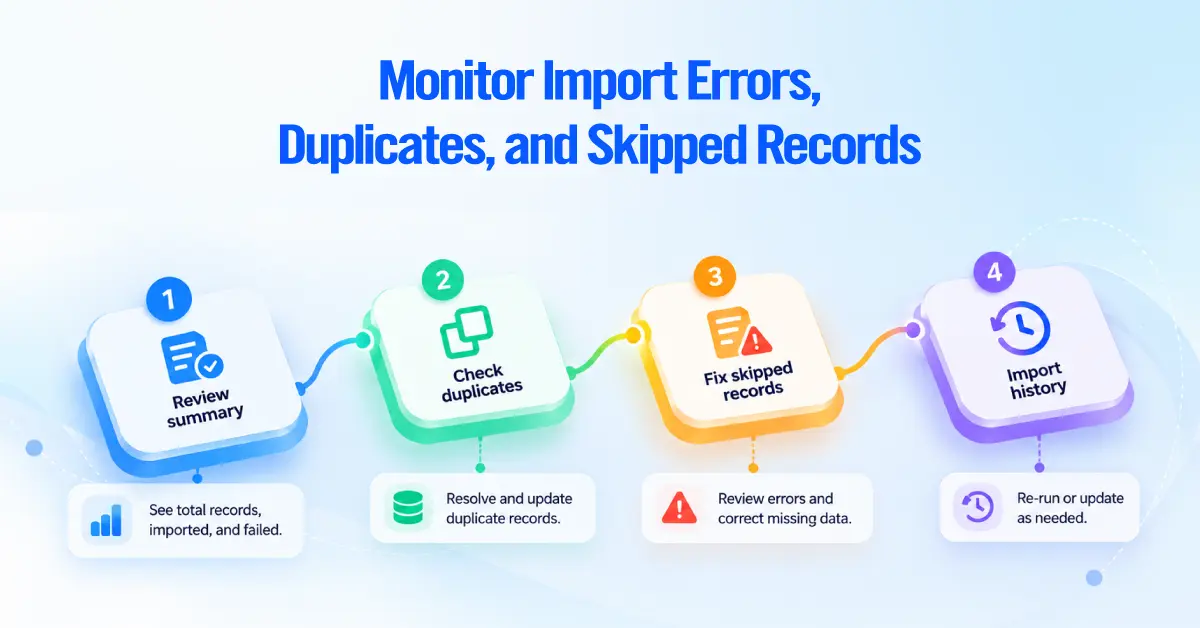
Review the import summary for errors, skipped records, incorrect field values, missing required information, and failed relationships. Then check how Pipedrive’s import-time duplicate detection handled your data.
- People are merged during import when the name matches and the email, phone, or organization also matches an existing record
- Organizations are merged when the name and the address both match
- Deals have no duplicate identifier, so two deals with the same name both import without any warning
That last point catches teams off guard. If your source data has repeated deal records, Pipedrive will not stop them, and you will clean them up afterward using the Merge Duplicates feature or a third-party tool.
Pipedrive records each import in its import history, and a global admin can revert an import from there within 48 hours if something went badly wrong.
For skipped records, work through a simple loop. Review the skipped record, identify the cause, correct the data, then either re-import it or make a deliberate decision to leave it out. An import that finished uploading is not the same as an import that finished correctly.
Rebuild Your Automations and Integrations
Data can move between CRMs. The business logic that acts on that data does not. Your records can arrive intact while every workflow, automation rule, and integration that supported them stays behind in the old system.
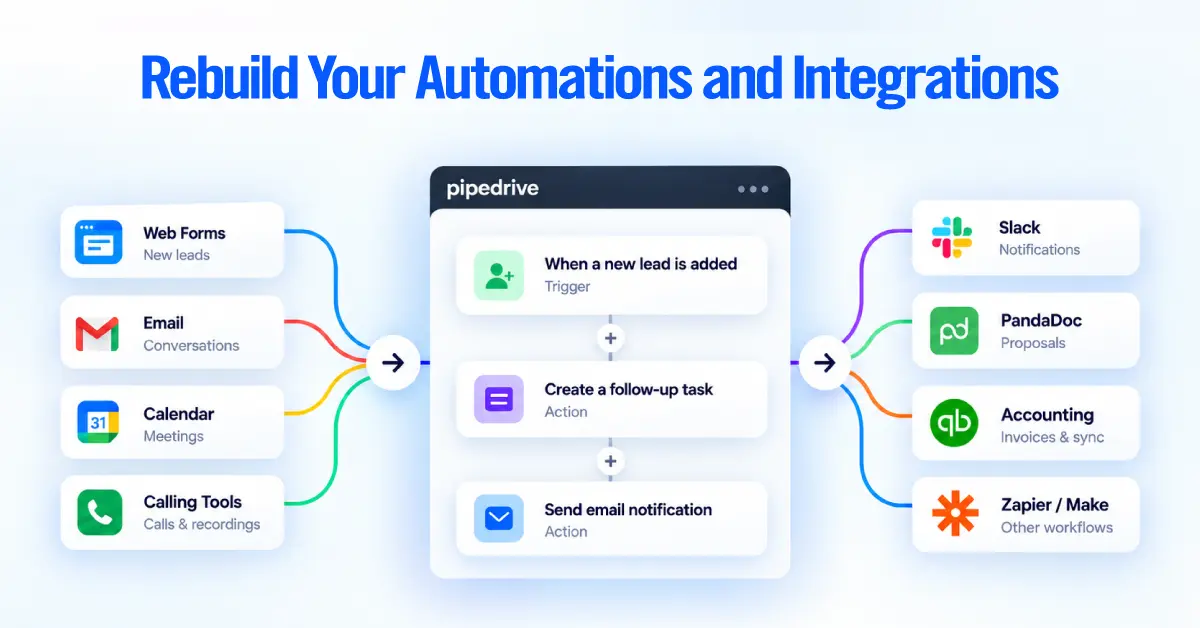
Work through everything that was doing something automatically before.
- Lead assignment and deal-stage automations
- Follow-up task creation
- Email templates, sequences, and notifications
- Web forms feeding new records
- Calendar, calling, and proposal tools
- Accounting integrations
- Zapier or Make workflows and any direct API connections
- Reporting and dashboard connections
For each one, decide its future. Rebuild it in Pipedrive, replace it with a better option now available, change how it works to fit the new process, or retire it because it no longer earns its place.
The recommended approach is to build your automations in Pipedrive and test them on a controlled set of records before activating them for production use. You do not need to wait until after the cutover to start building.
Set up automations during migration and test them with imported data. Confirm they work as expected, then enable them at go-live. This prevents untested automations from affecting live data and avoids launching the new system without automation.
Source-specific automation differences, such as how a particular CRM structured its workflows, belong in that CRM’s dedicated migration guide.
Validate the Migration and Complete the Cutover
Validate both the data and the processes before you switch your team over. This section combines your final quality check and go-live readiness review in one pass, so you confirm everything once rather than repeating the same checks in several places.
Work down a validation list.
- Record counts for people, organizations, deals, and leads, compared against the source
- Owners assigned correctly
- Pipelines and stages holding deals where they belong
- Record relationships intact, so people still link to organizations and deals
- Deal values and currencies correct
- Activities and notes attached to the right records
- Custom fields populated as expected
- Duplicates resolved
- Permissions and visibility working per role
- Automations firing correctly on test records
- Integrations connected and passing data
- Reports returning numbers that match reality
“Import completed” does not mean “migration completed.” Confirm that the data is right and that the processes built on it actually work before Pipedrive becomes the system of record.
Complete the Final Cutover
Once validation passes, make the switch deliberate and reversible until the last moment.
- Take a final backup of the old CRM
- Freeze unnecessary changes in the old system so you are not chasing a moving target
- Move any records created or changed since the main migration (the delta that built up during the project)
- Run a final validation pass on that delta
- Switch web forms and integrations to point at Pipedrive
- Confirm every user can log in and see what they should
- Activate the automations you built and tested
- Confirm reporting one last time
- Make Pipedrive the active CRM
- Restrict editing in the old system, so no one keeps working in the wrong place
What Should You Monitor After the Migration?
After go-live, watch for problems that surface only once real people use the live account. This is not a repeat of validation. It is about the issues that appear in daily use rather than in a static data check.
Monitor new duplicate records, incorrectly assigned deals, wrong pipeline stages, missing relationships, automation or integration failures, reporting issues, and access complaints.
Track user adoption too. If people keep relying on spreadsheets or the old system, the migration isn’t complete. Consistent data entry in the first few weeks helps maintain data quality over time.
This stage answers a simple question. Pipedrive is live, so what should we watch now?
Migrating From Another CRM to Pipedrive
Most of the process above is universal, but the details change depending on where your data comes from. Each source CRM stores records, relationships, and history differently, so mapping and cleanup decisions vary. Use the guide that matches your source system for the specifics.
HubSpot to Pipedrive
HubSpot and Pipedrive organize data differently, especially around HubSpot properties, lifecycle stages, and its association model. Those differences drive real mapping decisions for fields, historical data, and automation.
Salesforce to Pipedrive
Salesforce carries structure that Pipedrive handles more simply, including its Leads and Accounts model, custom objects, and complex field types. Mapping those cleanly takes source-specific decisions about records, relationships, ownership, and automation.
Zoho to Pipedrive
Zoho separates Leads and Contacts and uses its own modules, option values, and workflows, so consolidating and mapping that data needs care.
Pipedrive Migration Checklist
Use this as your run-of-show. It condenses the full process into actions rather than explanations.
Before Migration
- Define migration scope
- Decide what stays behind
- Clean source data and resolve duplicates
- Standardize names, emails, phones, and addresses for cleaner duplicate detection
- Configure Pipedrive users, pipelines, stages, and activity types
- Set up permissions and visibility groups appropriate to your plan
- Create required custom fields
- Map records and fields by business meaning
- Preserve legacy CRM IDs in a custom field
- Choose your migration method
- Run a representative test migration
- Validate the test results
During Migration
- Migrate in the recommended dependency order (Organizations, People, Products, Projects, Deals, Leads, Activities, Notes)
- Review import errors after each batch
- Check duplicate detection results by object type
- Review skipped records and resolve or exclude
- Verify relationships between records
Before Go-Live
- Validate record counts against the source
- Validate ownership, pipelines, stages, and custom fields
- Confirm record relationships are intact
- Test deal values and currencies
- Build and test automations on controlled records before activating
- Reconnect integrations and confirm data is flowing
- Check permissions and visibility settings
- Check reporting accuracy
- Move any records created or changed since the main migration
- Run final validation on the delta
- Activate automations
- Switch forms and integrations to point to Pipedrive
- Confirm user access
- Make Pipedrive the active CRM
- Restrict editing in the old system
After Go-Live
- Monitor for new duplicates
- Monitor deal owners, stages, and relationships
- Watch automation execution
- Watch integration performance
- Compare reporting against the old system
- Support users and address adoption issues
- Fix issues discovered in live use