AI Summary




TL;DR
- Design the business process first, then build the smallest useful Asana structure around it. Structure should follow the process, not the reverse.
- Asana is work management software. Keep the hierarchy simple for most teams: one team per function, one project per body of work, sections for stage, and custom fields for the data you report on.
- Build one workflow by hand and run it with a real request before you automate anything. Automate the handoffs you miss, not every change.
- Your CRM stays the system of record for leads, contacts, deals, and revenue. Asana owns the delivery. Sync the context a workflow needs, not the whole customer database.
- Native CRM connectors differ in 2026. HubSpot and Salesforce both drive Asana through Asana Rules at the task level; Pipedrive can create tasks or projects from deal events; and true two-way sync usually needs Make, Unito, Workato, Zapier, or a custom build.
- The legacy Asana for Salesforce AppExchange app was deprecated on February 27, 2026. The current route is the rules-based Salesforce-to-Asana integration on Advanced and higher plans.
- Build reporting only after your custom fields are consistent, and test failure cases before rollout.
If you are new to Asana, this guide works as a practical, step-by-step setup for beginners, and it also helps if you have inherited a messy workspace you need to clean up. We set up Asana for agencies, consulting firms, SaaS teams, marketing teams, and operations groups, and the pattern stays the same.
The software is rarely the problem. The problem is usually a workspace that grew without a plan, filled with duplicate projects, half-used custom fields, and automations nobody remembers building.
The short answer to setting up Asana is this. Map the process, assign an owner, build a simple structure, run one workflow manually, turn it into a template, automate the reliable handoffs, connect your CRM with clear data ownership, then report once the data is consistent. Everything below explains that sequence.
New to Asana? Get Oriented First with the Basics
If you’re new to Asana, spend two minutes on the basics before you design anything. Asana organizes work so a team can see what to do, why it matters, and when it is due. A few core objects and views are worth knowing up front.

- Tasks: are the units of work. Each should have an owner and a due date.
- Projects: hold related tasks and can be viewed as a List, a Board, or a Calendar on every plan, with Timeline (the Gantt-style view) available on Starter and higher. You switch views using the tabs at the top of a project.
- My Tasks: is each person’s private list of everything assigned to them, and most people start their day there.
- Inbox: is the notification center. It collects assignments, comments, and status updates, and you can adjust its notification settings in your profile settings.
For a first-time setup, keep it that simple. When you want to deepen your Asana expertise later, the Asana Academy tutorials and the Asana Forum are strong first-party resources, and active users can even become an Asana ambassador to keep learning. The rest of this guide focuses on the setup decisions that a basic tutorial usually skips.
What Should You Decide Before You Set Up Asana?
Decide your business process, your data ownership, and your setup owner before you create anything. The most common failure we see is a team opening Asana, creating a dozen projects in an afternoon, and inviting everyone before anyone has agreed on how work actually moves. Structure built that way tends to fall apart later.
The order we use with clients is fixed. Business process, then ownership, then structure, then workflow, then automation, then CRM, then reporting, then testing. Each step depends on the one before it.
Map the Business Process Before You Create Projects
Write down how a single unit of work moves through your team before you build anything. For an agency, that might be a signed client moving from kickoff to delivery. For an operations team, it might be a request moving from intake to done. You are identifying the trigger that starts the work, the people who touch it, the decisions that gate it, and the moment it is finished.
A process you cannot describe in a sentence or two is hard for any tool to hold cleanly. If the handoffs are unclear on paper, they will be unclear in Asana.

Do this on a whiteboard or in a single document. Once you can name the trigger, the owner at each stage, and the definition of done, you have enough to build a matching structure.
Decide What Belongs in Asana and What Belongs Elsewhere
Put work that has an owner, a deadline, and a definition of done into Asana, and keep other systems for what they do best. This one decision prevents most of the clutter teams complain about later.
- Asana holds projects, tasks, owners, deadlines, dependencies, approvals, and delivery status.
- Your CRM holds leads, contacts, companies, deals, and revenue.
- Your document system holds the canonical files. Asana supports attachments too, so we recommend keeping the master file in your document system and then linking or attaching it in Asana rather than making Asana the file store.
- Your chat tool holds the conversation. Asana holds the decision that comes out of it.
Asana is a work management layer that coordinates execution. It is not designed to be the system of record for your customer relationships.
Choose Who Owns the Asana Setup
Assign one owner for the setup before you invite the wider team. This person sets the naming rules, decides which custom fields exist, approves new projects, and keeps the structure from drifting.
In our implementations, the owner is usually someone in operations or a team lead who understands the process end to end. They do not need to be technical. They need the authority to say no to an unnecessary project or field.
Here is where each business type tends to start.
| Business type | Starting structure | First workflow | Add later |
| Small business | One team, three to five projects by function | Internal request intake | Custom fields, dashboards |
| Agency | One team per function, one project template per service | Client onboarding | Forms, portfolios, time tracking |
| Consulting firm | One team, one project per engagement from a template | Engagement delivery | Milestones, approvals, portfolios |
| Marketing team | One team, projects by channel or campaign type | Content production | Forms, proofing, dependencies |
| SaaS sales to delivery | Separate teams for sales handoff and delivery | Sales to delivery handoff | CRM integration, custom fields, reporting |
None of these start with advanced reporting or automation. Those come after the structure and first workflow are stable.
How Should You Organize Asana?
Use the smallest structure that clearly holds your work, and separate what Asana technically supports from what we recommend for most businesses.
Asana’s building blocks fit together like this. At the top sits an Organization or a Workspace. An Organization is tied to a shared email domain, so people who sign up with a matching email address join it automatically, which suits companies.
A Workspace is not tied to a domain and suits looser groups. Below that, Teams group a set of people and their work, Projects hold the work itself, Sections show stages within a project, and Tasks and Subtasks are the units of work. Above delivery, Portfolios roll up multiple projects for reporting, and Goals connect that work to objectives.
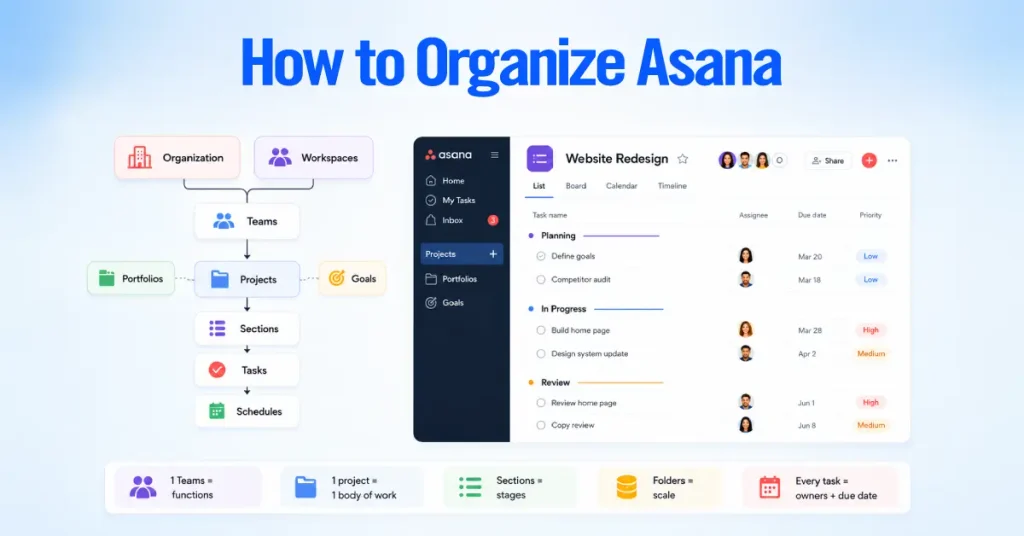
Two points of flexibility are worth knowing. Asana supports projects that don’t sit inside a team, and Organizations and Workspaces are genuinely different account types, not two names for the same thing.
For most client implementations, though, we recommend a simple operational pattern. One team per function, one project per body of work, sections for stage, custom fields for data, and every task with an owner and a due date. That pattern is easy to explain to a new user and hard to outgrow.
Teams vs. Projects vs. Tasks vs. Subtasks
Use Teams for a group of people, Projects for a body of work, Tasks for a single deliverable, and Subtasks for the steps inside one task.
- A Team is a department or function, such as Marketing or Client Services.
- A Project is a container for related work, such as a client engagement or a campaign.
- A Task is one deliverable with an owner and a due date.
- A Subtask is a step that belongs to a task and would not stand on its own.
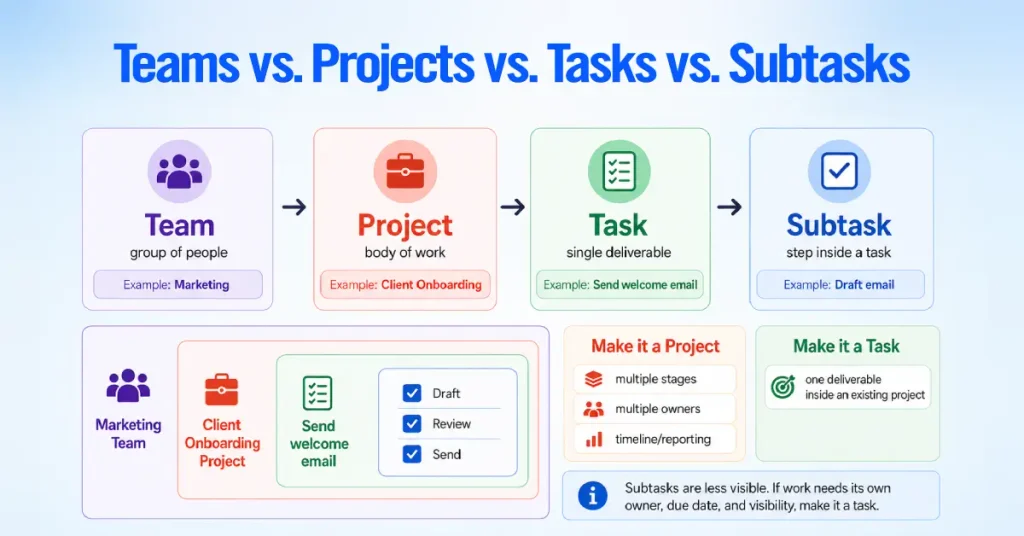
One practical caution from implementation work. By default, subtasks are hidden from the main project views, Timeline and Calendar, and Workload, per Asana’s documentation. You can surface them, for example, by expanding a parent task on Timeline or by adding a subtask that has a due date to the project so it behaves like a task, but that takes extra steps.
If a piece of work needs its own owner, deadline, and reliable visibility in reporting, it is usually cleaner as a task than a subtask. When a task accumulates many meaningful subtasks, that is often a sign it should become its own project.
When Should You Create a Project Instead of a Task?
Create a project when the work has multiple stages, multiple owners, or needs its own timeline and reporting. Create a task when the work is a single deliverable inside an existing project.
Client onboarding is a project because it has stages and several owners. Writing one onboarding email is a task inside it. A workspace with hundreds of projects, most of which could have been tasks, is one of the more common cleanups we do. Every project is something a person has to name, find, and maintain, so a project should earn its place.
Sections vs. Custom Fields vs. Tags
Use Sections to show a task’s stage, Custom Fields to store data you will filter and report on, and Tags sparingly for loose labels.
| Asana object | Use it for | Avoid using it for | Example |
| Section | A simple, project-local stage | Data you need to report on across many projects | In Review, Approved, Done |
| Custom field | Structured data for routing and reporting, including a shared stage or status | Ad hoc labels you will never filter on | Priority, Client, Stage |
| Tag | Loose, occasional labels | Anything a workflow depends on | needs-legal, quick-win |
A section answers where a task sits within one project. A custom field answers what kind of task it is, and reporting is built on custom fields, so any attribute you want to filter or chart belongs in a field rather than a tag, because tags are harder to enforce consistently and easy to misspell. The stage can live in either place.
Sections are simpler for a project-local workflow stage, while a Stage or Status custom field is the better choice when you need to filter or report on stage consistently across many projects, which Asana documents as a valid use.
How to Name Projects, Tasks, and Fields Consistently
Set naming rules before other people join, and write them down. Search, automation, and reporting all depend on predictable names.
- Projects: Lead with the client or function, then the work. “Acme Corp Onboarding” reads better in a long list than “Onboarding Acme.”
- Tasks: Start with a verb, such as “Draft welcome email,” so the owner knows the action.
- Custom fields: Keep one field per concept and reuse it across projects rather than creating “Priority,” “Priority Level,” and “Urgency” separately.
How to Manage Asana? Set Permissions and Guest Access
Set project privacy deliberately, and think about guest access at the level the collaborator actually needs. Private projects often cause automations and integrations to fail quietly because a rule or connector cannot act on a project it cannot see.
For most client-facing implementations, we recommend adding external collaborators as guests at the project level rather than the team level. Project-level access is easier to govern and keeps a client from seeing more than intended. Team-level guest access is a valid choice when an external partner genuinely needs everything shared with that team, so treat this as implementation guidance rather than a hard rule.
Either way, keep a short record of which projects are private and why, since it saves time when you audit later.
How Do You Build a Workflow in Asana?
Build a workflow by defining the trigger and the outcome first, then filling in the middle. An Asana workflow follows a clear path. Trigger, intake, assignment, status, dependencies, completion, reporting. Name the start and the end, and the middle largely takes care of itself.

Start With a Trigger and a Clear Outcome
Name what starts the work and what “done” looks like before you touch Asana. A trigger might be a submitted form, a closed deal, or a scheduled date. The outcome is the finished, verifiable result. Without a defined outcome, people mark work done at different points, and the workflow becomes hard to measure.
Build One Workflow Manually Before Automating It
Run the workflow by hand with a real request before you automate any part of it. Manual runs expose missing fields, unclear owners, and forgotten steps while they are still cheap to fix
We rarely automate a process on day one. Running it manually a few times shows where it breaks, and only then do we automate the steps that proved reliable. Automating a broken process mostly makes it break faster.
Turn a Working Process Into a Reusable Template
Convert the workflow into a project template once it has run cleanly a few times. Templates make a working process repeatable, so every new instance starts identical instead of being rebuilt from memory. This is where the manual runs pay off.
Here are the workflows we set up most often, shown by trigger, intake, owner, and completion point.
| Workflow | Trigger | Intake | Owner | Completion |
|---|---|---|---|---|
| Client onboarding | Signed contract or closed deal | Kickoff form or CRM handoff | Account or delivery lead | Client live, first deliverable sent |
| Internal request intake | Submitted request form | Asana Form with required fields | Triage owner | Request resolved and closed |
| Content production | Approved brief | Brief form plus custom fields | Content lead | Content published |
| Sales to delivery handoff | Deal marked closed-won | CRM trigger creates work in Asana | Delivery owner | Delivery kickoff complete |
| Customer success escalation | Flagged account or risk field | Escalation form or rule | CS manager | Issue resolved, account stable |
Each follows the same skeleton. Only the trigger, the intake method, and the owner change.
Which Asana Features Should You Add to Your Workflow?
Add features one at a time, each to solve a problem the workflow has actually shown. Adding features ahead of the problem is how a workspace gets complicated for no reason.
Forms standardize how work enters a project. When requests arrive by email, chat, and hallway conversation with different information each time, a Form forces every request to arrive with the fields you need to route it. They earn their place once more than a couple of people send requests to one team. For a single person handling a few requests a week, a plain task is enough.
Custom fields capture the data you route and report on. They let automations decide where a task goes and give reporting something concrete to measure. Add a field only if you will filter, route, or report on it, and reuse fields across projects so a report can span a whole team. An optional field that’s rarely filled is worse than no field, since it makes tasks look incomplete.
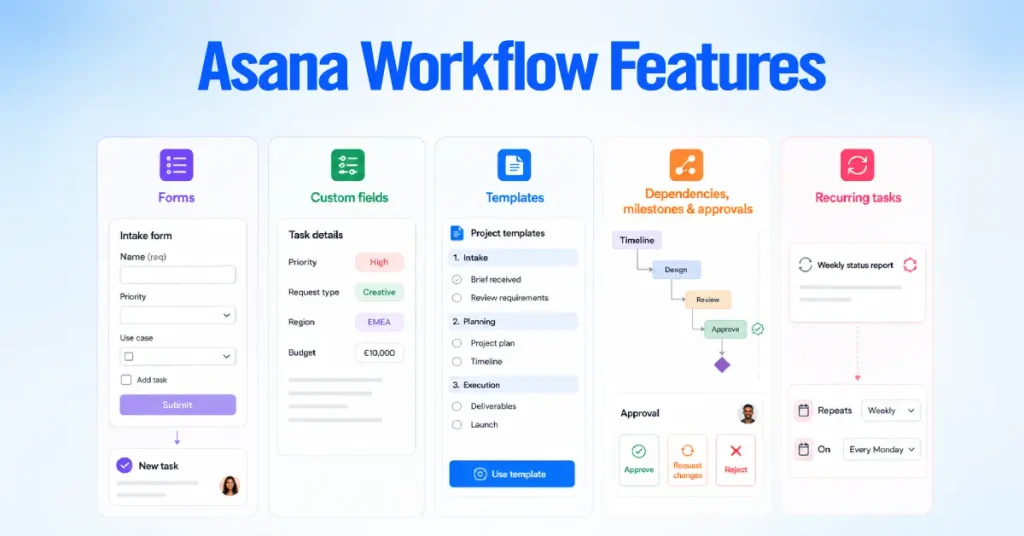
Templates turn repeatable work into a consistent starting point. A client onboarding template ensures every client gets the same experience without anyone having to remember what comes next. The trap is maintaining several near-identical templates that drift apart. One good template with sections you can delete usually beats five that diverge.
Dependencies, milestones, and approvals handle coordination. Dependencies stop work from starting before the thing it relies on is done. Milestones mark key moments for reporting. Approvals turn a review into a recorded decision. In Asana, an approval task gives the approver three outcomes: Approve, Request changes, or Reject, rather than a plain yes or no.
Worth knowing before you rely on them: all three outcomes mark the approval task complete, so anything set to depend on that approval will unblock even when changes were requested. When you need finer control over which states count as complete, a custom task type is often the cleaner choice. These features suit longer, multi-stage projects and add friction on a short task list.
Recurring tasks cover work that repeats on a schedule, such as a weekly status report, a monthly review, or standing meeting agendas. Asana creates the next occurrence only when you complete the current task, so instances never stack up into a pile of unfinished copies.
What changes between modes is how the next due date is set. A scheduled recurrence, such as every Monday, sets the next due date from the schedule, while a periodic recurrence sets it a chosen number of days after you complete the task. Recurring tasks are available on every plan, including the free Personal plan.
What Should You Automate in Asana?
Automate the handoffs that get missed when they are manual, and leave the rest alone. Asana Rules are automations made of a trigger and an action, and the goal is to remove the specific steps that stall work, not to automate everything.
The First Three Rules to Set Up
Start with three rules, because they cover the moments work most often stalls.
| Trigger | Action | Problem solved | Risk to test |
| Form submitted | Assign a triage owner | Every request gets an owner immediately | Owner is out of office or invalid |
| Task enters Review | Assign a reviewer | Review handoff is not missed | Reviewer overloaded or unavailable |
| Task becomes overdue | Notify the owner | Delayed work becomes visible | Notification volume becomes noise |
These cover intake, handoff, and visibility. Get them working before building anything more complex.
When Native Asana Rules Are Enough
Use native Rules when the whole workflow lives inside Asana. Rules handle assignment, moving tasks between sections, setting fields, adding subtasks, and sending notifications, with no external tool. For most single-team workflows, this is all you need, and the rules-based workflow builder is included from the Starter plan upward.
When to Use Zapier or Make
Reach for Zapier or Make when a workflow crosses tools that Asana’s native rules don’t cover, or when you need logic the native connector cannot express. Zapier suits simple, linear connections between two tools. Make suits branching logic, data transformation, and multi-step flows, which is why we often use it when a CRM event needs to build a full project from a template with fields mapped and owners assigned.
When API or Webhooks Make Sense
Use the Asana API or webhooks when you need real-time, custom logic that no connector handles, usually at higher volume. This route needs development resources, so it fits teams with engineering support and a stable process worth building against.
What Should Stay Manual
Keep judgment calls and consequential approvals manual. Deciding whether a deliverable is good enough, approving a budget, or handling an unusual client request belongs with a person. Automation is for predictable, rule-based steps.
The automation regret we see most often is notification overload. Rules that fire on every change bury people in alerts until they stop reading any of them. Automate the handoff, not the running commentary. Two rules acting on the same task can also work against each other, so document every rule and be able to explain what it does without opening it.
Where Does Asana AI Fit Into Your Setup?
Asana AI fits best on the repetitive, structured edges of a workflow, not as a substitute for designing the workflow. In 2026, two things are worth knowing. AI Studio is a no-code builder for embedding AI steps into your processes, available on Starter, Advanced, Enterprise, and Enterprise+ plans across Basic, Plus, and Pro tiers, and powered by OpenAI and Anthropic models under Asana’s data controls.
Separately, AI Teammates are collaborative AI agents that work across your projects. As of 2026, they are generally available as an add-on to Starter, Advanced, Enterprise, and Enterprise+ plans, and paid organizations with AI enabled also get a baseline allocation of AI usage, along with Asana Dash, a personal assistant that surfaces daily priorities. Both support a well-built process. Neither replaces the other.
When AI Studio Is Useful
Use AI Studio for classification, extraction, drafting, and spotting missing information. These are the tasks where it saves real time today.
- Classifying and routing incoming requests based on their content.
- Pulling structured details out of a long, messy intake description.
- Drafting status updates or summaries of long comment threads.
- Flagging when a task is missing information it needs to proceed.
Asana’s published case study with Morningstar describes the Retirement product team using AI Studio to automate intake and triage, which the company reports reduced its request-review timeline by about two weeks. It is a vendor case study rather than independent research, so treat it as illustrative, but it points at the right use, removing manual review at the intake edge.
What Should Still Require Human Review
Keep final decisions and client-facing output under human review. AI can draft the update, but a person should approve the message that reaches a client. AI can suggest a routing, but a person owns the outcome. Treat AI Studio and AI Teammates as capable help on the routine parts of a workflow you have already designed.
Should Asana Replace Your CRM?
For most businesses, no. Asana is not a dedicated CRM, and companies with meaningful lead management, contact records, opportunity tracking, forecasting, lifecycle reporting, and revenue operations should normally keep the CRM as the system of record for customers and revenue, while Asana runs delivery and execution.
Asana can be configured for some lightweight, CRM-adjacent tracking, so the point is not that it technically cannot hold contact data. The point is that a real revenue operation needs a tool built for it.
This distinction keeps both systems clean.
What Your CRM Should Own
Your CRM owns the customer and the money. Leads, contacts, companies, deals, revenue, and lifecycle stages belong there, because sales and revenue reporting depend on that data being complete and current in one place
What Asana Should Own
Asana owns the delivery. Projects, tasks, owners, deadlines, dependencies, approvals, and delivery status belong there. This is how work gets done and tracked, and it would clutter CRM records that sales needs to keep clean.
What Data Should Move Between Them
Move only the small set of fields both systems genuinely need. A closed deal starting a delivery project needs a few shared values, not a full copy of the customer record.
| Data | CRM | Asana | Sync direction | Reason |
| Lead and contact | Owns | Not stored | None | Customer record belongs in the CRM |
| Company or account | Owns | Reference only | One-way in | Asana needs the name for context |
| Deal and deal stage | Owns | Trigger only | One-way in | Closed-won starts the delivery work |
| Revenue and lifecycle | Owns | Not stored | None | Financial data belongs in the CRM |
| Project and task | Not stored | Owns | None | Delivery detail belongs in Asana |
| Delivery status | Reference | Owns | One-way back, optional | Sales may want a delivery-started signal |
The rule we give clients is to sync the context the workflow needs, not the entire database. A closed deal should start work in Asana. It should not turn Asana into a second, weaker copy of your CRM.
One-Way vs. Two-Way Sync
Default to one-way sync, and add two-way only where you can name the owner of each field. A two-way sync lets selected changes move in both directions, which is powerful but risky without ownership rules, because two systems editing the same field will eventually disagree and overwrite each other.
First, decide which system is the source of truth for every shared field. When the CRM owns the deal and Asana owns the delivery status, two-way sync is safe. Unclear ownership creates conflicting updates that erode trust in both tools.
How to Connect Asana to Your CRM
Connect your CRM so a closed deal automatically starts the delivery work, with clear ownership and no duplicated customer data. The shape is the same across CRMs. A deal event triggers work in Asana, an owner takes it, delivery happens, and an optional status signal goes back. What differs is how much each native connector can do on its own.
Asana and HubSpot
The HubSpot and Asana connection works well at the task level and runs in one direction, from HubSpot into Asana. There are two native paths.
Asana’s HubSpot + Asana integration lets you embed HubSpot deal and campaign widgets inside Asana tasks and use Asana Rules with HubSpot triggers, so a deal created in a pipeline, a stage change, or a deal-amount change can automatically create or update an Asana task or add a comment.

Separately, HubSpot Workflows include a native “Create an Asana task” action that passes the task title, description, assignee, due date, and destination project. Asana widened this integration in 2026, adding more HubSpot objects and trigger conditions, property-to-task-field mapping that stays updated from HubSpot, and the ability to use these HubSpot triggers inside AI Studio workflows.
- Trigger: A HubSpot deal event, such as reaching closed-won.
- What gets created: An Asana task, created or kept updated through Asana Rules or a HubSpot Workflow.
- Data to pass: Deal name, company, deal owner, and close date.
- Ownership: HubSpot owns the deal. Asana owns the delivery.
- Limitations: The native connection creates tasks, not full projects from a template, and does not write updates back to HubSpot. HubSpot Workflows also require a Professional or Enterprise HubSpot plan.
- Duplicate prevention: Trigger on a single, final stage and use a unique deal identifier so a re-fired trigger updates instead of duplicating.
To create a full project from a template on close, or to enable two-way status back to HubSpot, teams use Make, Unito, Zapier, or a custom build. Our dedicated Asana and HubSpot integration guide covers that architecture.
Asana and Salesforce
Salesforce connects to Asana natively through Asana Rules with a Salesforce trigger, on the Advanced, Enterprise, and Enterprise+ plans.
This is the important 2026 change. The legacy Asana for Salesforce AppExchange app was deprecated on February 27, 2026, after which its linked Lightning components and Apex actions stopped working, so setups built on that component need to move to the current Salesforce in Asana integration.
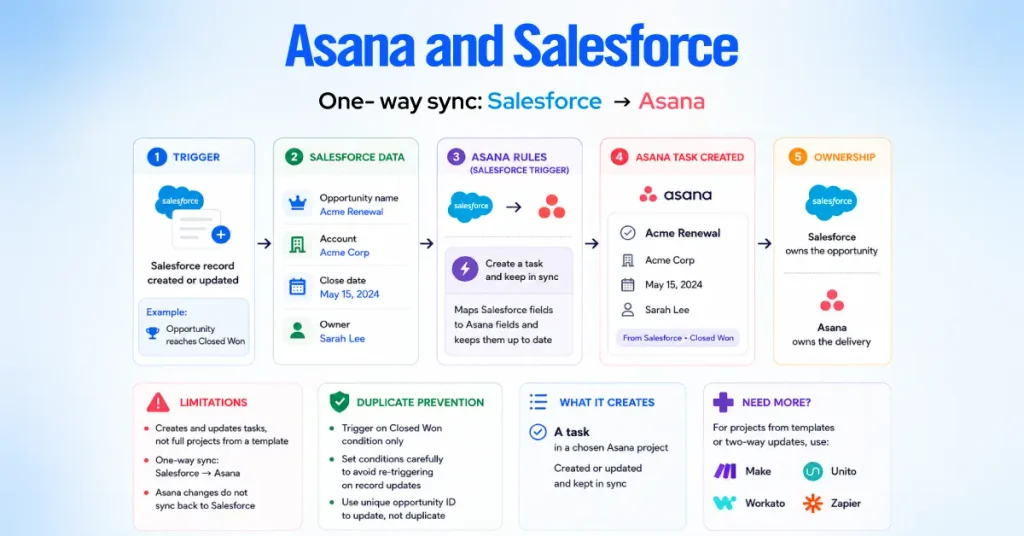
- Trigger: A Salesforce record is created or updated, with conditions, for example, an opportunity reaching closed-won.
- What gets created: A task in a chosen Asana project. The “create a task and keep in sync” action maps Salesforce fields one-to-one to Asana fields and keeps them up to date.
- Data to pass: Opportunity name, account, close date, and owner, mapped as variables into the task.
- Ownership: Salesforce owns the opportunity. Asana owns the delivery.
- Limitations: The native integration creates and updates tasks rather than full projects from a template, and it moves data one way, from Salesforce into Asana. It does not sync Asana changes back to Salesforce.
- Duplicate prevention: Fire on the closed-won condition only, and set conditions carefully so repeated record updates do not re-trigger the rule.
For creating structured projects from templates or for two-way updates, teams pair the native rules with Make, Unito, Workato, or Zapier. Our dedicated Asana and Salesforce integration guide walks through both.
Asana and Pipedrive
Pipedrive offers a native integration built by Pipedrive, connected through OAuth, with ready-made automation templates, and it can create either tasks or projects in Asana.

This is often the smoothest native CRM connection for smaller sales teams.
- Trigger: A deal marked won, moved to a stage, added as a lead, or marked lost.
- What gets created: A task or a project in Asana, with a default assignee you choose.
- Data to pass: The deal details you select, mapped into the task or project.
- Ownership: Pipedrive owns the deal. Asana owns the delivery.
- Limitations: The automation templates require Pipedrive’s Growth plan or higher, and the integration creates work from deal events rather than syncing fields both ways.
- Duplicate prevention: Use the hand-over-won-deals template on the won event only, so each deal creates work once.
Our dedicated Asana and Pipedrive integration guide covers the native templates and when to move beyond them.
How to Connect Asana With Other Business Tools
Connect only the tools that change how a workflow runs. A long list of connectors is not the goal. The integrations worth setting up remove a manual step in a process you already designed.
- Slack and Microsoft Teams: Turn conversations into tracked tasks and push the updates that need action into the channels where people already work. The caution is routing every Asana notification into chat, which recreates the overload you were trying to avoid. Send signals that need a response, not everything.
- Zapier: Connect Asana to tools with no native link for simple, one-step automations. It gets fragile when you stack many steps into one Zap, which is why you should consider Make.
- Make: Use it when a connection needs branching, data transformation, or several steps, such as a CRM event that creates a project from a template and assigns owners by rule.
- Google Drive: Attach files to tasks so deliverables live next to the work. Asana holds the task and the link. Drive holds the file.
To integrate Asana well, add each connection a workflow needs, then confirm it doesn’t flood people with notifications.
How Should You Set Up Asana Reporting?
Set up reporting after your custom fields are consistent, because a report is only as good as the data beneath it. A dashboard built on inconsistent fields produces confident, wrong numbers.
- Standardize custom fields first: Dashboards and charts read from fields, so if Priority means three different things across projects, no report can be trusted. Get the fields right, then visualize them.
- Project dashboard: track the health of a single body of work, showing status and progress inside one project. They are the right first reporting layer and are available from the Starter plan.
- Portfolios: give a clear view across projects, rolling several projects into one place so a leader can track every engagement or campaign together. Unlimited portfolios are an Advanced-plan capability.
- Workload: shows how busy each person is across projects. It works on task count by default and becomes more precise when you weight tasks by hours or points using a numeric effort field, so effort estimates are optional rather than required. Workload is available on Advanced plans and above. Subtasks aren’t counted by default, though Universal Workload can include or exclude them, so teams often promote significant subtasks to tasks for a cleaner capacity view.
- Goals: connect daily work to objectives and are most useful once teams track the underlying tasks reliably.
Common Asana Setup Mistakes
Most setup problems come from adding structure and automation faster than the process can support. These are the ones we clean up most, with what tends to happen and a better approach.
| Mistake | What tends to happen | Better setup |
| Creating too many projects | Work scatters and is hard to find | Use tasks inside fewer projects; reserve projects for multi-stage work |
| Tasks without owners or due dates | Work stalls with unclear accountability | Require an owner and a due date on each task |
| Too many custom fields | Fields go unfilled, tasks look incomplete | Keep only fields you route or report on |
| Automating before the workflow works | Rules lock in a broken process | Run the workflow manually first, then automate |
| Too many notifications | People stop reading their alerts | Automate handoffs, not every change |
| Copying CRM data into Asana | Duplicate, stale customer records | Pass the trigger, keep customer data in the CRM |
| Two-way sync without ownership rules | Systems overwrite each other | Define which system owns each field first |
| Reporting before standardizing data | Confident but incorrect numbers | Standardize fields, then build dashboards |
None of these are Asana faults. They happen when a structure grows without an owner and a plan.
How Do You Get Your Team to Actually Use Asana Workspace?
Adoption comes from a short, shared, written agreement on how your team works in Asana, not from feature training. A well-built setup that nobody follows is a failed setup.
- Write down the rules: A one-page guide covering where work goes, how tasks are named, which fields are required, and what “done” means will help your team far more than a long manual. People follow rules they can read in two minutes.
- Decide what belongs in Asana versus chat or email. Our line is that anything with an owner and a deadline belongs in Asana, and conversation belongs in Slack or email. Without that line, work hides in inboxes and direct messages.
- Tune notifications without hiding accountability. Adjust notification settings so people get fewer, more meaningful alerts through the Inbox, while every task keeps a visible owner. Reducing noise should not mean losing sight of who is responsible.
- Separate internal work from client-visible work. Clients invited as guests should see only their project, not your internal notes or capacity discussions. Keeping the two in separate projects avoids exposing internal conversation to a client.
To help your team get comfortable, point beginners to Asana Academy tutorials and the Asana Forum, and let the setup owner field questions in the first few weeks.
How Do You Test an Asana Setup Before Rollout?
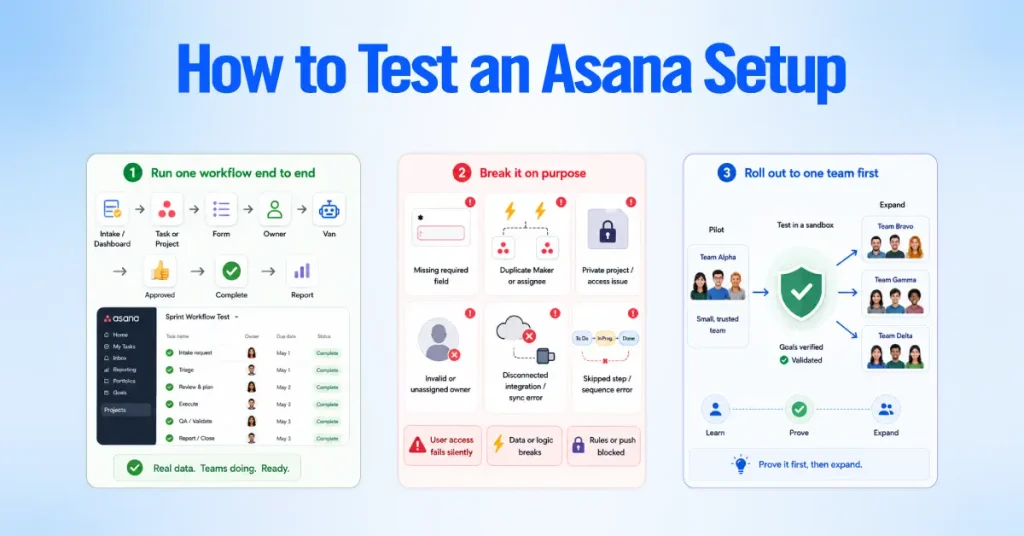
Test one complete workflow end to end, then try to break it, before you roll anything out. Launches usually fail on an untested edge case, not a missing feature.
- Run one workflow through every step with real data. Move a real request along the whole path: intake or CRM trigger, task or project, fields, owner, rule, approval, completion, reporting. If it travels cleanly, the workflow is ready. If it stalls, you have found the problem while it is still contained.
- Trigger the failure cases on purpose. Leave a required field empty. Fire a trigger twice to check for duplicate tasks or projects. Test a private project a rule or connector cannot see. Try an invalid or out-of-office assignee. Revoke a connector’s access. Move a CRM deal through stages repeatedly to confirm the trigger does not re-fire.
- Roll out one workflow to one team first. Prove it works, then expand. Launching everything to everyone at once surfaces every problem at once and drains confidence. One stable workflow becomes the model for the next.
Duplicate triggers and private projects are the two failures we see catch teams most often, because they tend to fail quietly rather than throw an obvious error.
When Should You Bring in an Asana Consultant?
Bring in help when the setup spans multiple teams, connects to your CRM, or means cleaning up a workspace that has already grown out of control. A single team running simple projects can set Asana up well using this guide. Outside help pays off when the cost of a bad structure starts compounding across teams and systems.
- Cross-team setups are where structure, permissions, and automation all have to agree, and a mistake in one breaks the chain. Designing that once is faster than untangling it later.
- CRM integration is where ownership rules, native connector limits, and two-way sync risks converge, and it is the work we do most.
- Workspace cleanup means repairing hundreds of projects, duplicate fields, and orphaned automations without breaking active work, which is often harder than a fresh build.
A proper implementation should deliver a documented, tested system, not just a configured tool. That usually means a process map, an Asana architecture, templates, forms, rules, a CRM mapping with clear ownership, permissions set for internal and client-facing work, a tested workflow with failure cases checked, and written rules your team will use.
If your setup spans multiple teams, CRM handoffs, permissions, and automated workflows, an implementation partner can help design and test the architecture before it becomes difficult to unwind. That is the focus of our Asana consulting and implementation work.